
💡 Insights
Insights gives you a live feed of AI-generated findings about your project, organised by topic, and ready to explore or share with your team.
What is Insights?
Insights is a proactive intelligence layer inside your Project. Instead of waiting for you to ask a question, the platform analyses your project schedule and surfaces findings as insight cards — each one scoped to a specific topic, time-stamped, and ready to act on. You can explore any insight further with a single click, save your favourites, and share the ones that matter to your team.
Insights is split into two views:
• My Insights — your personal, topic-filtered feed of AI-generated findings.
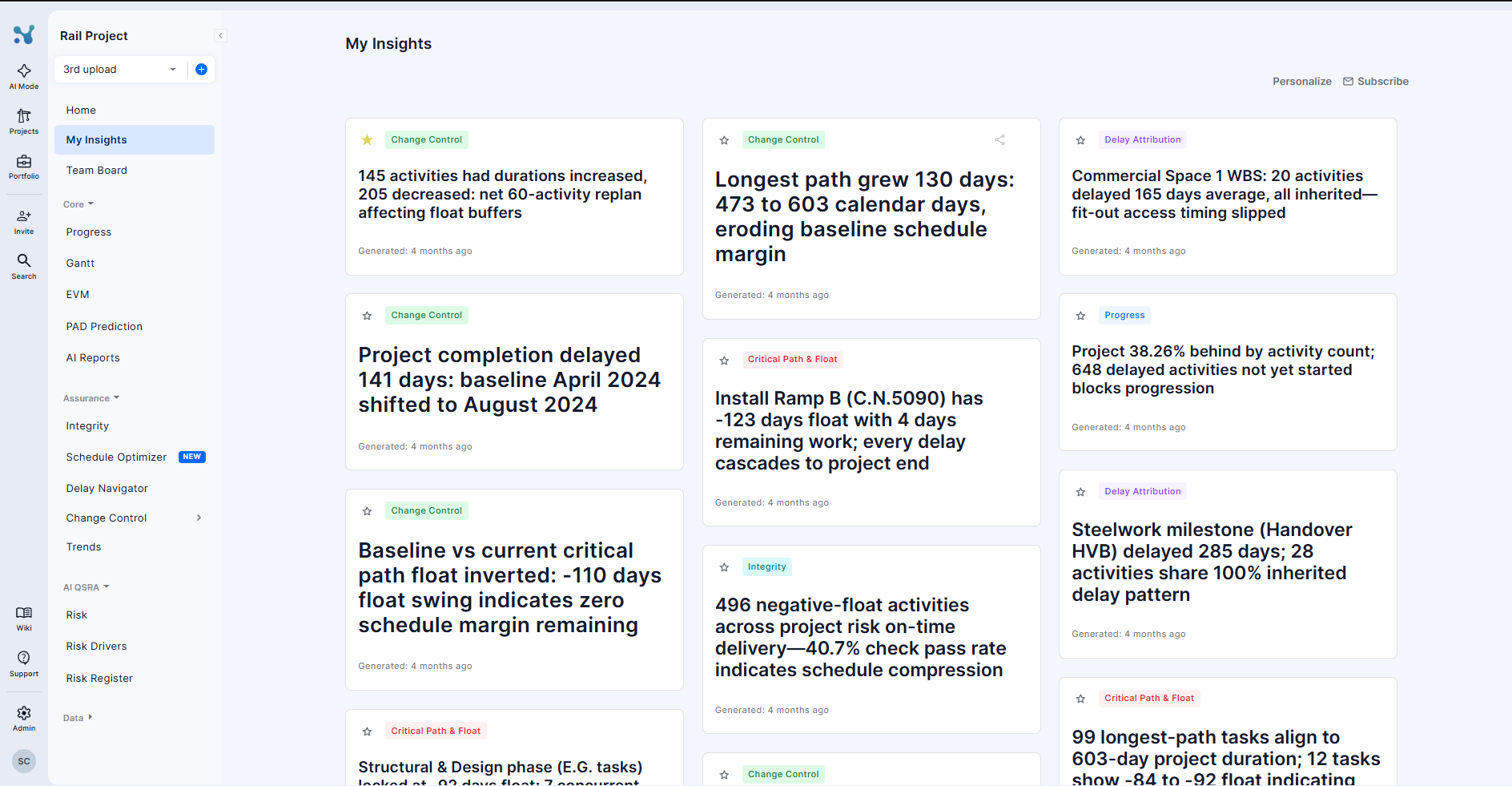
• Team Board — insights shared with your project team, visible to all members.
1. My Insights
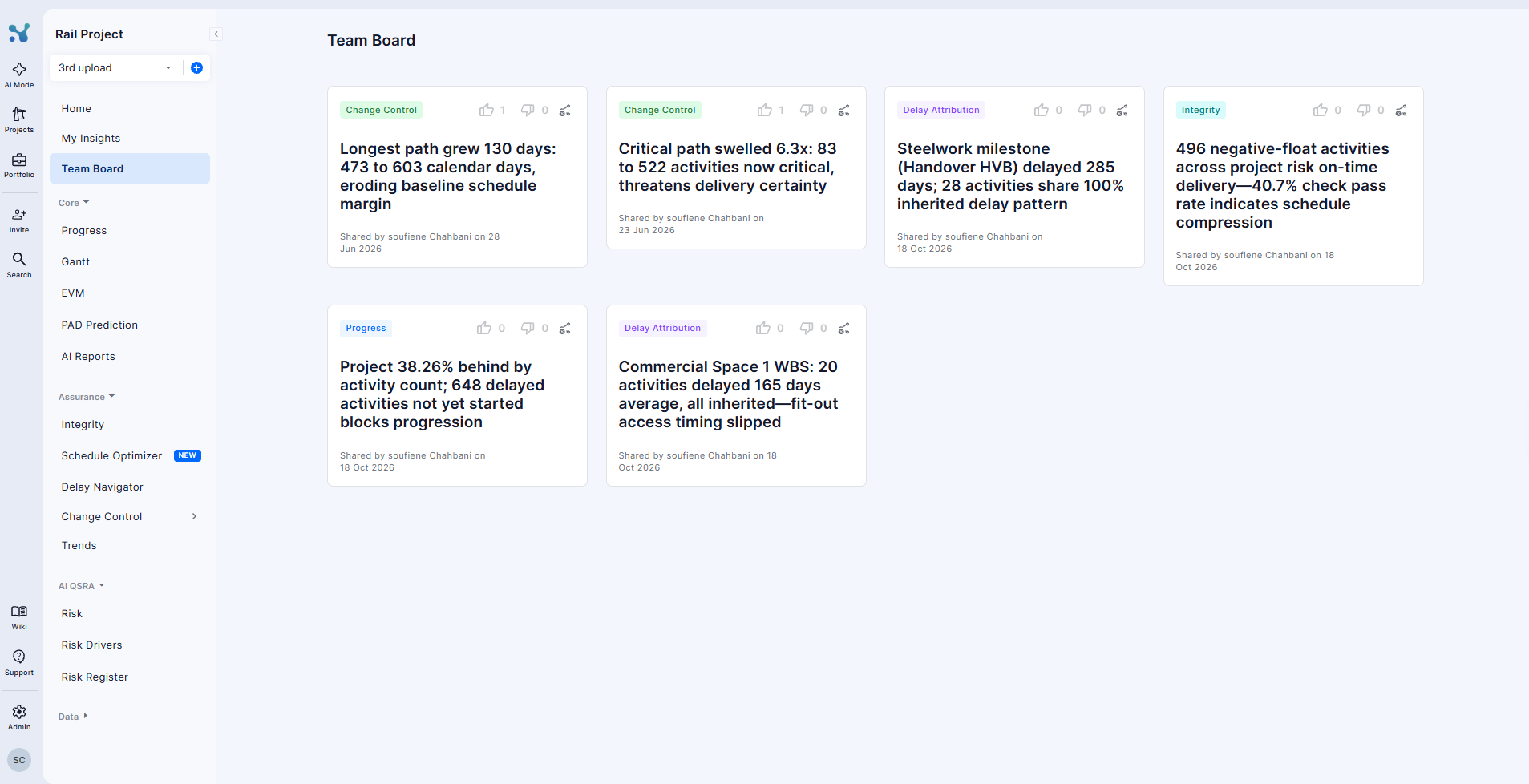
My Insights is your personal dashboard. Each time you generate insights, the AI analyses your current schedule version and returns a set of cards, each highlighting a specific finding scoped to one of your selected topics.
Generating insights
In a project under home you will find the insights page. Click Generate Insights to get your insights
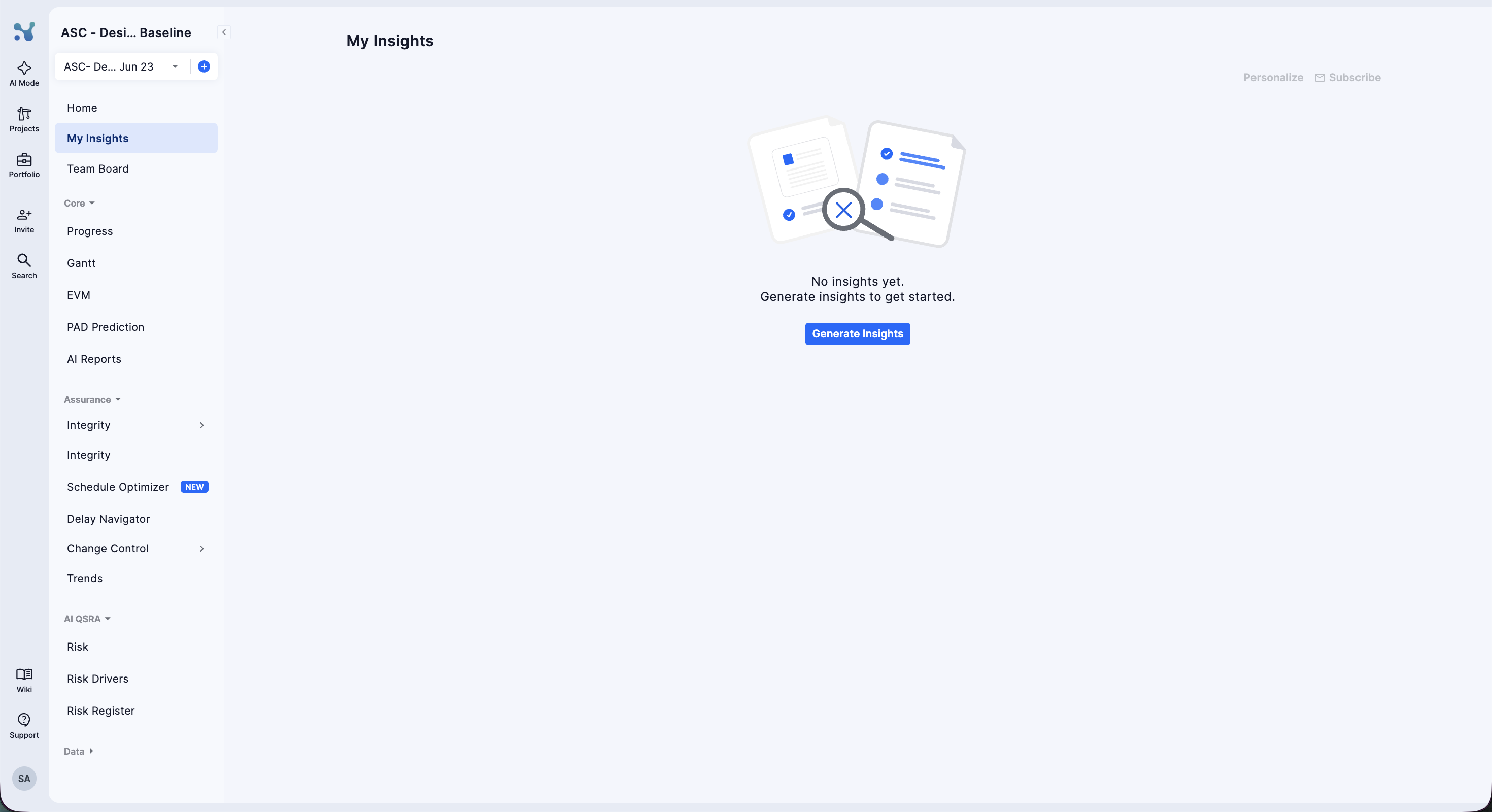
The platform analyses your current schedule version and populates the board with insight cards. Generation may take a moment.
Reading an insight card
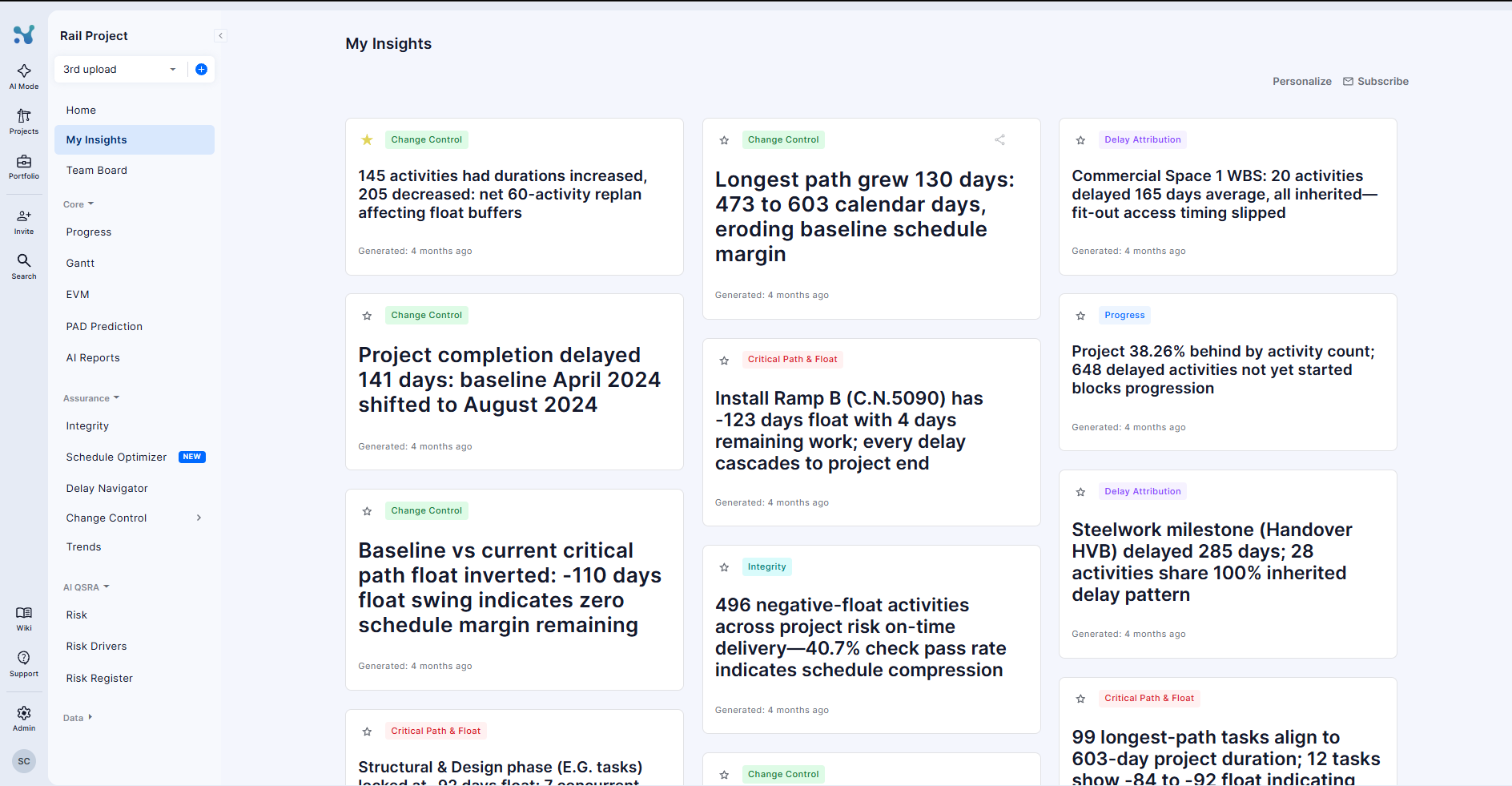
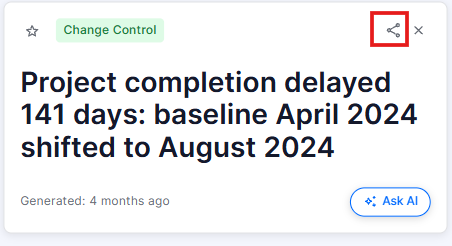
Each card shows:
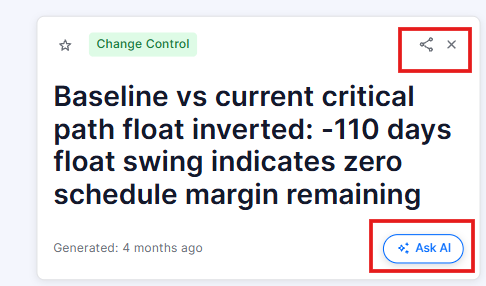
• Topic tag — a colour-coded label identifying the category (e.g. Change Control, Progress, Critical Path & Float, Integrity, Delay Attribution).
• Insight headline — a concise, data-driven finding written in plain language.
• Timestamp — when the insight was generated (e.g. "2 minutes ago").
• Star icon — click to bookmark the insight as a favourite. The star turns yellow to confirm your selection.
Hover over a card to expand it and reveal three additional actions:
• Share icon — sends the insight to the Team Board so your colleagues can see it.
• Remove icon — Removes the card from the insights pool
• Ask AI button — opens a new chat with a question pre-populated from the insight headline, so you can dive deeper immediately without typing a prompt.
Insights Chats
When you click Ask AI on an insight card, a new chat opens in chats mode. The question is pre-loaded and the AI begins processing immediately. The conversation is saved under AI mode chat section labelled with the first line of the question, so you can return to it at any time.
The response follows the same structure as a regular AI Mode chat: a collapsible Reasoning section showing each step, then the main answer with supporting tables, charts, and recommendations. You can ask follow-up questions directly in the input bar at the bottom to continue the analysis.
Personalising your topics
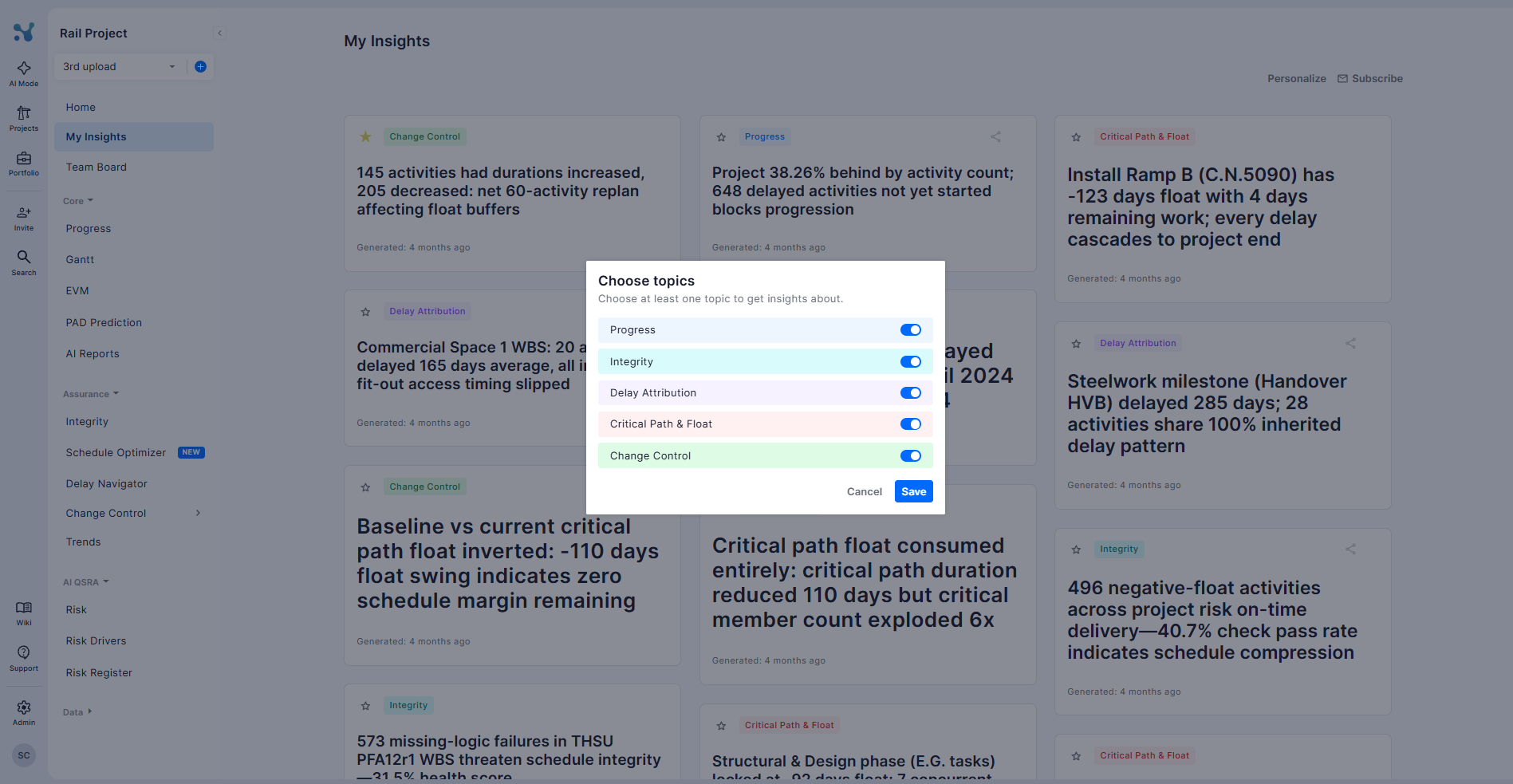
Click Personalize in the top-right corner of the My Insights page. A modal opens with five topic toggles:
• Progress
• Integrity
• Delay Attribution
• Critical Path & Float
• Change Control
You must keep at least one topic enabled. Toggle the ones you want on or off, then click Save. Your next generation will only surface insights from the selected topics.
2. Team Board
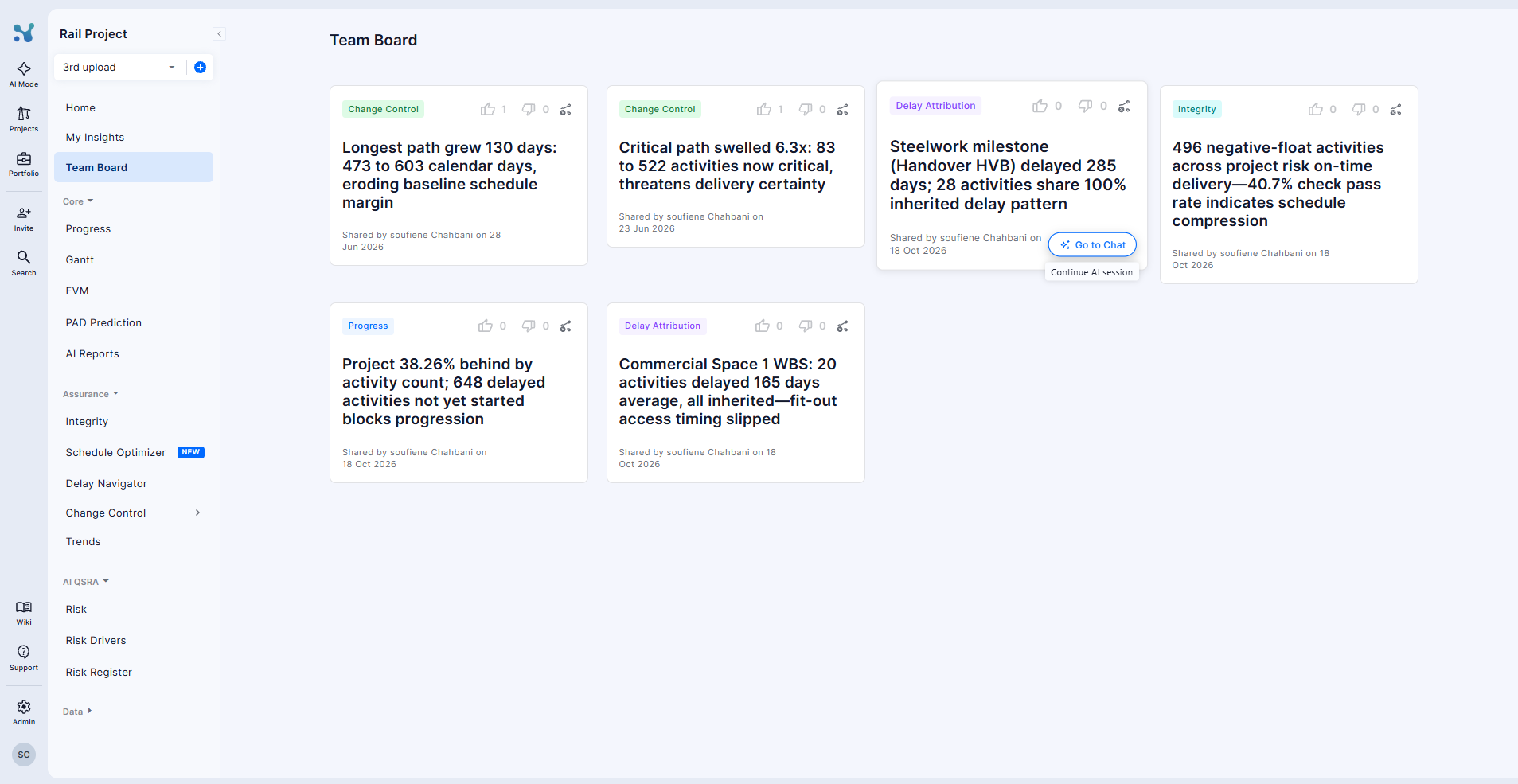
The Team Board is a shared space where project members can see insights that colleagues have chosen to surface. When a team member shares an insight from their My Insights feed, it appears here for everyone on the project.
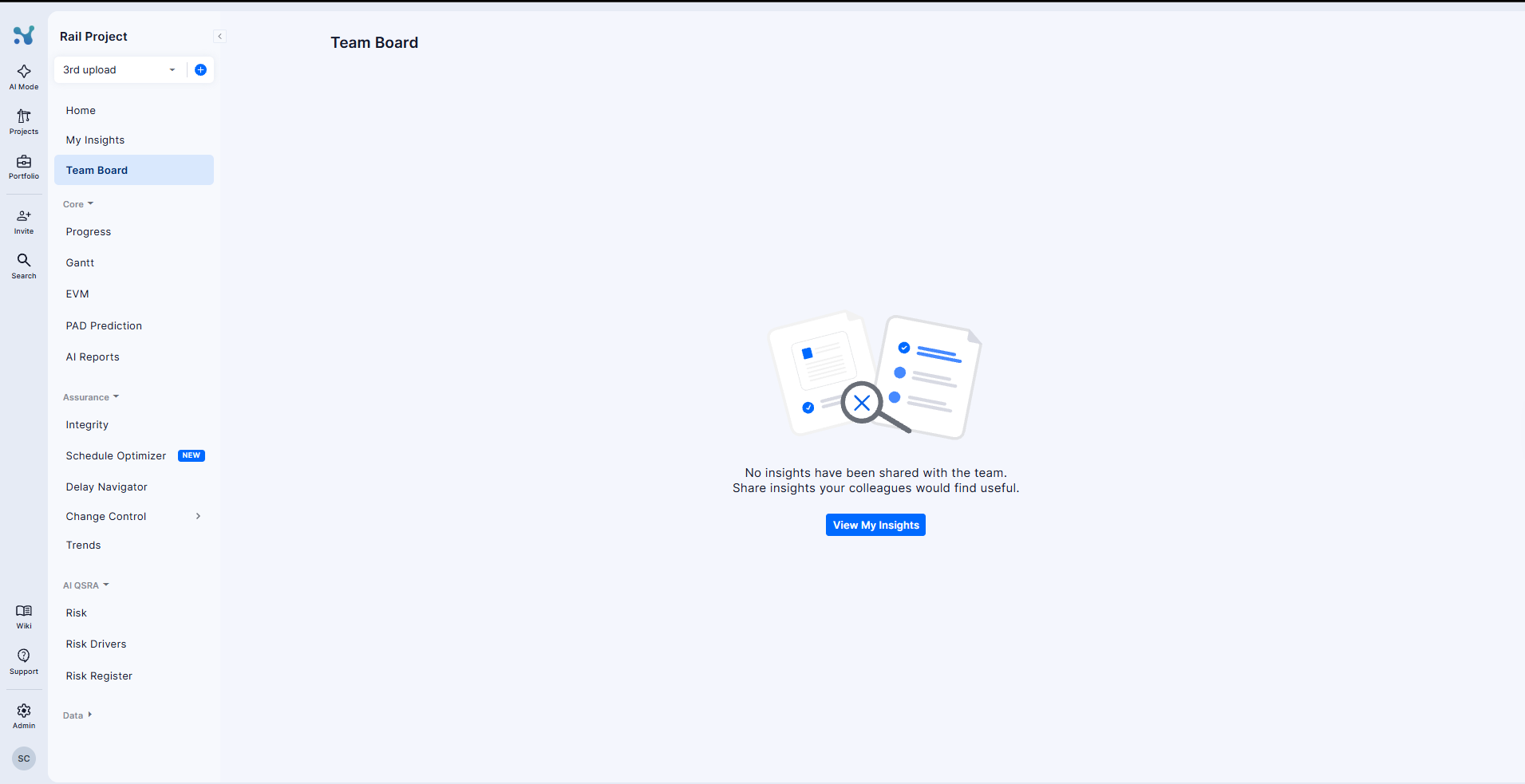
When no insights have been shared yet, the Team Board shows an empty state with a View My Insights button that takes you back to your personal feed to find insights worth sharing.
To share an insight to the Team Board:
1. Go to My Insights and click on any insight card to expand it.
2. Click the Share icon in the top-right corner of the expanded card.
3. The insight is immediately added to the Team Board and visible to all project members.
Tips for getting the most out of Insights
• Generate insights after each new upload. The board reflects the current schedule version, so regenerating after a new schedule lands gives you findings based on the latest data.
• Use the star to build a shortlist. Mark the most critical insights as favourites so they are easy to find when preparing for a meeting or status update.
• Share selectively. The Team Board works best as a curated feed. Share only the insights that require team awareness or a collective decision — not every finding.
• Use Ask AI to go deeper. The pre-populated question is a starting point. Once inside the chat, you can ask follow-up questions to drill down into specific activities, time ranges, or WBS elements.
You are ready to go!
Insights turns your schedule data into a continuous stream of findings, without you having to ask. Generate, explore, share, and let the platform keep you ahead of what your project needs. Don't hesitate to get in touch if you have any further queries!