
Global Risk Register
Take control of risk exposure across every project from one place.
This article explains how to use the Global Risk Register in the Admin Tool - from creating risk events and defining probability and impact, to applying mitigation and pushing risks out to specific projects.
Note: The Global Risk Register lives under Admin Tool > Functional Settings > Global Risk Register. Risk events created here are templates - they only affect a project once you explicitly apply them to it.
If you run many concurrent projects, you don't have to track risk separately on each one. The Global Risk Register lets you manage risk once, at the portfolio level, and apply it wherever it's relevant. Standardizing risk management this way typically brings:
- Consistent risk language - every project uses the same categories, probability scales, and impact definitions, so a "high" risk means the same thing whether it's raised on a construction site or a transformer renovation
- Portfolio-level visibility - leadership can see and compare exposure across all projects at once, rather than piecing together separate spreadsheets, which supports faster and better-informed prioritization
- Reusable risk knowledge - common or recurring risks (e.g. weather delays, supply chain disruption, permitting delays) are defined once as templates and applied wherever they're relevant, instead of being rebuilt from scratch each time
- Stronger governance and audit trails - a single source of truth makes it easier to demonstrate to auditors, regulators, or the board how risks are identified.
- Faster onboarding of new projects - new projects can inherit a baseline set of risks immediately, rather than starting risk identification from zero
This is exactly the role the Global Risk Register plays: it lets you define a risk once, describe its probability and impact consistently, optionally model mitigation, and then push it out to one, several, or every project as needed. The sections below walk through how to do this in practice.
1. Accessing the Global Risk Register
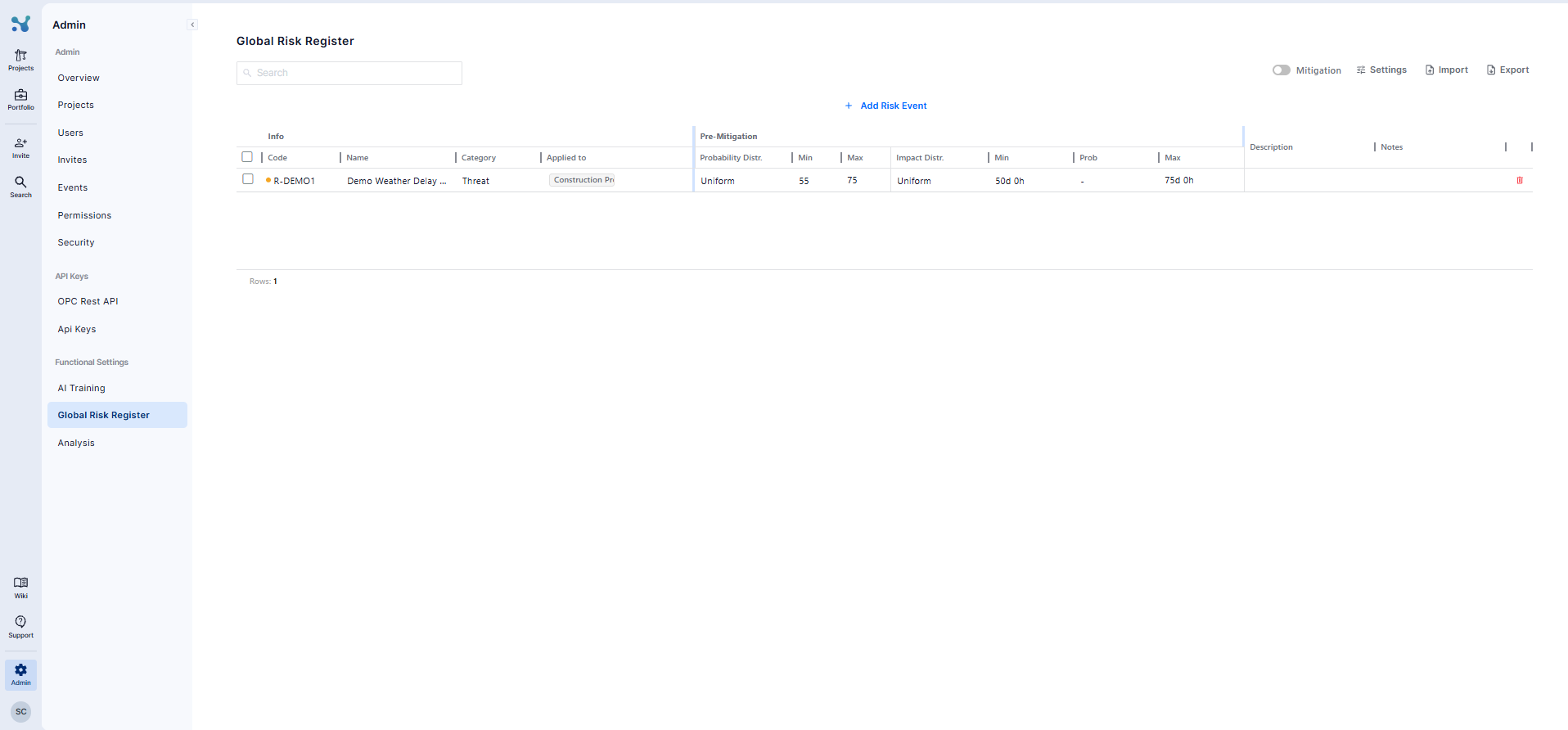
Go to Admin Tool, then under Functional Settings click Global Risk Register. This opens the register table, which lists every risk event you have defined, whether or not it has been applied to a project yet.
2. Creating a Risk Event
Click + Add Risk Event at the top of the table. A new editable row appears with default values.
Fill in the Info columns:
- Code: A short, unique identifier for the risk event, used to reference it on other pages such as Risk and Risk Drivers.
- Name: A descriptive label for the risk event, used to identify it clearly when viewing or reporting on the register.
- Category: Classify the risk event as either a Threat or an Opportunity. Threats are risk events with a negative impact on the project if they occur (i.e delays), while Opportunities are risk events with a positive impact if they occur (i.e. time saving). Note that Impact is always entered as a positive number — Category alone determines the direction the impact is applied in, not the sign of the value you enter.
- Probability Distribution: We offer two types
- Single value, e.g, 50%
- Uniform
- Probability%: The probability value.
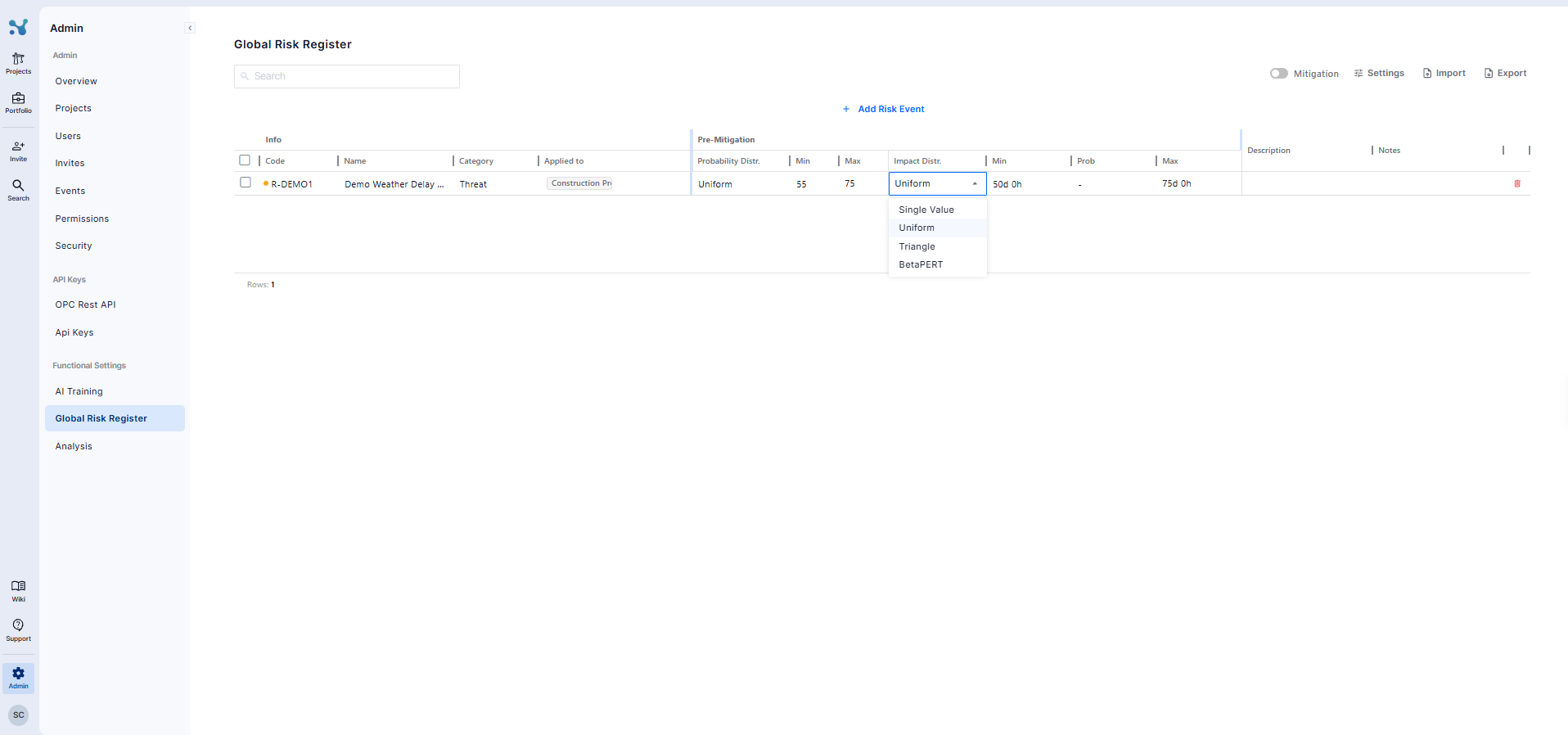
- Impact Distribution: We offer 4 types
- Single value
- Uniform
- Triangle
- BetaPERT
- Impact: The Impact value
- Description (Optional): A description of the event
- Notes (Optional): A field that can be used to keep notes about the risk event
3. Applying Mitigation
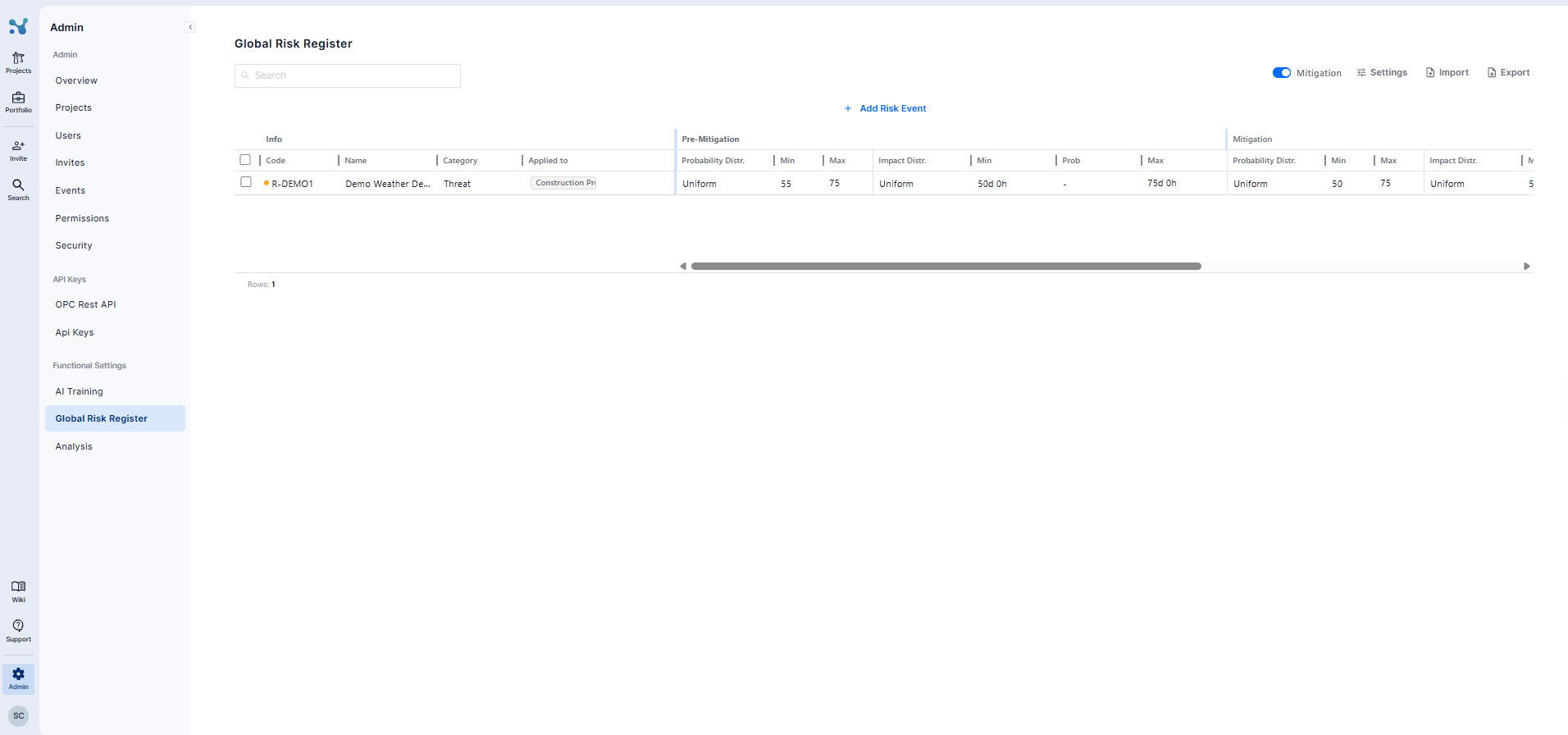
Turn on the Mitigation toggle at the top of the table to reveal a second set of impact columns (Min, Prob, Max), used to capture the risk's impact after mitigation actions are taken.
4. Applying a Risk Event to Projects
Select the checkbox next to one or more risk events in the table, then click Apply at the bottom of the screen. This opens the Apply to Project panel.
In the panel you can:
- Search for a specific project by name
- Check Select all projects to apply the risk everywhere at once
- Select one or several individual projects
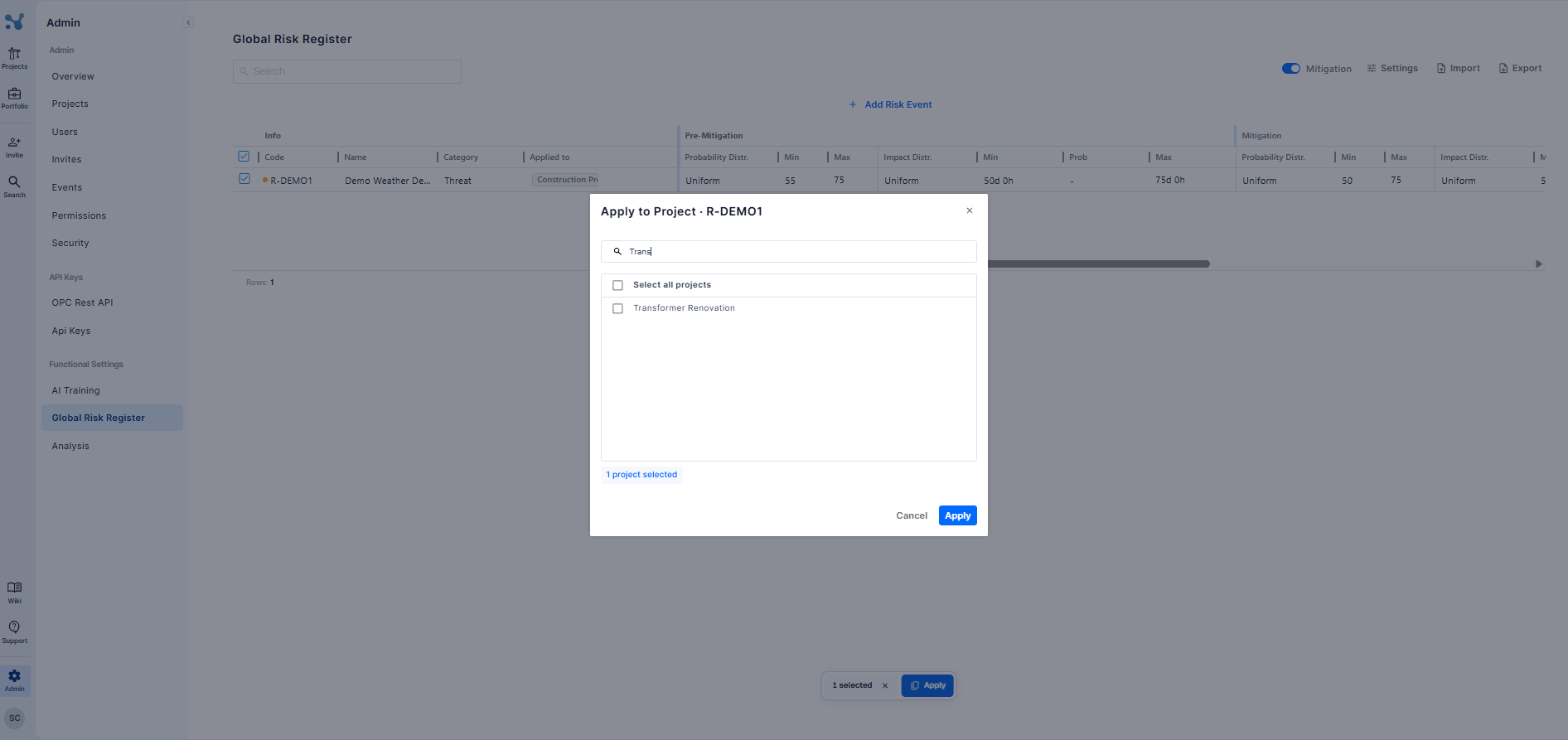
Click Apply to confirm. The Applied to column in the table then shows which projects the risk has been pushed to.
Viewing the Risk Event in the Project
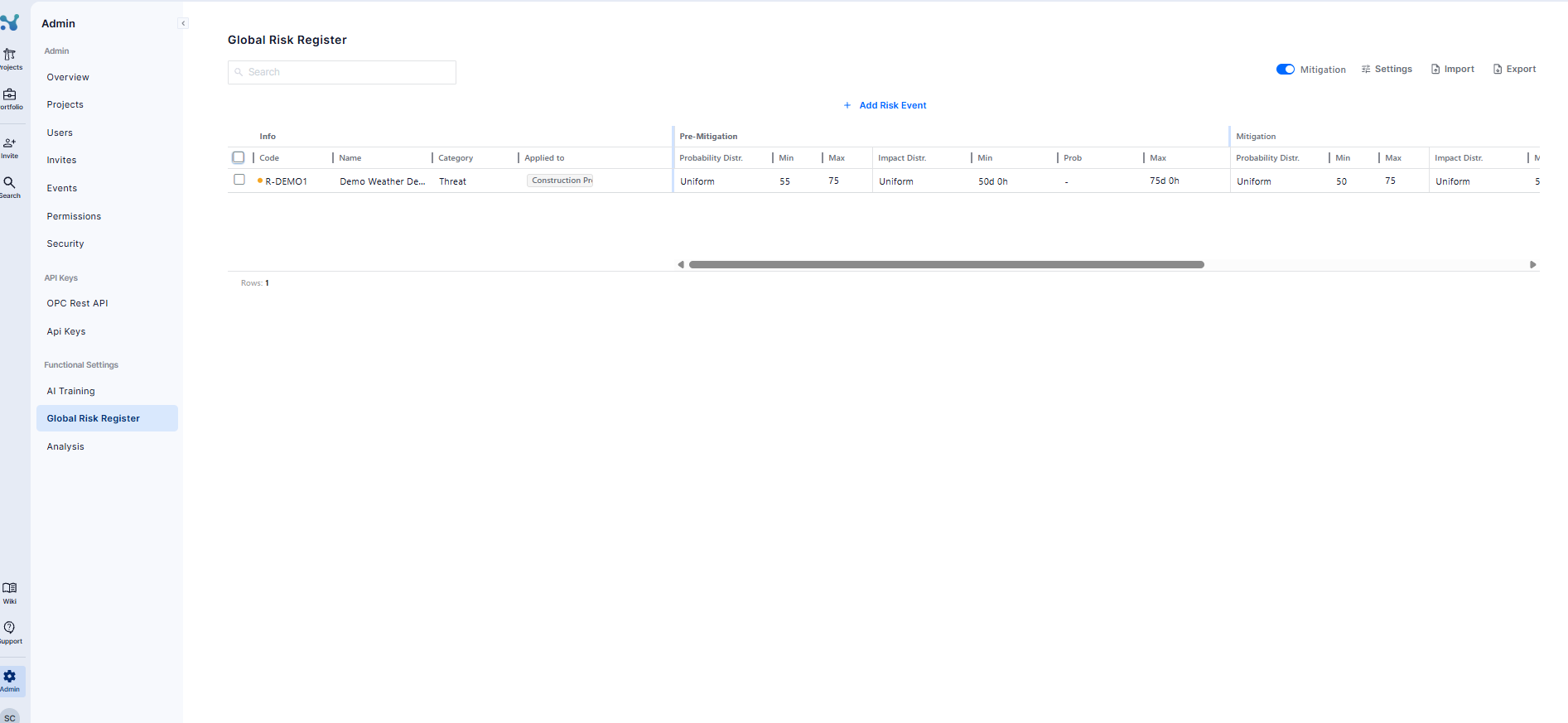
In the Global Risk Register, the "Applied to" column shows which project(s) a risk event has been pushed to as a clickable tag. Clicking that tag takes you directly to that project's own Risk Register.
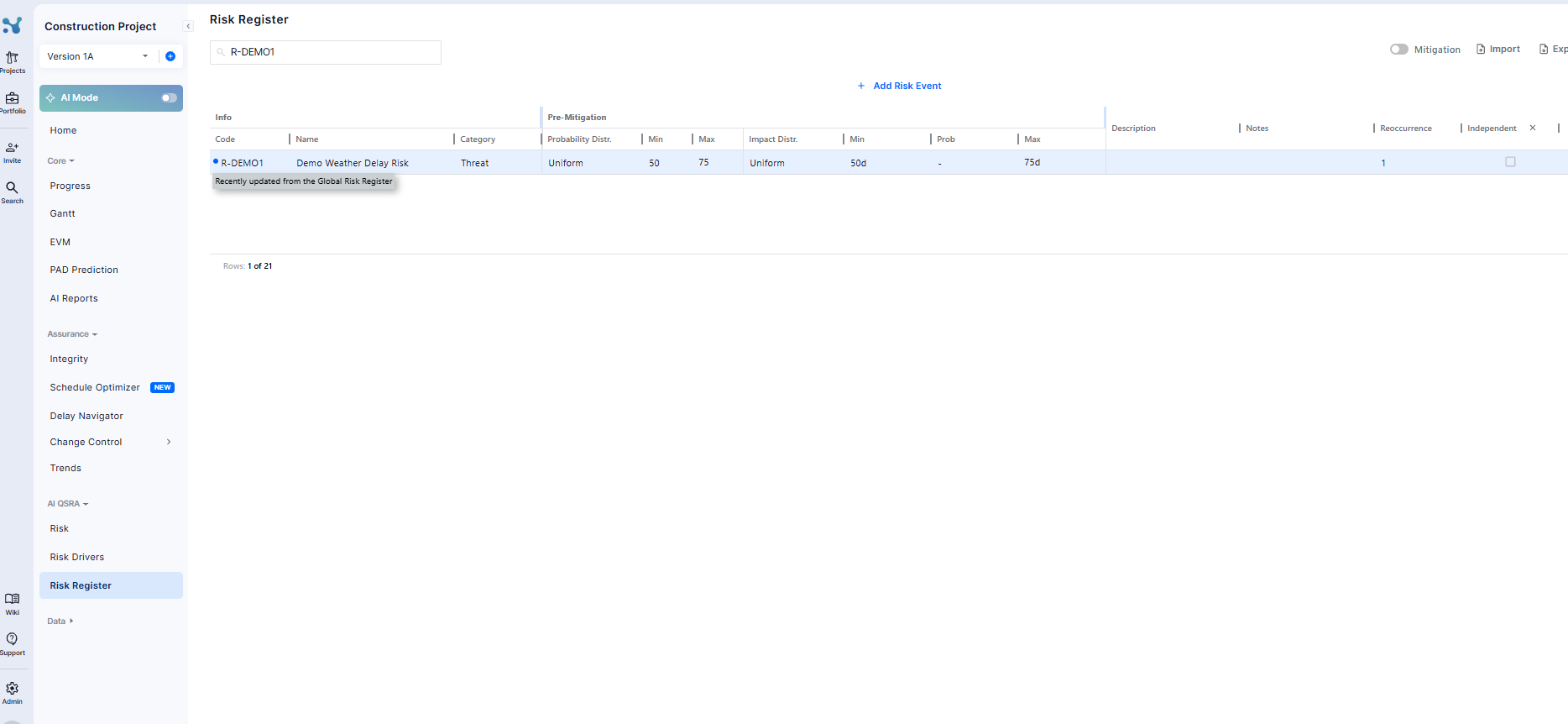
Once applied, the risk event appears as a normal row in the project's Risk Register, sorted alongside the project's other risks, with all its values (Probability Distr., Min, Max, Impact Distr., etc.) carried over exactly as defined in the Global Risk Register. From there, the project team can review or edit the risk event locally, the same way they would any other risk event created directly in the project.
Unsynced Changes
If you edit a risk event's values directly in the Global Risk Register after it has already been applied to one or more projects, those changes are not pushed automatically. An orange dot appears next to the risk event's Code to flag that it now has unsynced changes.
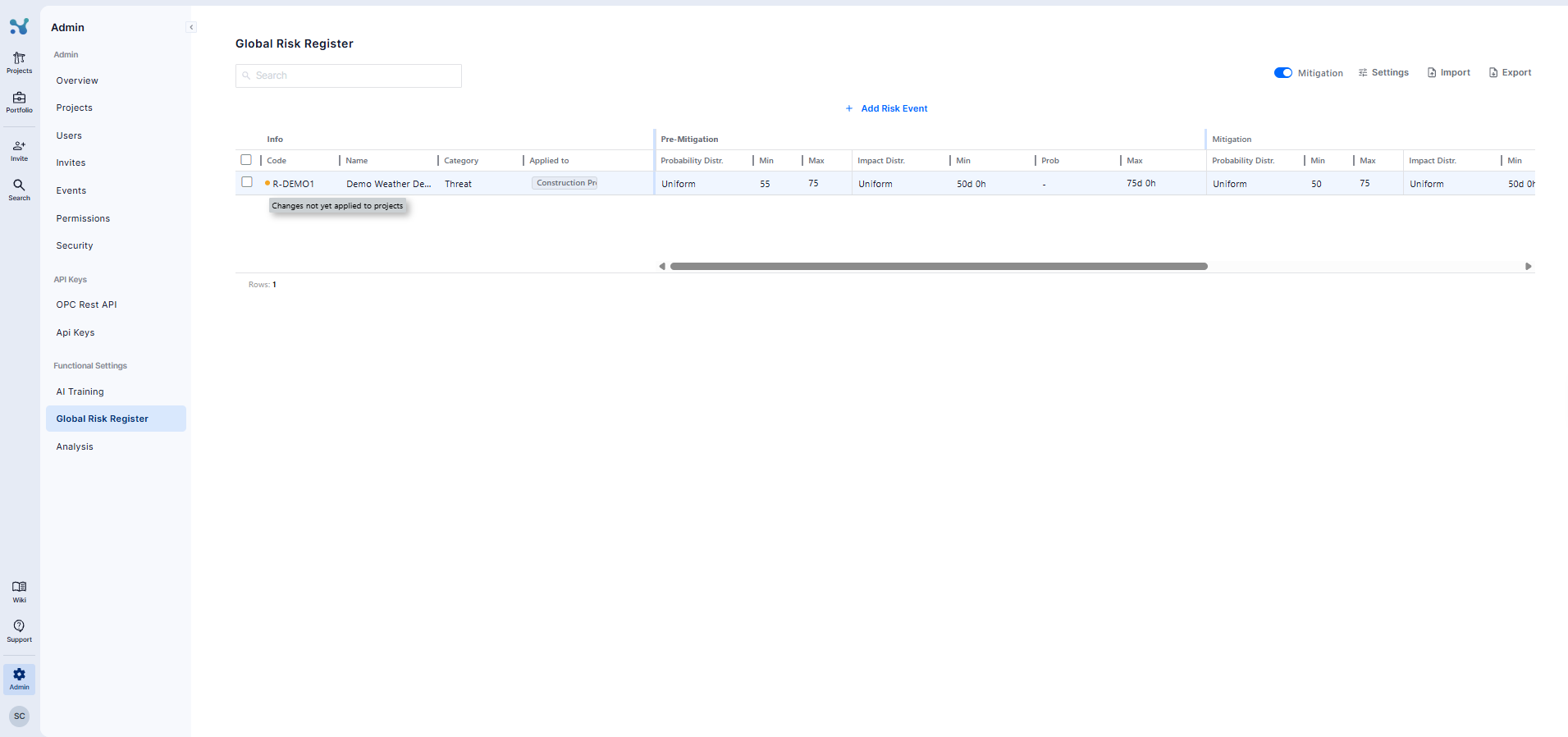
To push the updated values to the project(s) it's applied to, select the risk event's checkbox and click Apply again, then confirm the project(s) you want to update.
5. Settings, Import, and Export
Use the toolbar above the table to configure the register and move data in or out.
Settings - click Settings to open the panel and choose the impact Granularity used for time-based fields (Days, Hours, or Minutes).
Import - click Import to add risk events in bulk:
- Click Browse and upload an Excel file containing your risk events
- Use Download Template or Download Mitigation Template first if you need the correct column layout
- On the Match Column step, map your file's columns to the register's fields, then confirm to import the rows
- Note: This import flow (Upload File → Column Headers → Match Column → Error Handling) is identical to the one used in the project-level Risk Register. For a detailed walkthrough of the matching and error-fixing steps, see Importing Risk Events into N&L Risk Register
Export - click Export to download all risk events in the register as an Excel file, useful for offline review, reporting, or as a backup before a bulk import.
Summary
The Global Risk Register gives you a single place to define, quantify, and manage risk across your entire portfolio. Once you're comfortable with the basics, remember:
- Risk events are templates - creating one here does not affect any project until you Apply it
- Use the Mitigation toggle to track both pre- and post-mitigation impact side by side
- Import and Export make it easy to manage risk events in bulk, especially when migrating data from spreadsheets
With these tools, you can standardize how risk is assessed across projects and keep your register consistent and audit-ready.