Manage a project
Overview
Once a project has been created, you can manage its schedule versions, update its details, control project access, open AI mode, and delete the project when required.
Add a schedule version
Add a new schedule version when you need to upload a revised or updated schedule to an existing project.
You can upload a new version in two ways:
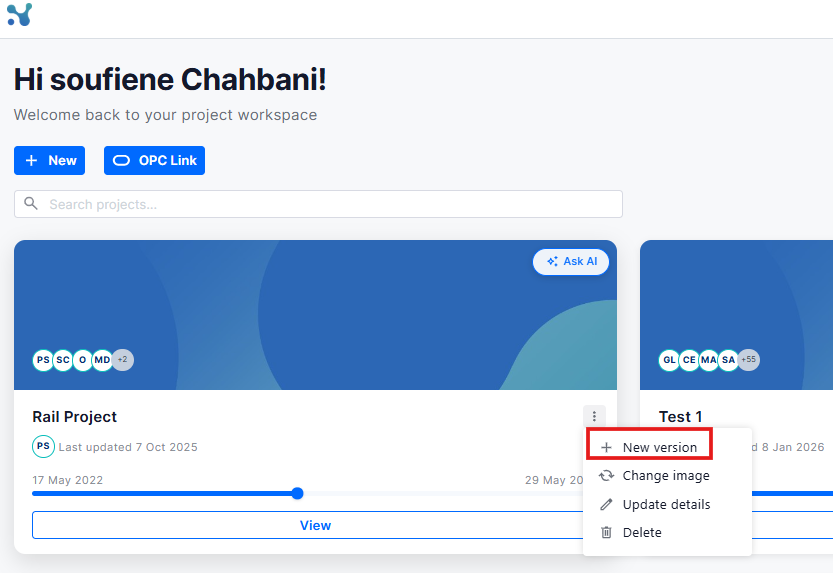
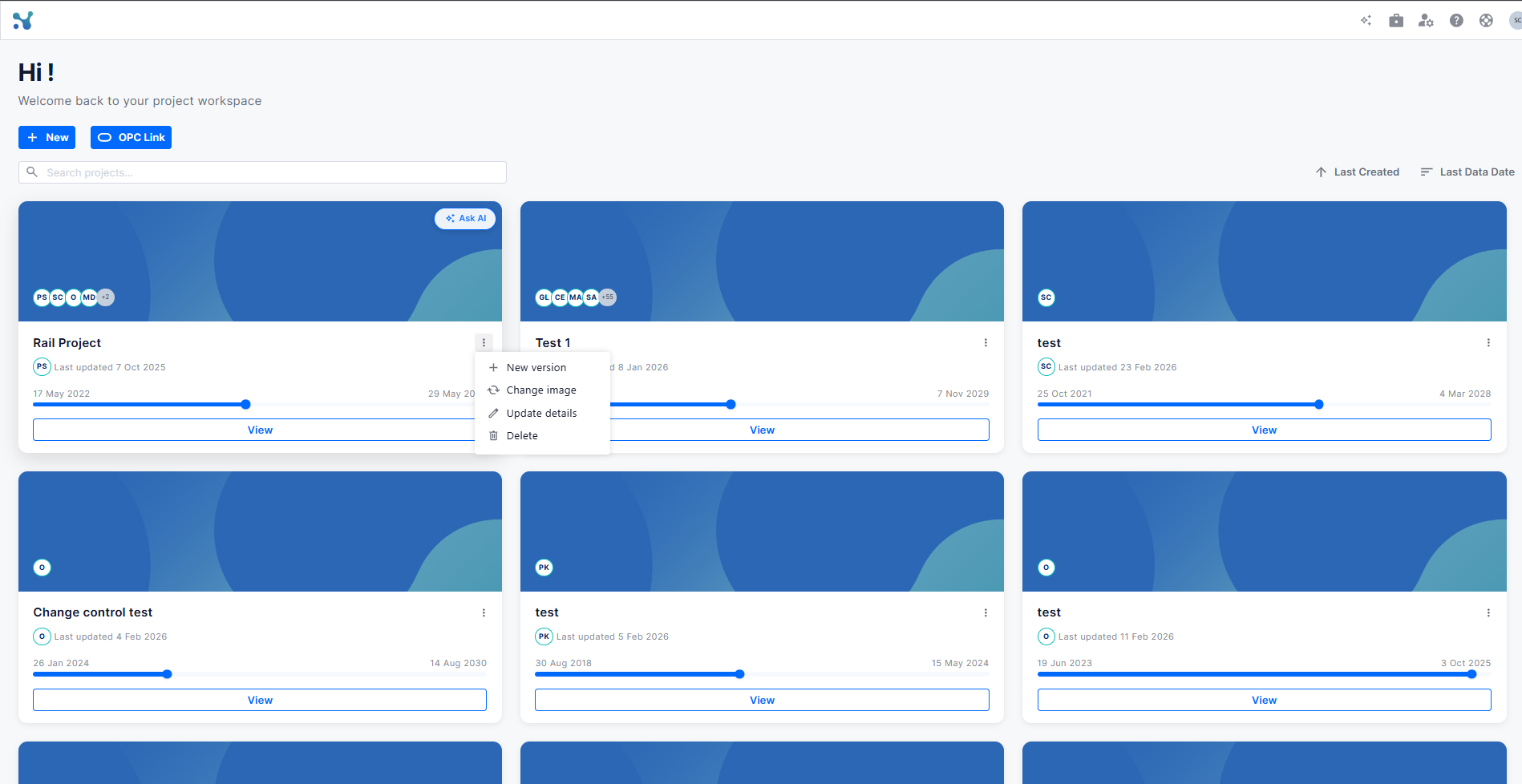
- From the Projects Dashboard: Click the three-dot menu on the relevant project card and select New version.
- From inside the project: Click the + button in the left-side navigation bar.
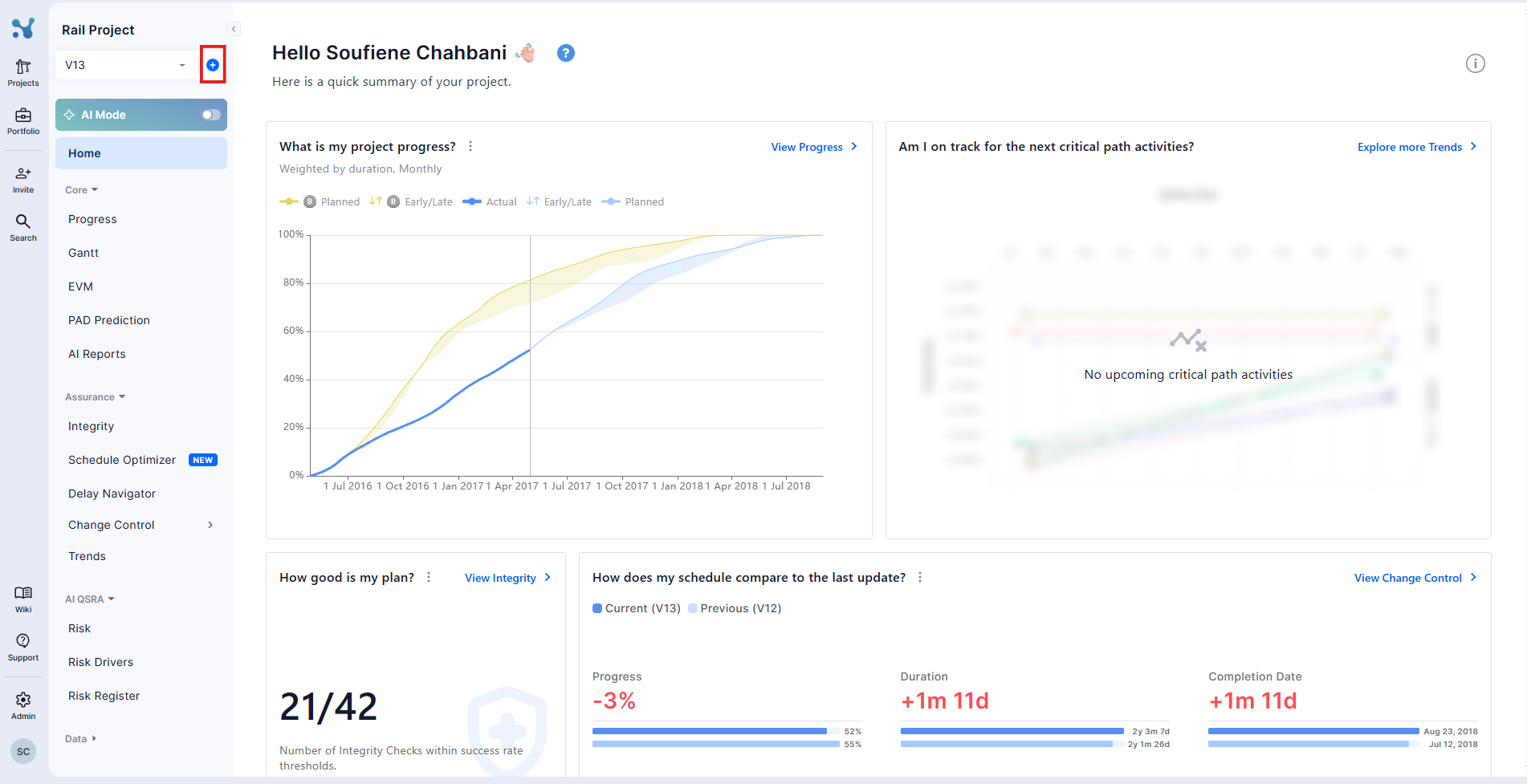
In both cases, upload the new schedule file or files to create additional project versions. You can upload up to 10 new schedule versions at a time.
Manage project versions
Use the version selector in the top-left corner of the project view to review and manage uploaded versions.
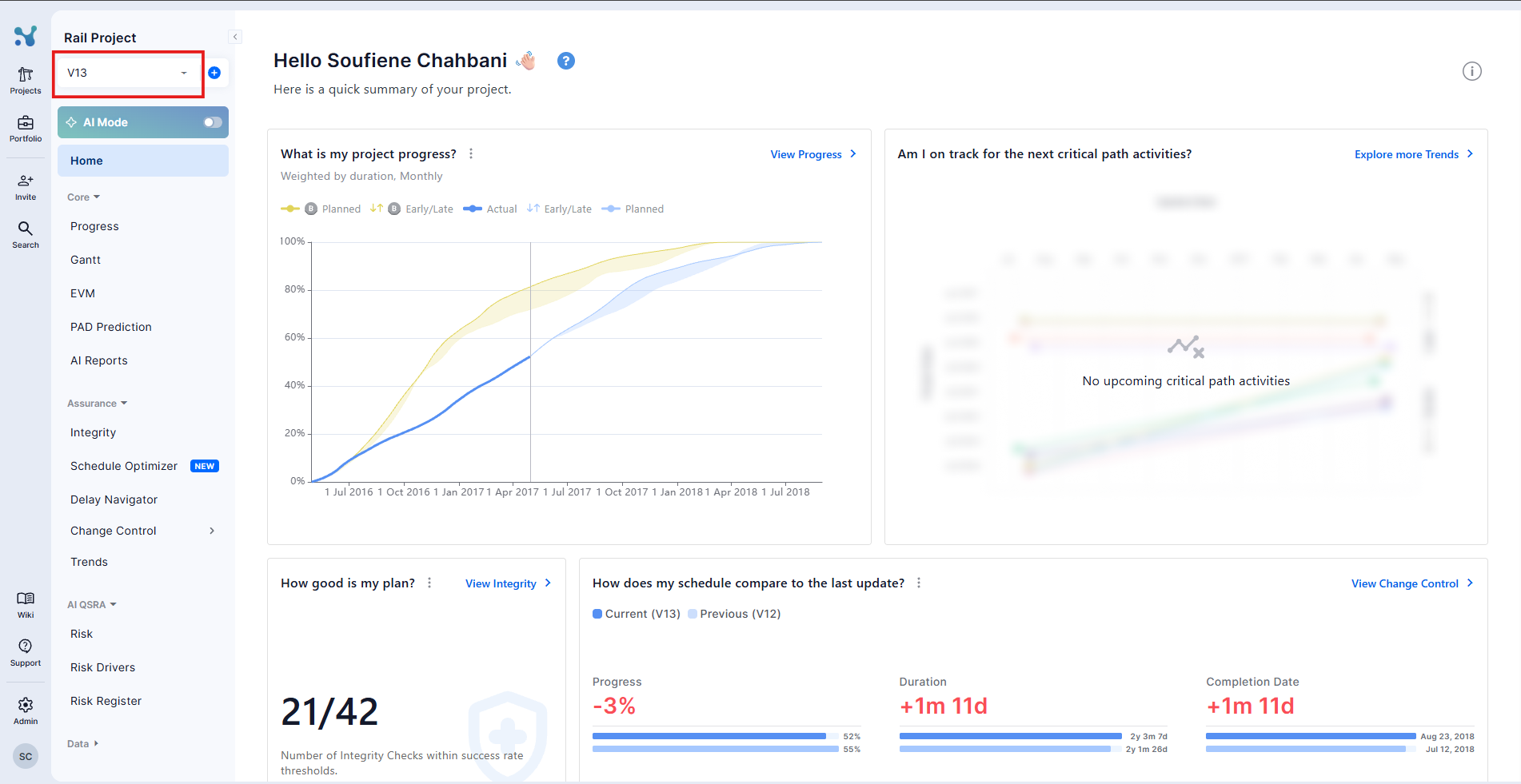
Each version displays:
- Version name, such as Rev0 or Rev3
- Upload date
- The user who uploaded it
- Data Date
- Status tag: Selected, Baseline, or Latest
Hover over a version in the list to reveal the available actions:
- Pencil: Update the version description
- Bin: Permanently delete the version
- Arrows: Set the selected version as the project baseline

Update project details
Use the three-dot menu on a project card in the Projects Dashboard to manage project-level settings. Available actions include:
- New version - upload a new schedule file to this project
- Change image - update the project card cover image
- Update details - edit the project name or description
- Delete - permanently delete the project
Manage project users
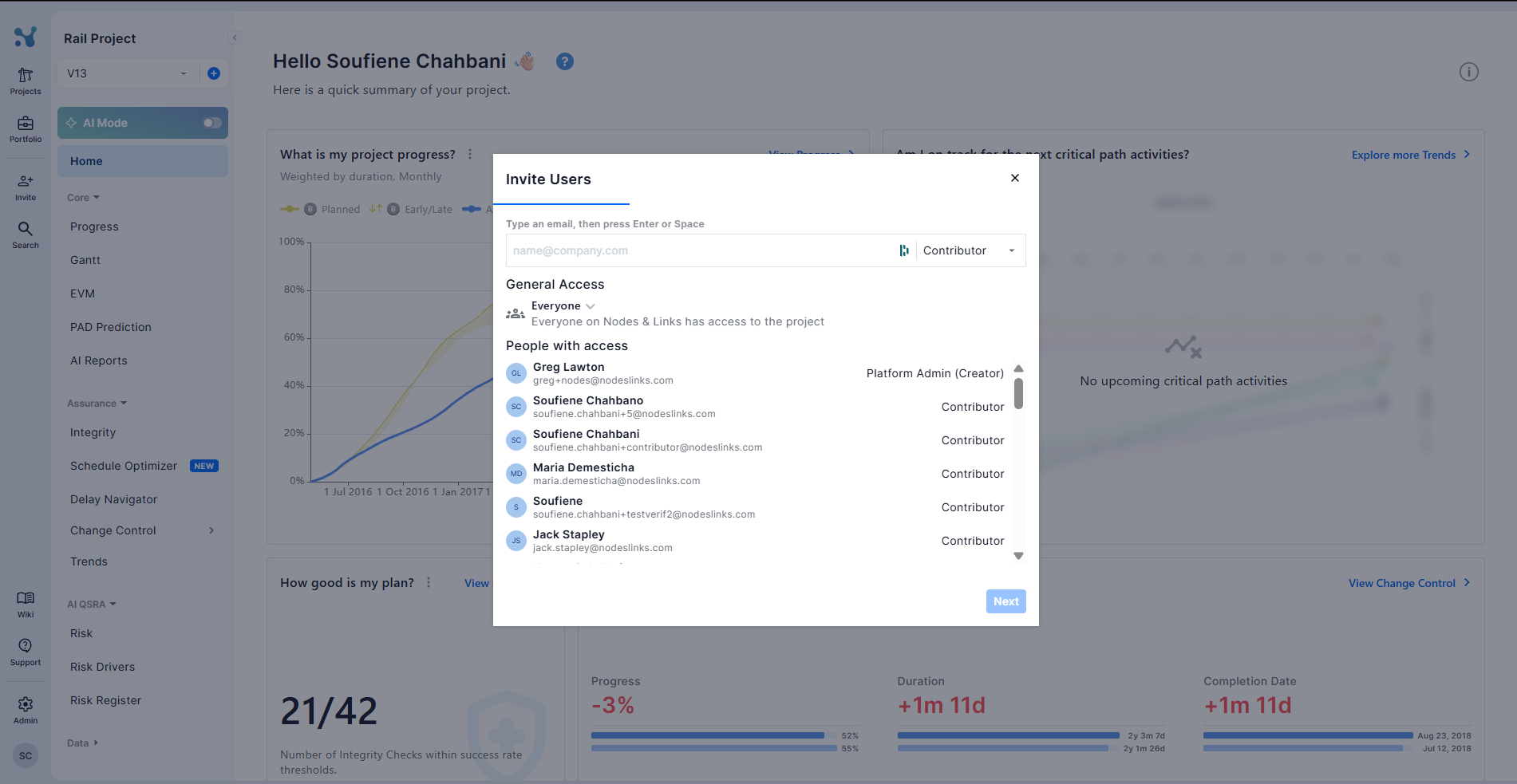
Click the Invite button from side navigation bar. The Edit Members panel shows:
- Invite field
- General Access setting (Restricted or Everyone)
- List of all people with access and their roles
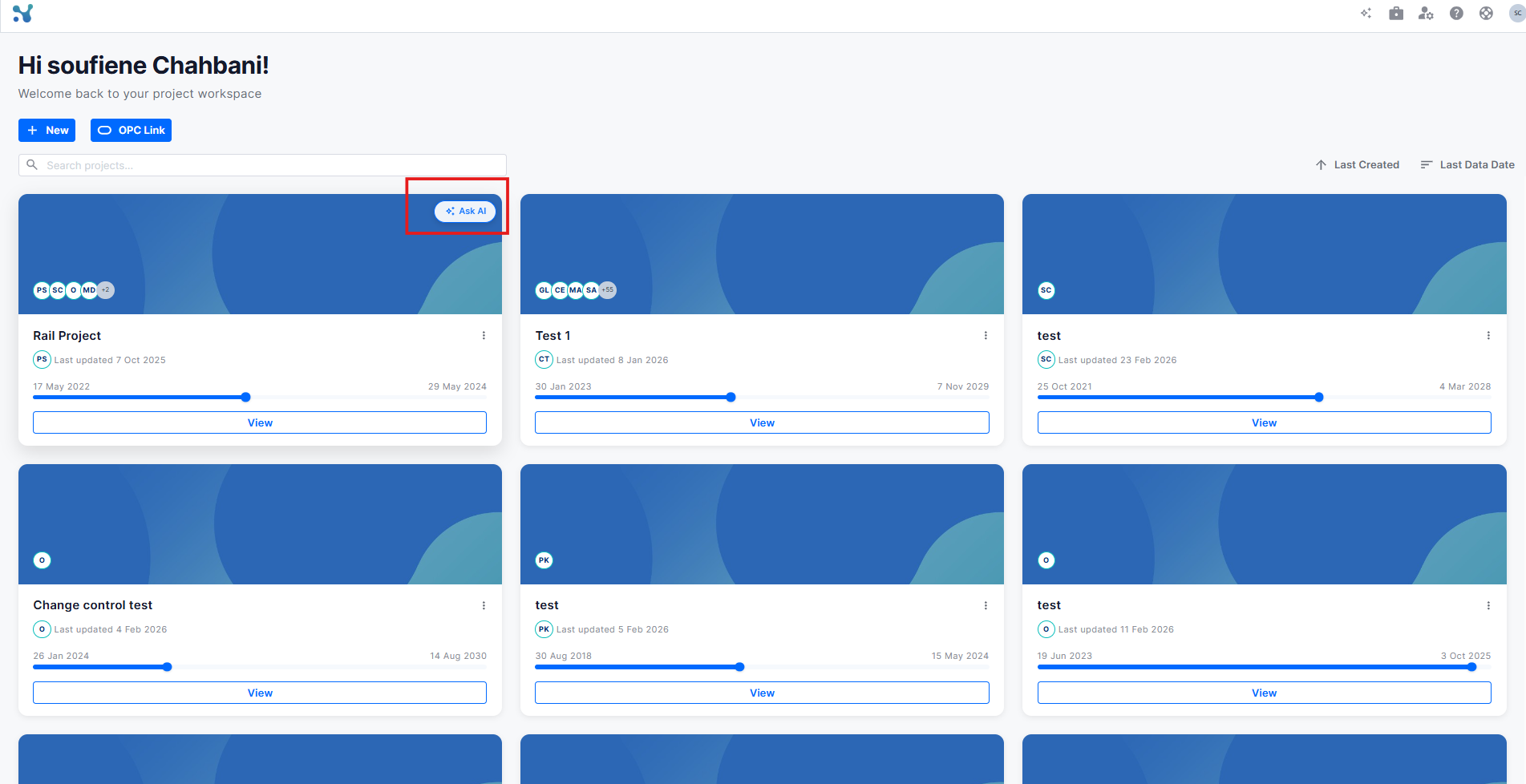
Use Ask AI
From the Projects Dashboard, hover over a project card and click Ask AI. This opens the project in AI mode, where you can ask questions about the project and its schedule data.