
🏥 Integrity
In this piece, you’ll learn how to quickly
- Check the quality of your schedule
- Download the list of activities failing a specific test
- Set your own success and failure criteria
- Compare your project against the workspace default and reset to it in one click
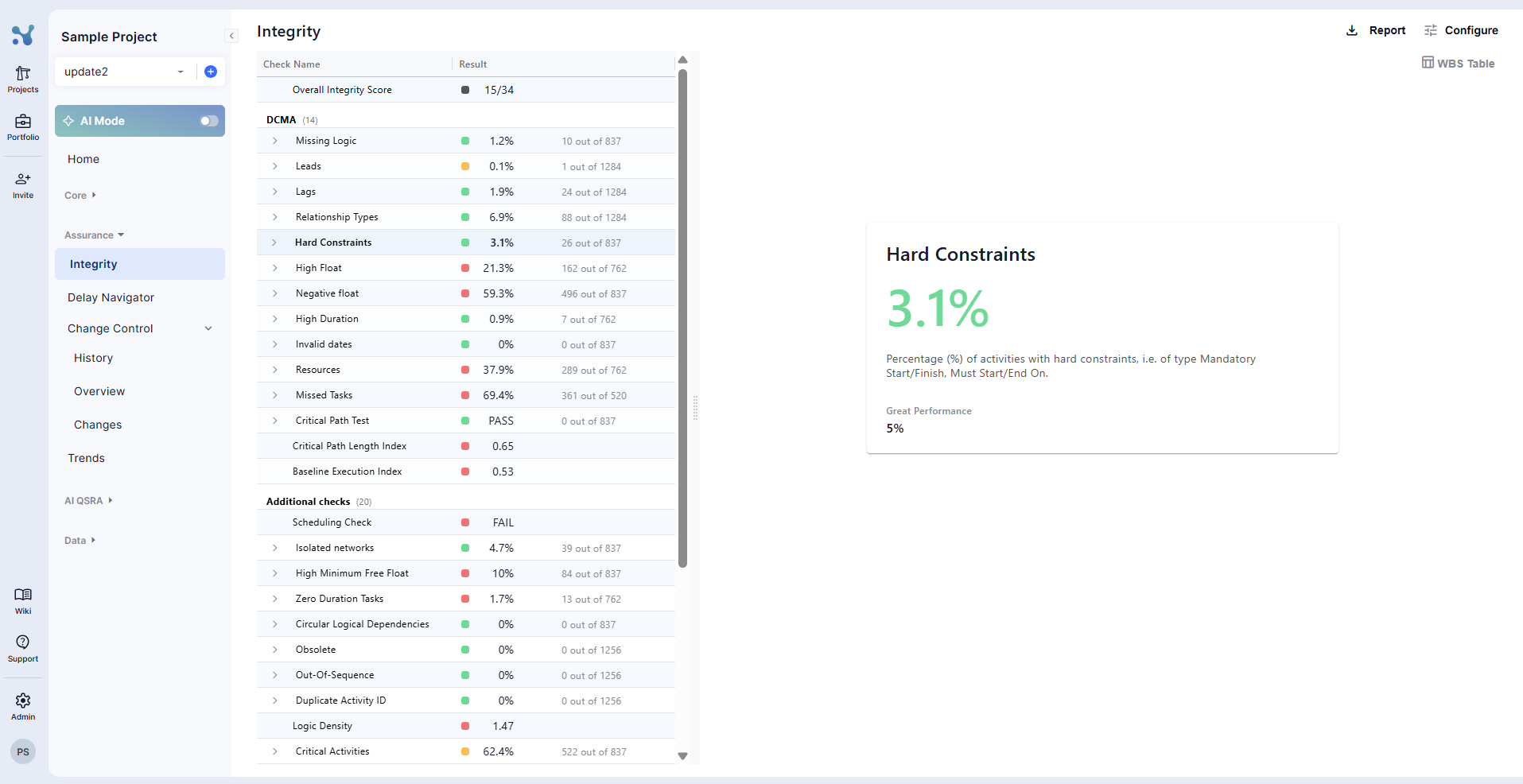
Overall Integrity score
When you are entering the screen you will see an overall Integrity score of your projects. There are two modes for this score, which you can select in the settings.
- Cut off: Show you how many Integrity checks are passing
- Average: Shows you an average score of all the Integrity checks ( passing and failing)
- Activity based: Number of Activities successfully passed all integrity checks.
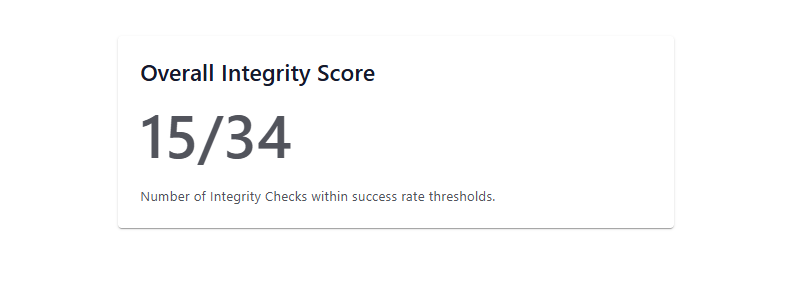
You can make a Integrity check not count towards the Overall Integrity score by clicking on the “Visibility” switch for each check.
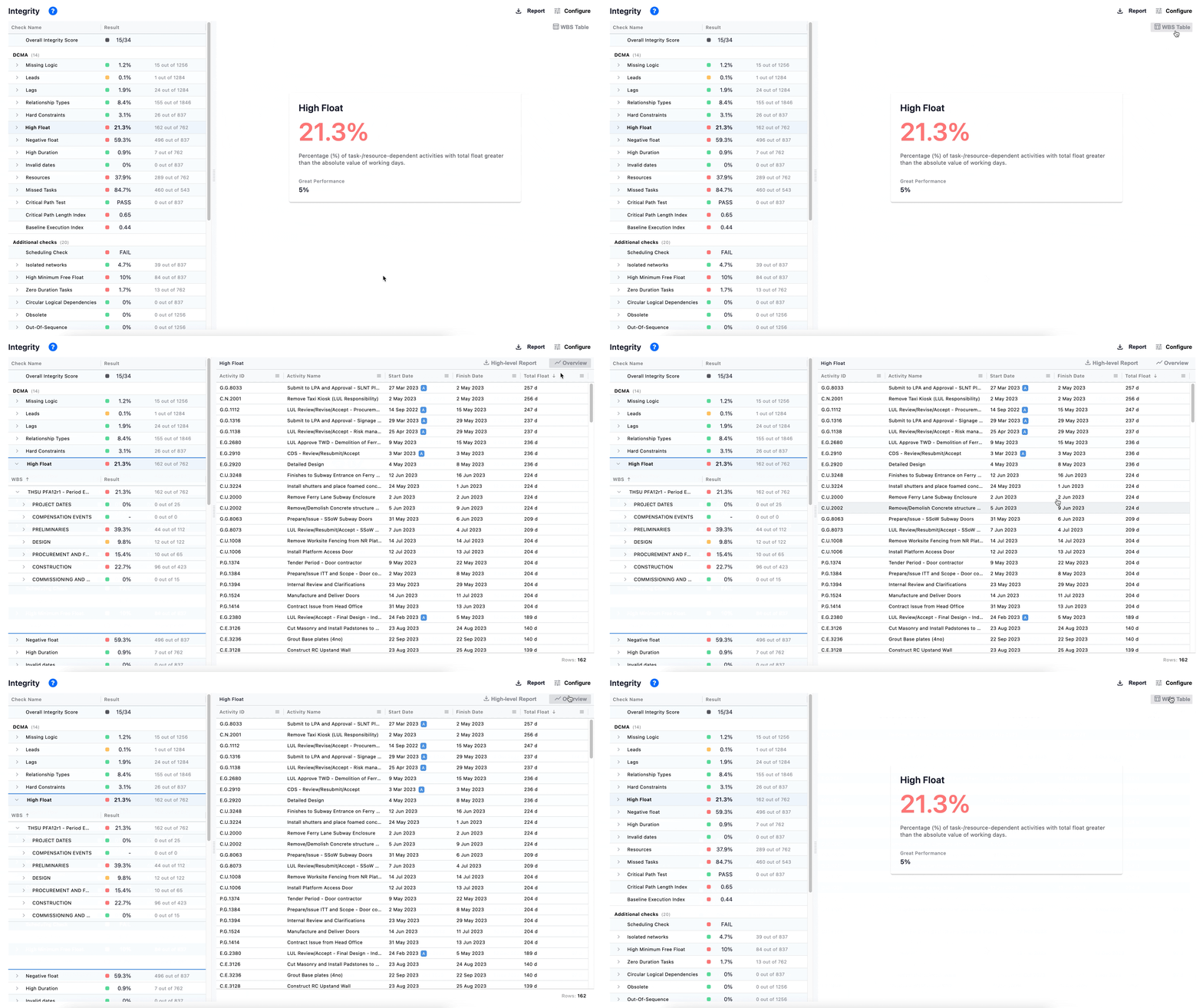
Switch between high level overview and table view
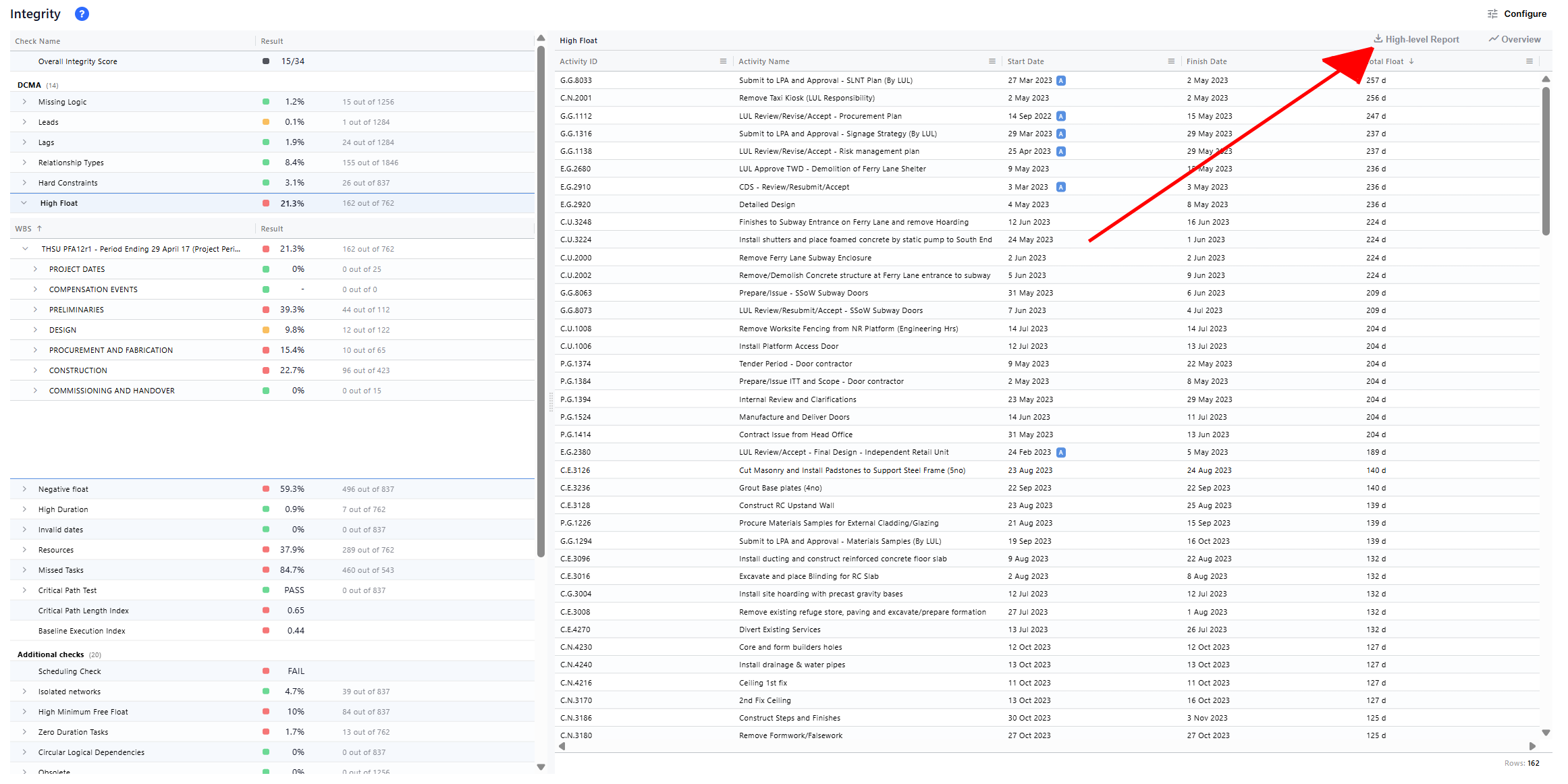
By clicking the "WBS table" at the top right you can see all the activities that are failing a test. You can go back to the overview mode where you see just the score by clicking the "overview" button.
Check the quality of your schedule
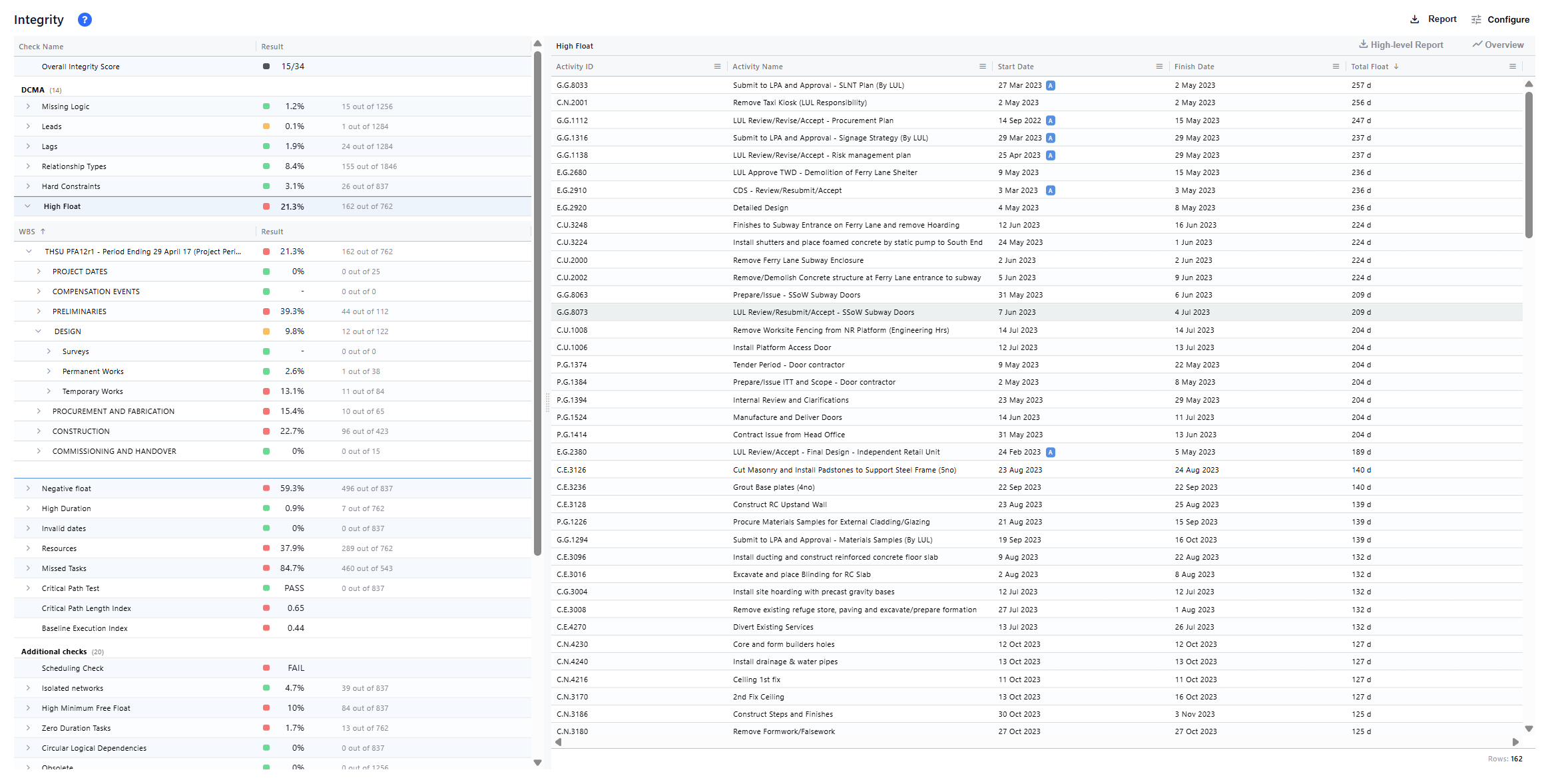
Using a simple color code (Green, Yellow, and Red), this screen allows you to assess your schedule quality on different WBS levels.
Using the color codes, you can prioritise the checks that fail the most, and for each check, you spot the WBS that performs best (and worst).
Go from a bird's eye view to individual activities fast. Just select the check and WBS that you care about, and a table will appear on the right-hand side, which includes all the activities that fail that particular check.
Technical note: You can find details for each check by clicking on the button ‘Check information’, including changing the threshold
Download the list of activities failing a specific test
You can easily download the list of activities that fail a specific test- just click on the check (and WBS) that you care about and then click on the download icon. That’s it - simple!
Set your own success and failure criteria
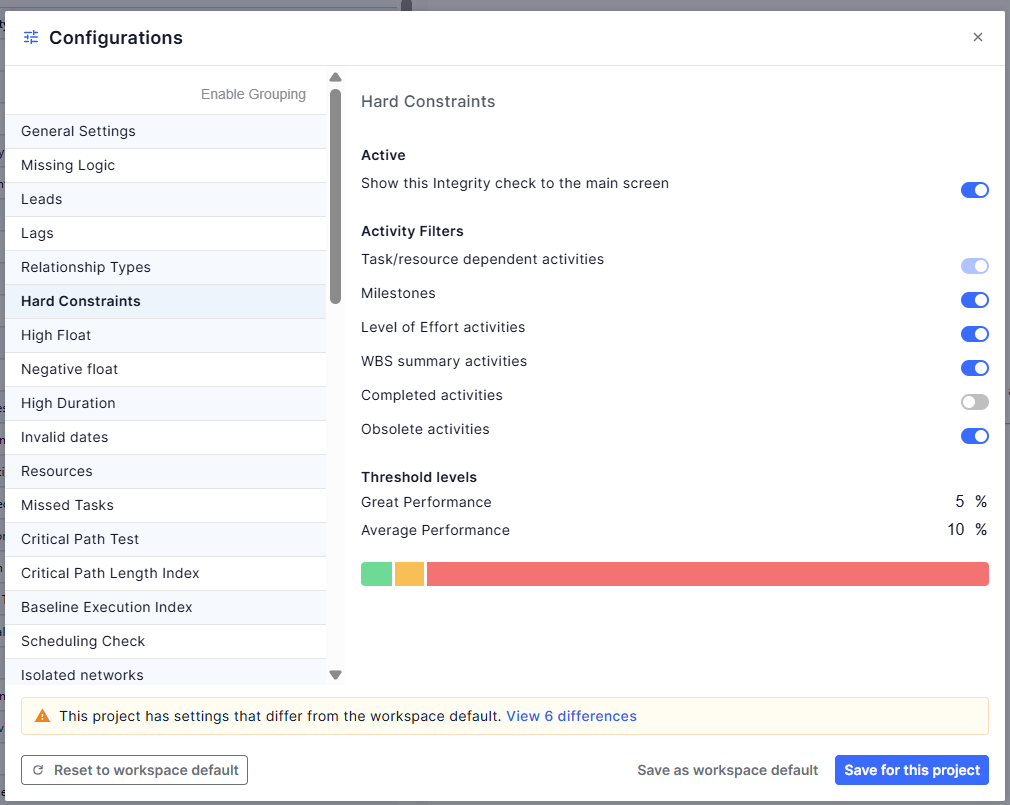
You can easily set your own threshold levels (what is considered as bad, average and great performance) for all the tests, turn checks on/off and configure which type of activities are taken under consideration for each check. Finally, you can edit check specific configurations (ie number of days in the High Float test)
Workspace default configuration
Every project is automatically compared against the workspace default integrity configuration, so you always know whether your project is standard or custom.
See if your project is on the default
At the bottom of the Configurations dialog, a banner tells you the status of your project at a glance:
- ✅ Success banner — "this project is using the workspace default integrity configuration" (nothing to do)
- ⚠️ Warning banner — "settings differ from the workspace default", with a link showing how many settings differ
When the project is already on the default, Reset and Save as workspace default are disabled — there is nothing to change.
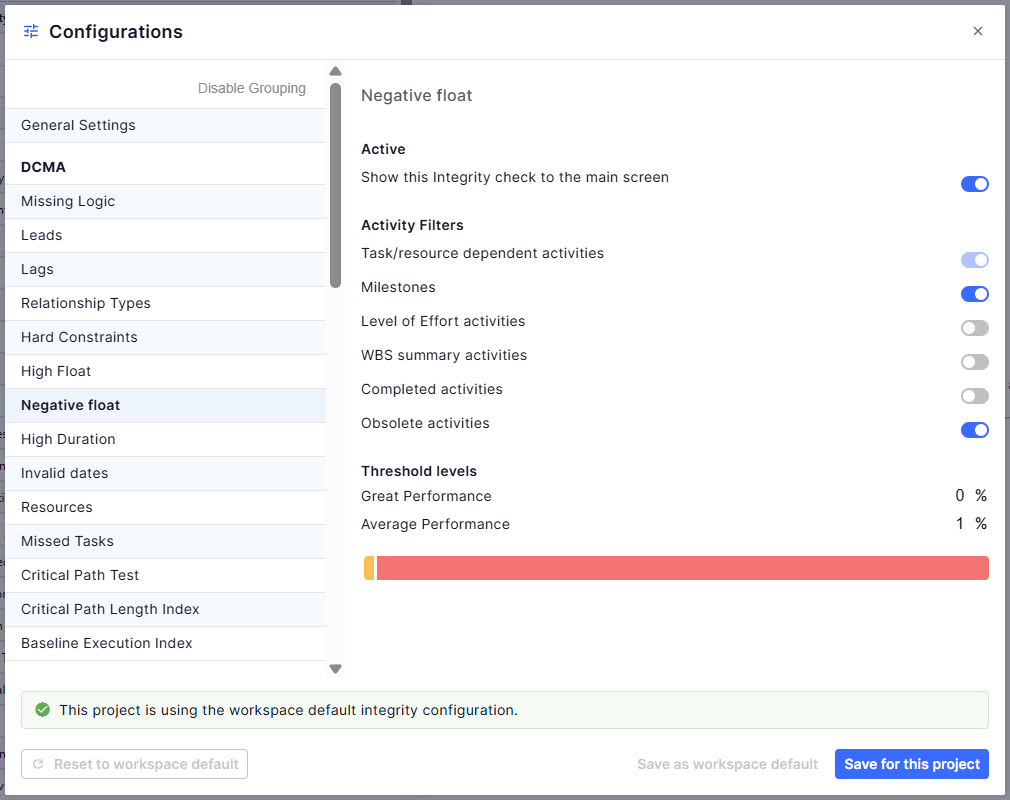
Configurations dialog footer: success banner (project on default).
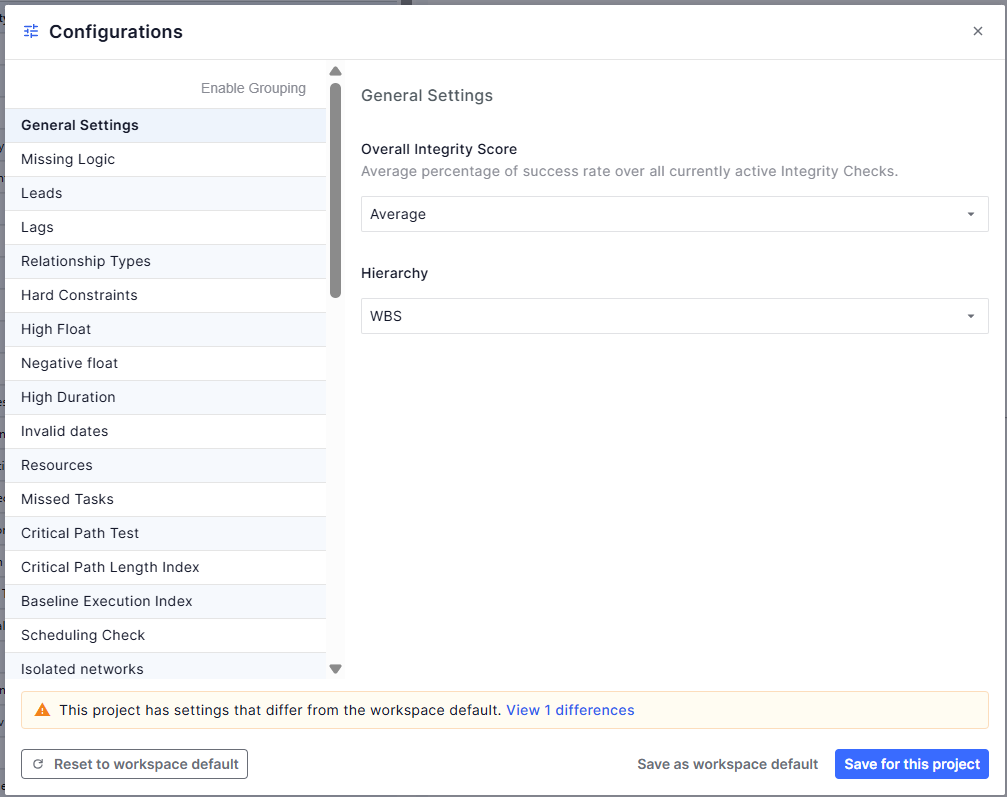
Configurations dialog footer: warning banner with the "X settings differ" link.
See exactly what differs
Click the differences link in the warning banner to open a comparison modal listing every setting that differs from the workspace default:
- Each row shows the setting name, the workspace default value, and this project's value
- Settings are grouped by integrity check
The modal is read-only — you can close it without changing anything.
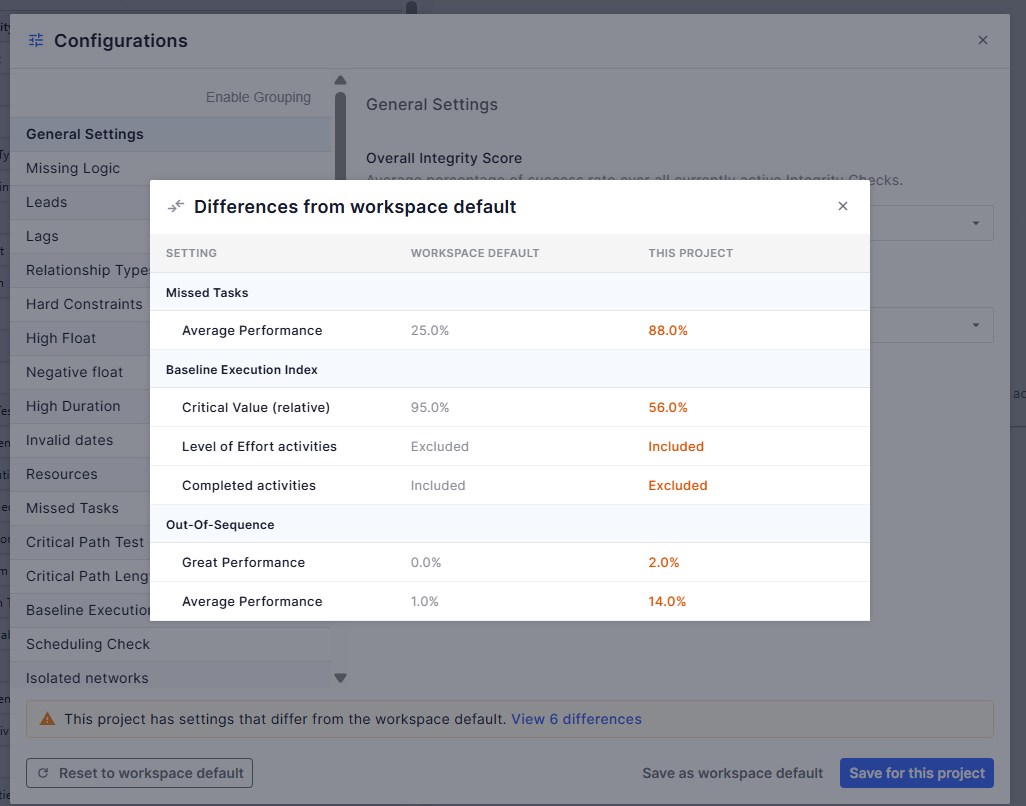
Differences modal, showing settings grouped by check with default vs. project values side by side.
Reset to the workspace default
If a project has custom settings and you want to go back to the standard, click Reset to workspace default in the Configurations dialog footer.
A confirmation explains how many settings will change. Confirming applies the workspace default to the project — no need to undo custom settings check by check. Cancelling leaves everything unchanged.
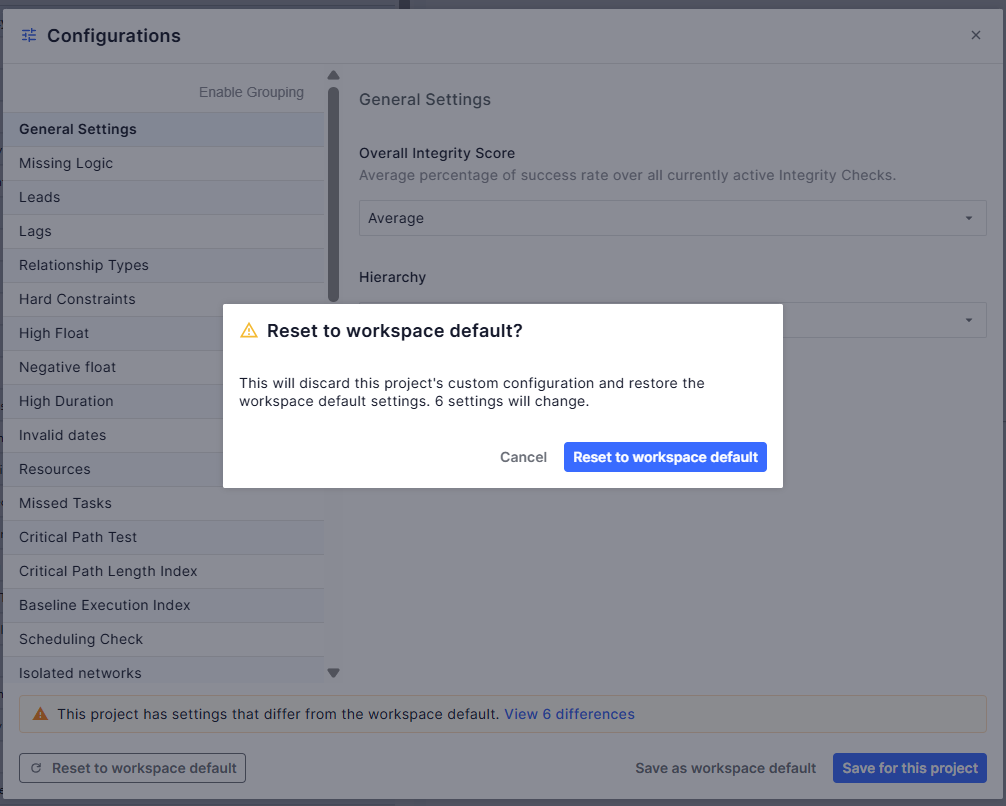
Reset confirmation dialog with the number of settings that will change.
Save your settings as the workspace default (platform admins)
Platform admins can promote the current project's settings to be the new workspace default: click Save as workspace default in the Configurations dialog footer.
In the confirmation ("Save new workspace default configuration"), choose under Apply the new default to:
- Projects currently on the workspace default config — updates the default and applies it only to projects already following the default; custom projects stay unchanged
- All projects in the workspace — updates the default and applies it to every project, overwriting custom configurations
After saving, the success banner appears.
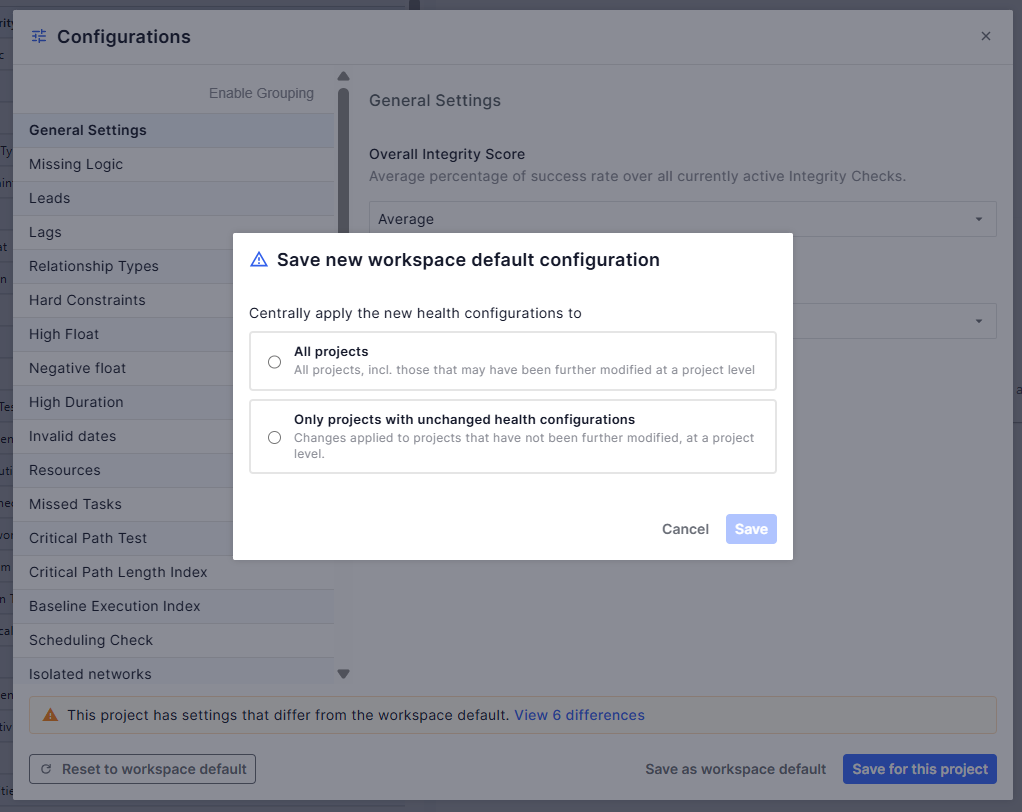
Save new workspace default configuration" confirmation with the two apply-scope radio options and project counts.