
Change Control: Changes
This screen enables you to:
- See a high-level overview of schedule changes at a glance
- Slice through changes by type (Schedule, Critical Path, Custom Paths, Calendars, Relationships, Dates, Durations)
- Inspect live Gantt context and per‑activity changes
- Dive into activity pop-ups showing full before/after stats
- Export views as PNG, PDF, or CSV
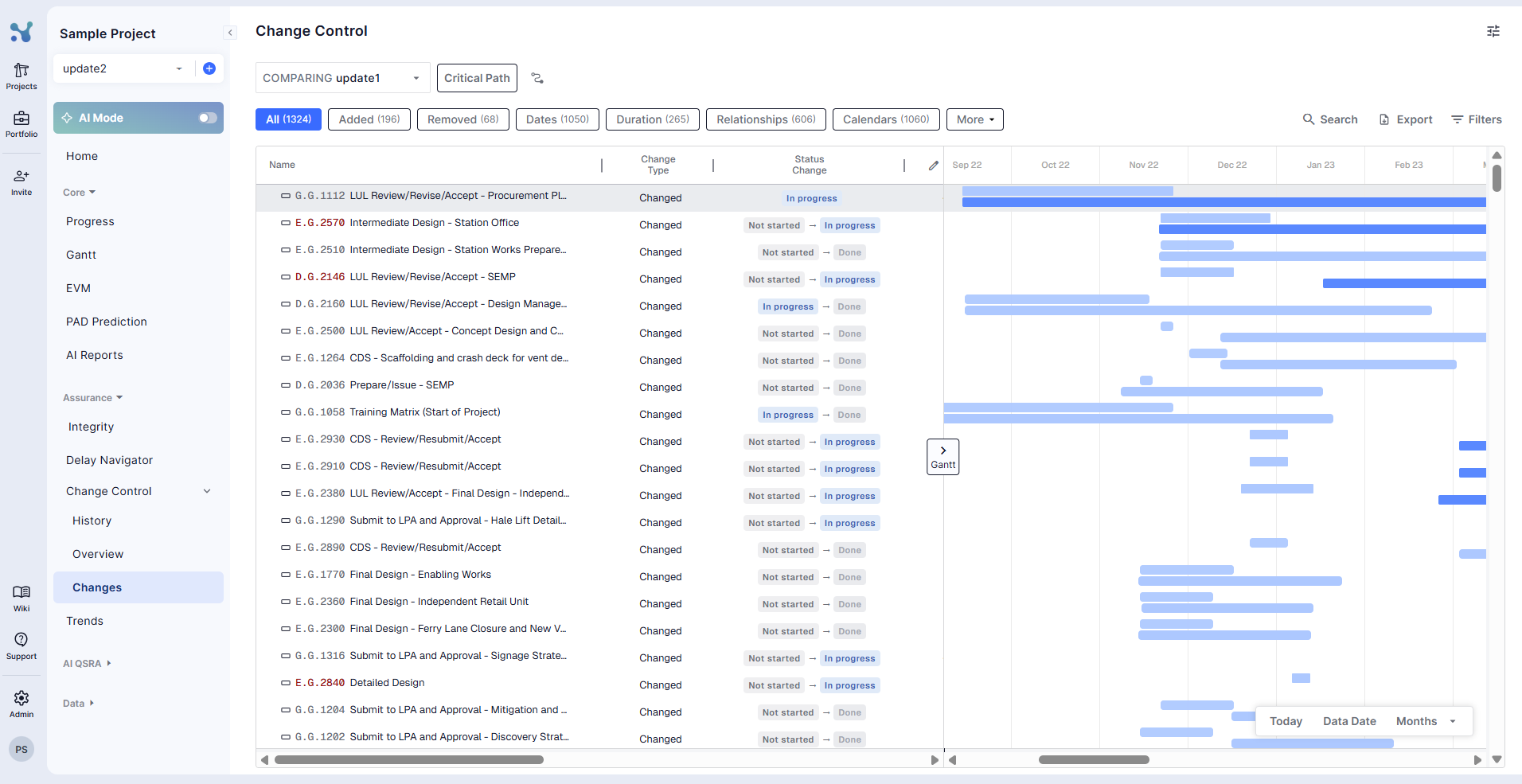
The "Changes" page is organized around two primary dimensions:
1. Comparison schedule (which version you're comparing against)
At the top left of the page you can select any of the schedules whose data date precedes the one you currently have as active
2. Scope selection (what to compare)
At the top of the page, you choose what subset of the schedule you want to analyze:
- Default — Compares all activities in the current schedule to the previous schedule (typically a baseline)
- Critical Path — Focuses only on activities that are part of the current Critical Path, helping you identify changes to project finish
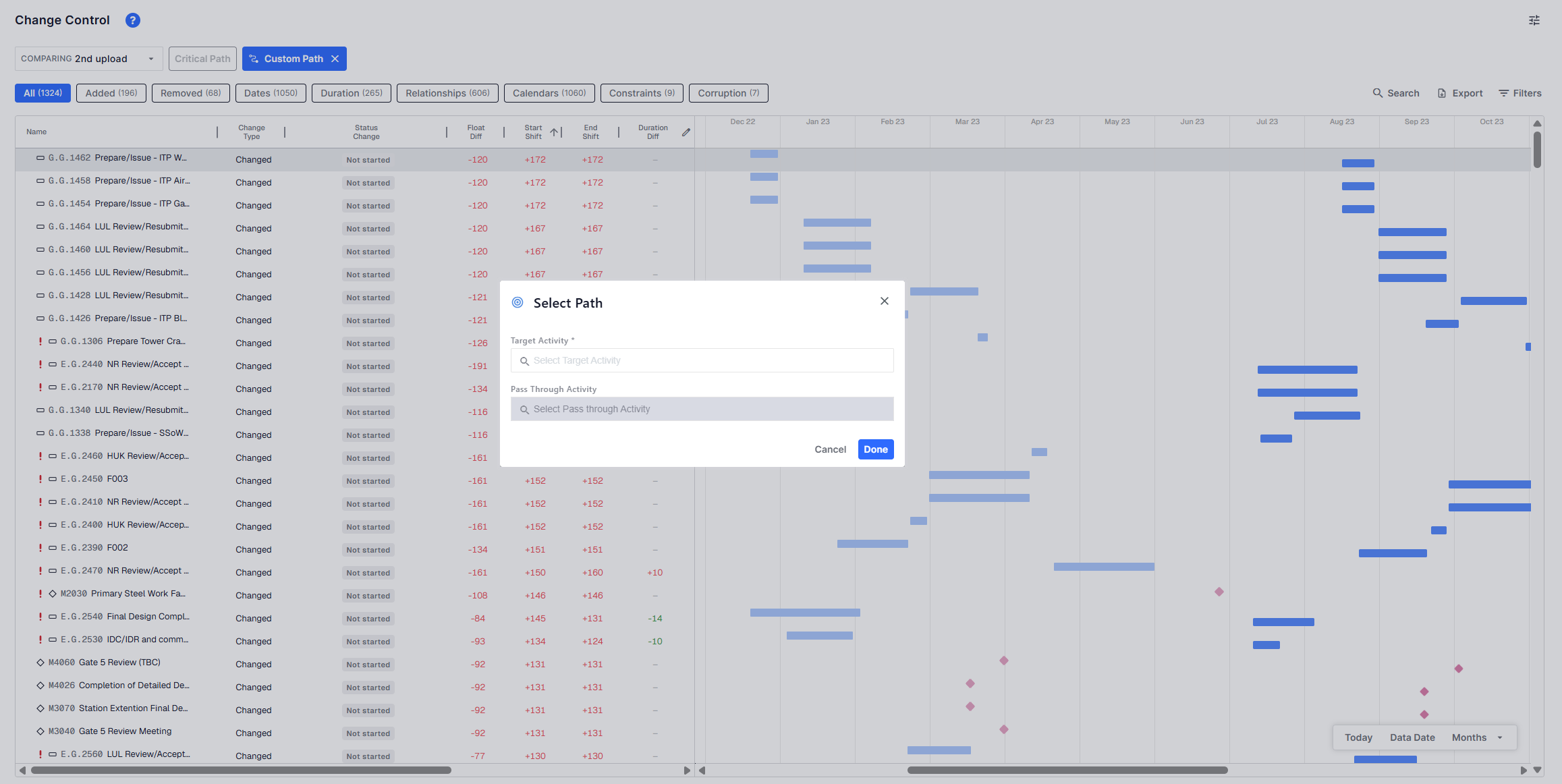
- Targeted Path — Allows you to select:
- A Target Activity (e.g. milestone, deliverable)
- An optional Pass-Through Activity to define a custom sequence of dependencies for closer analysis
This selection controls which part of the schedule is visualized and analyzed across the rest of the view.
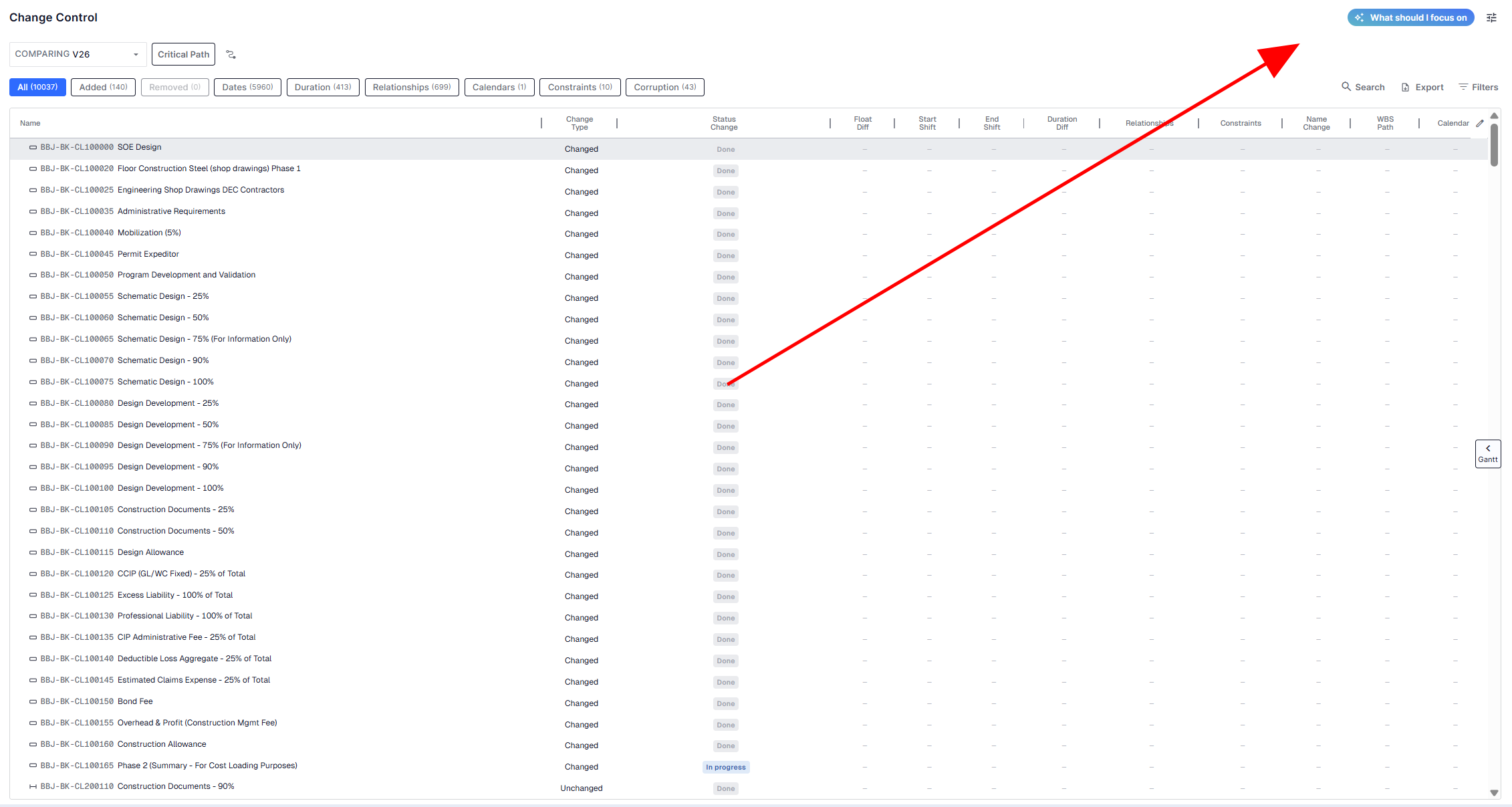
Focus Assistant — "What should I focus on?"
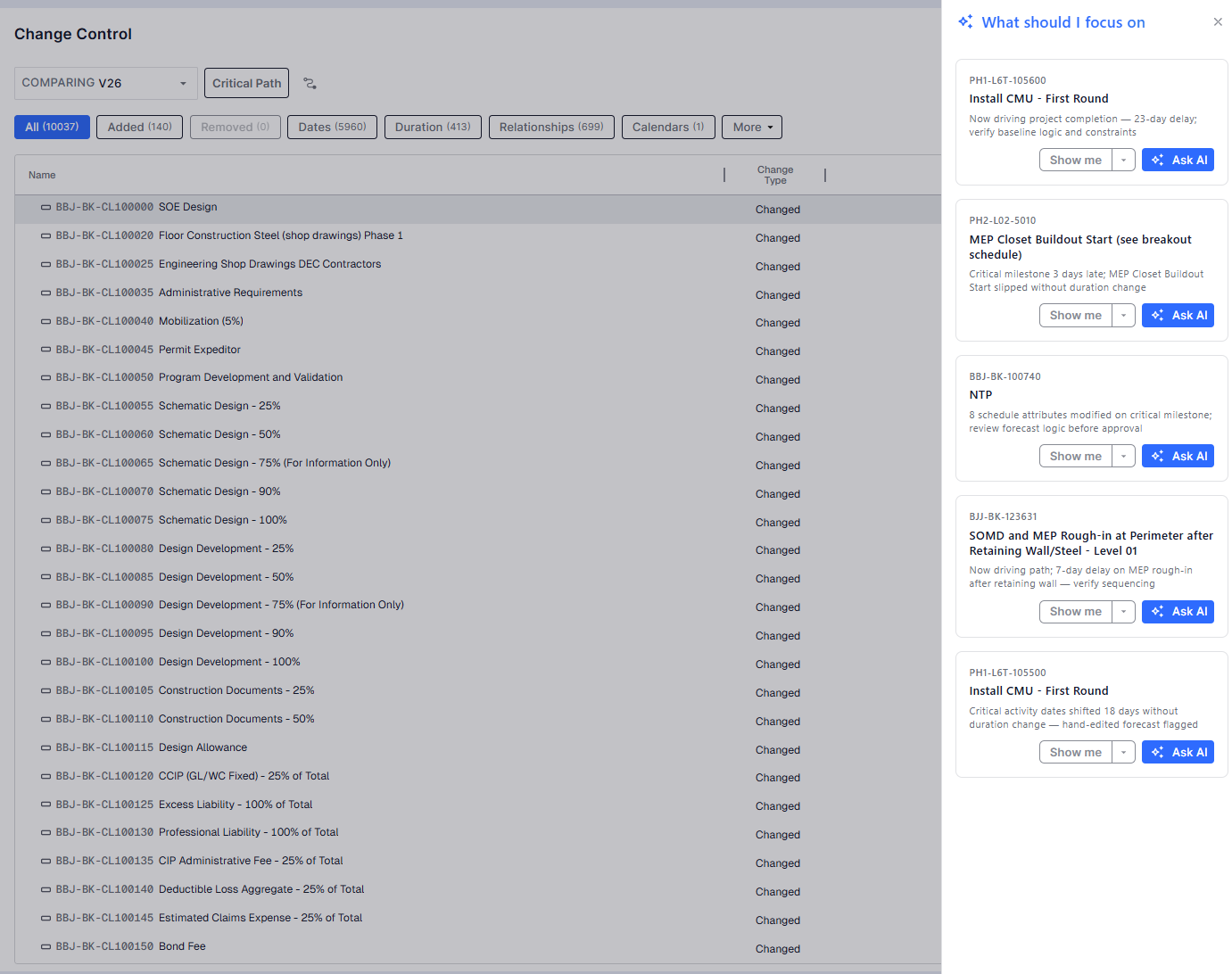
Click the "What should I focus on?" button at the top right of the page (to the left of the existing controls). A panel opens on the right side of the screen listing up to 5 activities that most need your attention.
Each tile shows the activity ID above the activity name (in full, wrapping if long) and a short AI-written reason why the activity needs attention, specific to the comparison you are viewing. Each tile offers exactly three actions:
- Show me — opens the activity details pop-up
- Ask AI — opens a new browser tab pre-filled with "Elaborate on [the justification from the tile]"
- Show in Gantt — jumps to the activity on the Gantt chart
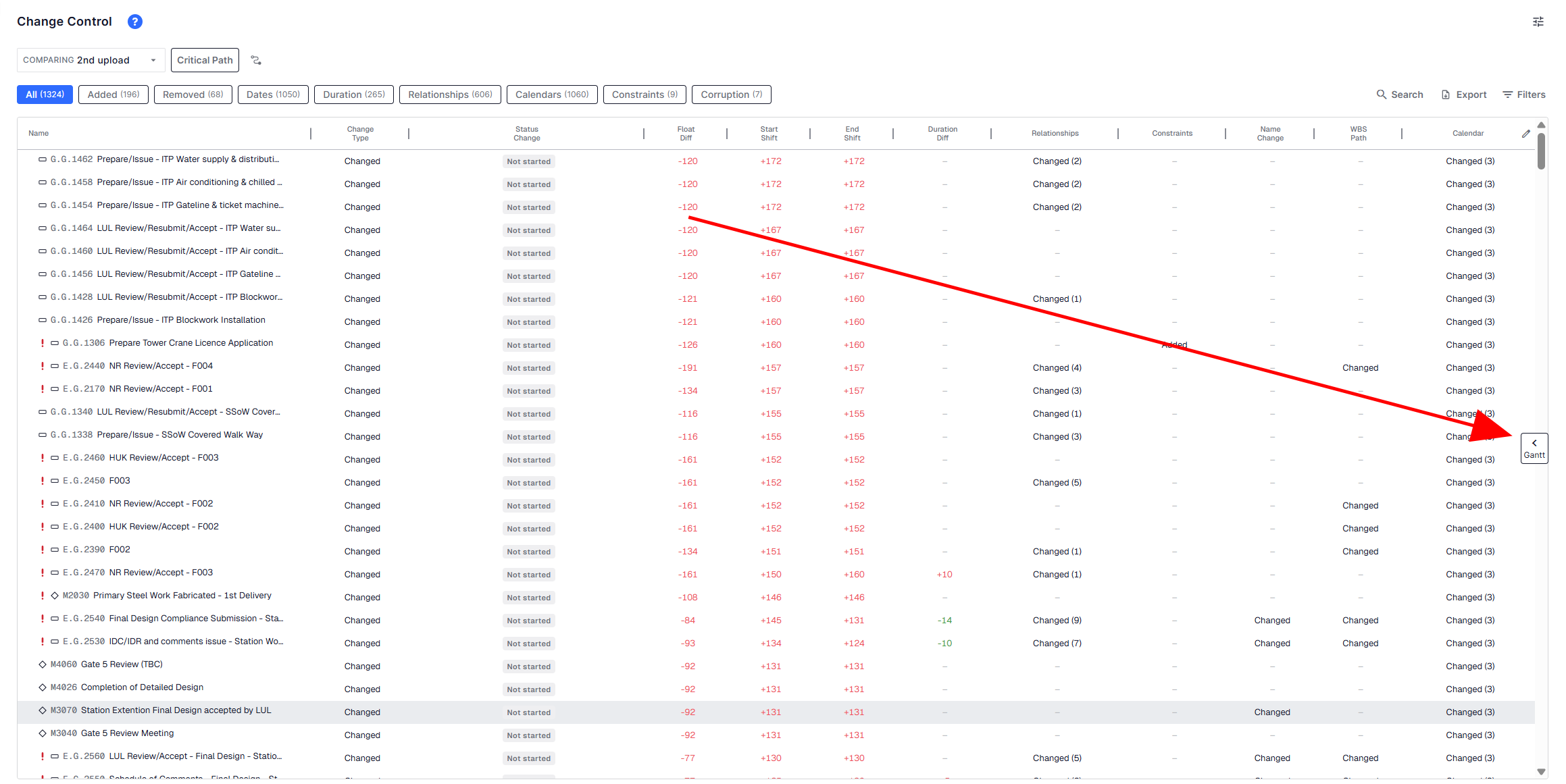
The Gantt Chart
A visual timeline view is available and can be triggered from the right side of the page showing activity bars for before and after states, overlaid for easy comparison.
Tabular filters
Tabs dynamically group changed activities by the kind of change they've undergone. Click any tab to instantly filter both the table and the Gantt chart (when active) down to just those activities. Each tab displays a live count of the activities it contains.
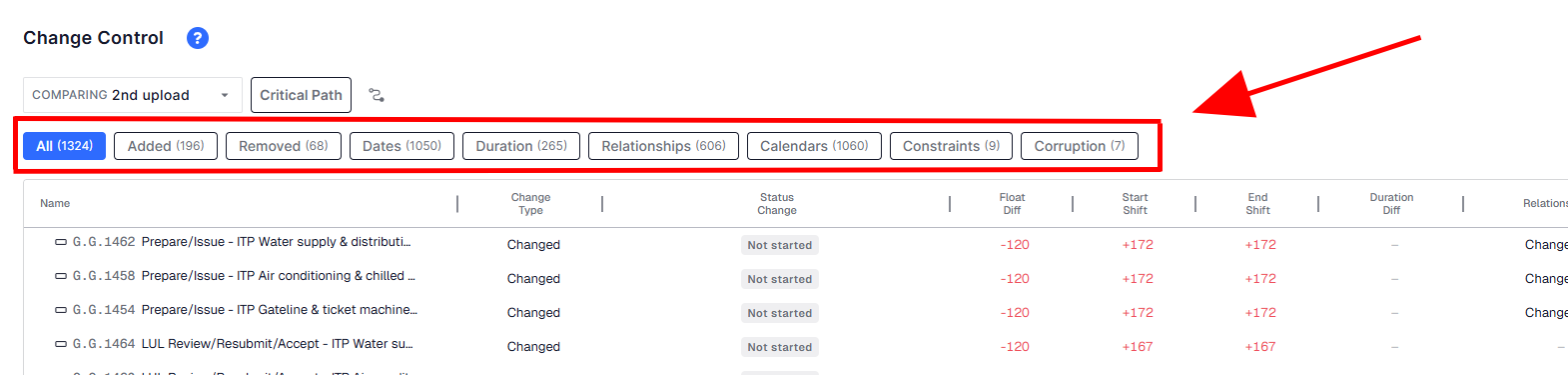
Available tabular filters
- All – The full list of changed activities. Because the categories overlap (a single activity can have, say, both a date change and a duration change), the All count isn't the sum of the other tabs.
- Added – Activities that are new in the current schedule and weren't present in the comparison schedule.
- Removed – Activities that existed in the comparison schedule but no longer appear in the current one.
- Dates – Activities with any change to their dates.
- Duration – Activities whose duration changed.
- Relationships – Activities with logic changes: predecessors or successors added, removed, or modified.
- Calendars – Activities whose assigned calendar changed or the existing calendar was modified.
- Constraints – Activities with added, removed, or modified date constraints (e.g., Start On or After, Finish No Later Than).
- Corruption – Activities with modifications that are possible red flags. See below.
🔍 Tip: Click any tab to auto-apply its filter to the table and the Gantt (if active).
The Corruption filter
The Corruption filter surfaces suspicious modifications to the data — changes that generally shouldn't happen between two valid schedule submissions and may point to data-integrity problems. It catches three types:
- Modified actualized dates – An activity that already had actual dates recorded in the comparison schedule shows different actual dates in the current one. An actual date is the record of when something already happened, so it shouldn't change in a later submission — when it does, it is suspicious.
- Decreased percent complete – An activity's percent complete went backwards (for example, from 80% in the comparison schedule down to 30% in the current one). Progress shouldn't regress, so a drop suggests the earlier value was inaccurate, or the status was misrepresented.
- Actualized future dates – An activity is marked complete on a date that hasn't occurred yet relative to the data date (for example, it's September 1st but an activity is marked done with a September 30th date). Work can't be completed before it happens.
Spotted something suspicious? Click the flagged activity in the table to open its details pop-up, where the before and after values sit side by side, so you can see exactly what changed.
Data table
Each row in the data grid corresponds to a changed activity. Key capabilities:
- Sortable Columns – Click on any column to sort; for example, find the activity with the worst duration slippage.
- Selectable Rows – You can manually select specific activities, triggering the activity details pop up, allowing you to analyze further.
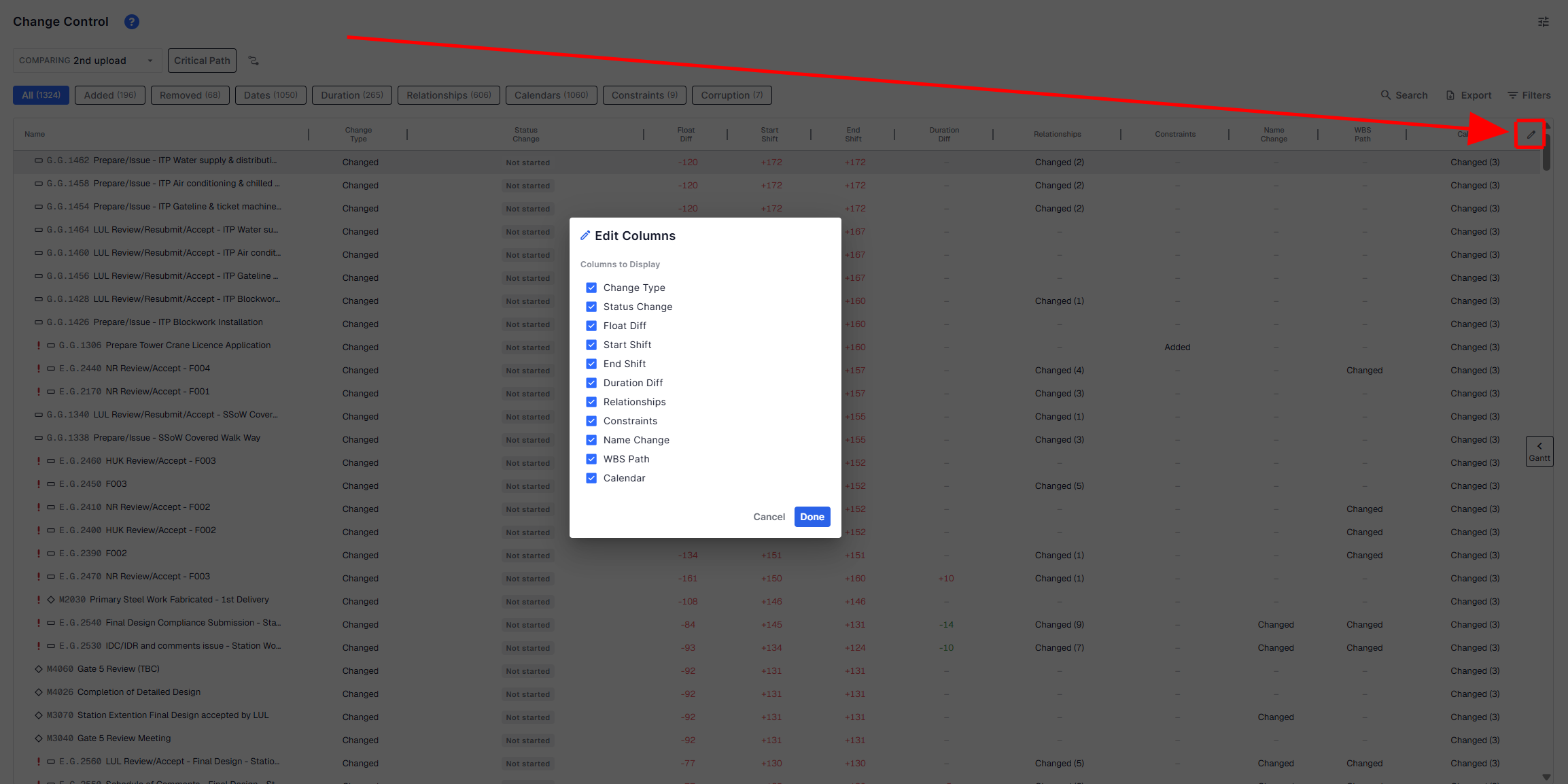
- Customizable Columns – By clicking on the pencil icon on the top right, you can show/hide columns and reorder them to tailor the grid layout to your workflow. This lets you focus on the most relevant data — whether that's dates, float, relationships, or delays.
Activity details pop-up
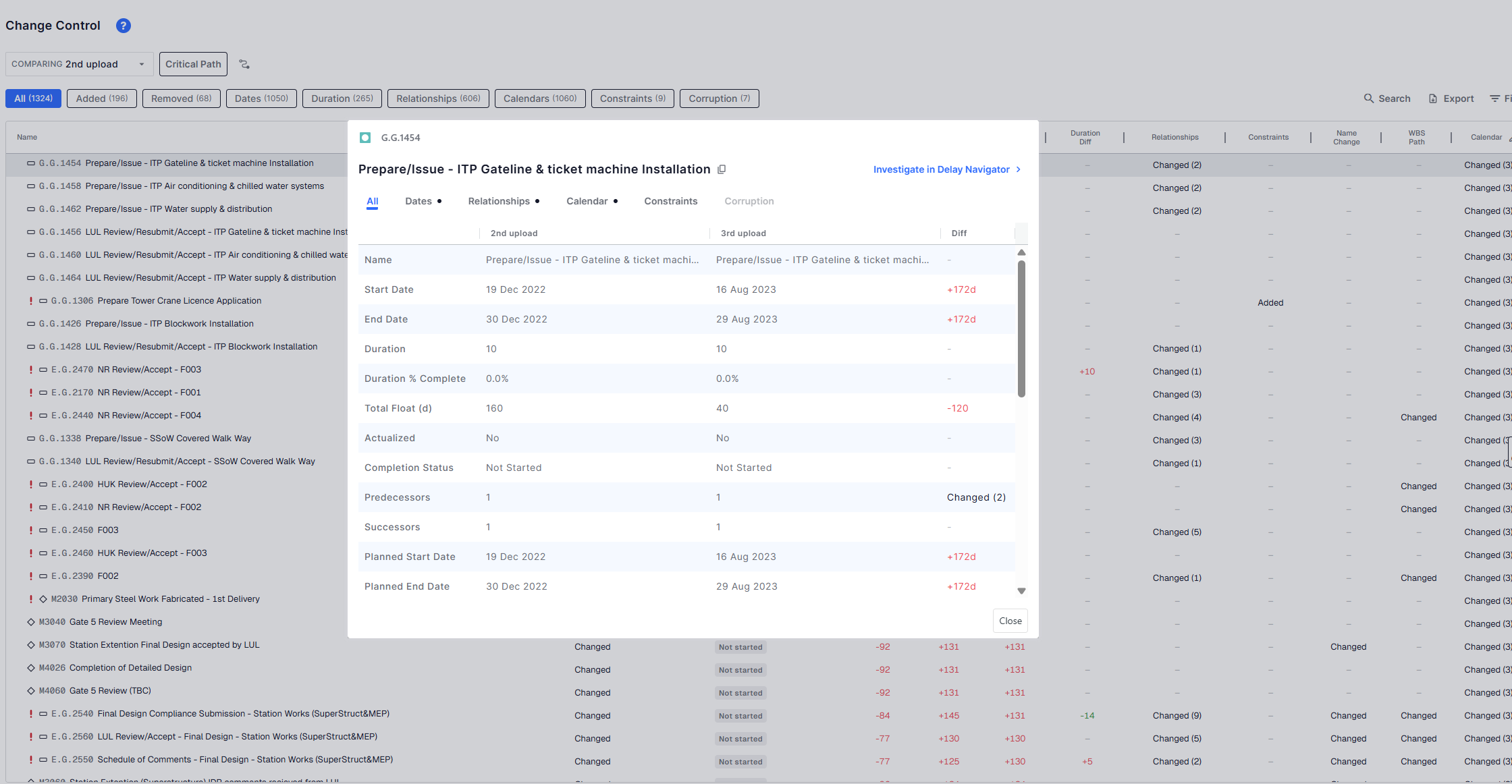
Clicking any row in the data table opens a pop-up with a full field-by-field comparison of the activity across the two schedules.
Comparison columns
For each field, the pop-up shows its value in each schedule side by side, followed by a Diff column. The two value columns are headed with the names of the schedules being compared (for example, 2nd upload and 3rd upload), and the Diff column quantifies and color-codes the change so slippage and regressions stand out at a glance (e.g., Start Date +152d, Total Float −161 shown in red). Fields with no change show a dash.
Tabs
The comparison is split across tabs, each scoping the view to one category of fields:
- All – Every relevant field in one unified list
- Dates – Start / Finish / Actual / Planned date comparisons.
- Relationships – Predecessor and successor additions,removals and alterations.
- Calendar – Calendar assignment or alteration changes.
- Constraints – Constraint related differences.
- Corruption – Data-integrity issues for this activity (the same checks described in The Corruption filter above).
Change indicators
A dot (•) beside a tab name means this activity has actual changes of that type — so a dot on Dates and Calendar tells you at a glance that this activity has both date changes and calendar changes. Tabs without a dot are still selectable; they simply contain no changes for this activity.
Investigate in Delay Navigator
For delayed activities, an Investigate in Delay Navigator → link appears in the top-right of the pop-up. It opens a dedicated Delay Navigator page where you can dig into what actually drove the delay.
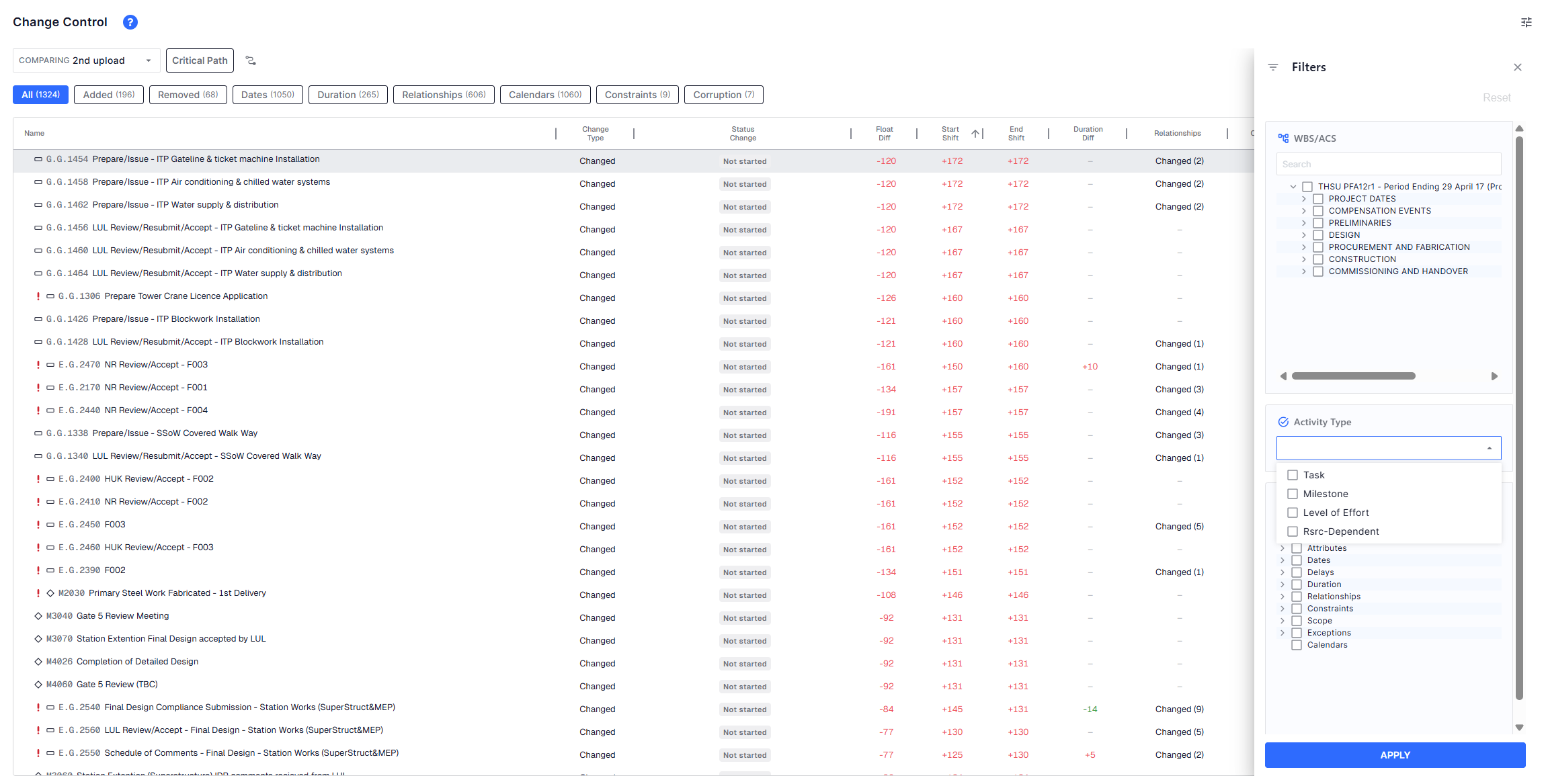
Filters
Click the Filters button to open a filter sidebar where you can filter by:
- Activity type
- WBS hierarchy
- Activity attributes
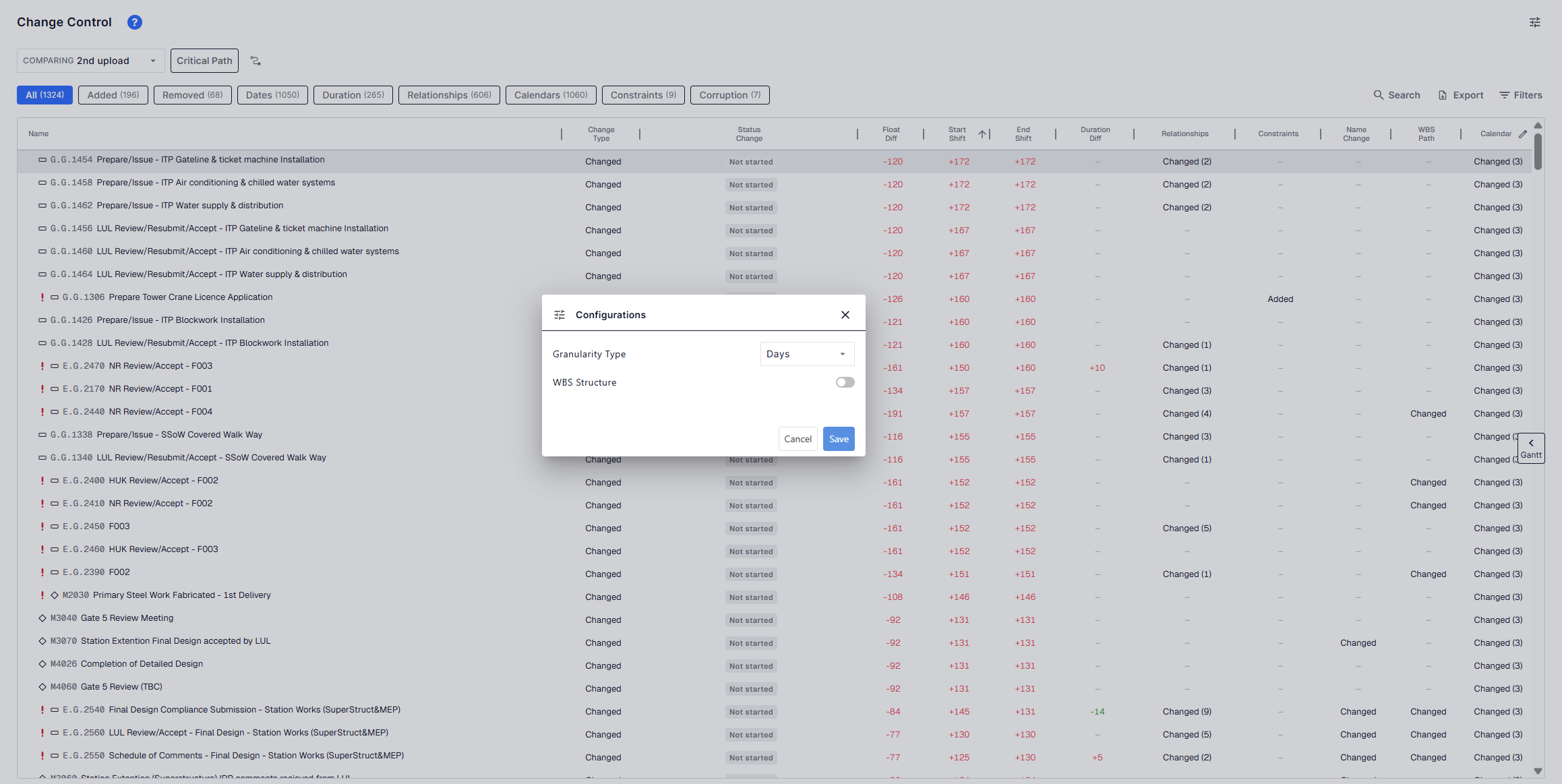
Configurations
Click the Configurations (sliders) icon in the top-right of the page to open the Configurations dialog, which holds the view-level settings for the comparison. Adjust the settings and click Save to apply them, or Cancel to discard.
- Granularity Type – Sets the time unit used throughout the view. Choose Days (default) for a day-based view, or Minutes for a minute-level view — useful for short-term or high-precision projects where every minute matters.
- WBS Structure – When enabled, groups the activity grid by its Work Breakdown Structure hierarchy instead of showing a flat list. (Off by default.)
Export Options
The data of the page can also be exported in various formats from the top right section
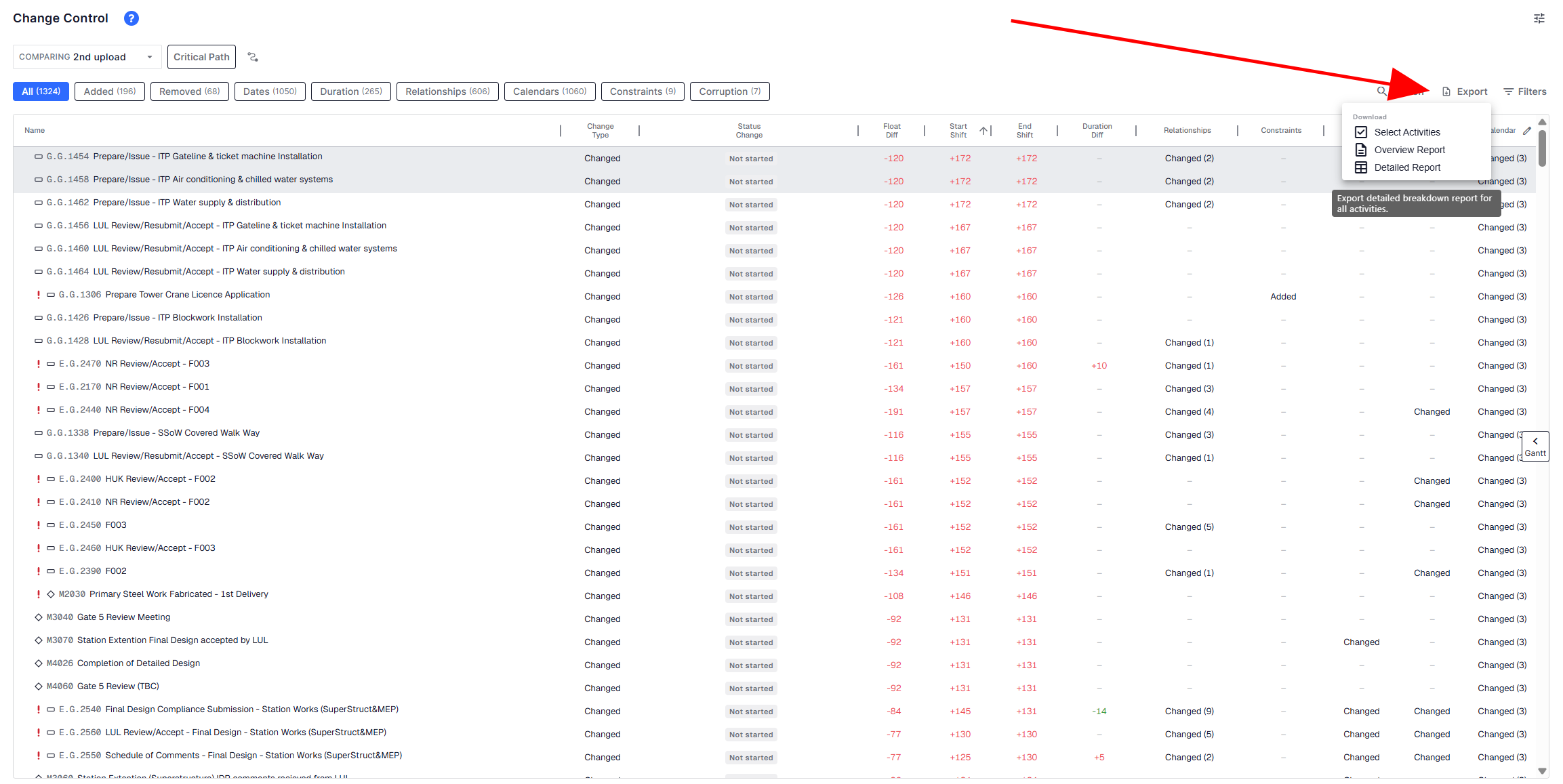
- Select Rows: Export to Spreadsheet → Export only the manually selected activities in the grid to Excel
- Export Detailed Spreadsheet → Full dataset of all activities, split into Excel tabs matching your filter tabs (e.g., Dates, Durations)
- Export Overview Spreadsheet → A high-level summary Excel showing KPIs, charts, counts of changes
- Export Gantt as PDF → Captures your current Gantt view as a stylized PDF for presentations or reports
- Export Gantt as PNG → Saves a clean image of the Gantt chart suitable for embedding in documentation