
⚡Autopilot
Autopilot lets you automate your recurring reporting and monitoring so the analysis you need every Monday morning, or every time a new schedule lands, is waiting for you before you even open a chat.
We use the following terms when talking about Autopilot in AI Mode:
- Workflow: A saved AI task that runs automatically on your schedule or when a specific event occurs, and delivers its results to a defined list of recipients.
- Prompt: The question or instruction at the heart of the workflow - what you want the AI to analyse every time it runs.
- Trigger: What sets the workflow in motion - either a time-based schedule (Daily, Weekly, Monthly) or a project event (new upload, new QSRA run, integrity drop, baseline change).
- Run: A single execution of the workflow against a specific schedule version. Every run is stored in your Run History.
- Output style: The tone of the AI response - Executive, Analytical, or Balanced.
Step 1: Open the Workflow Wizard
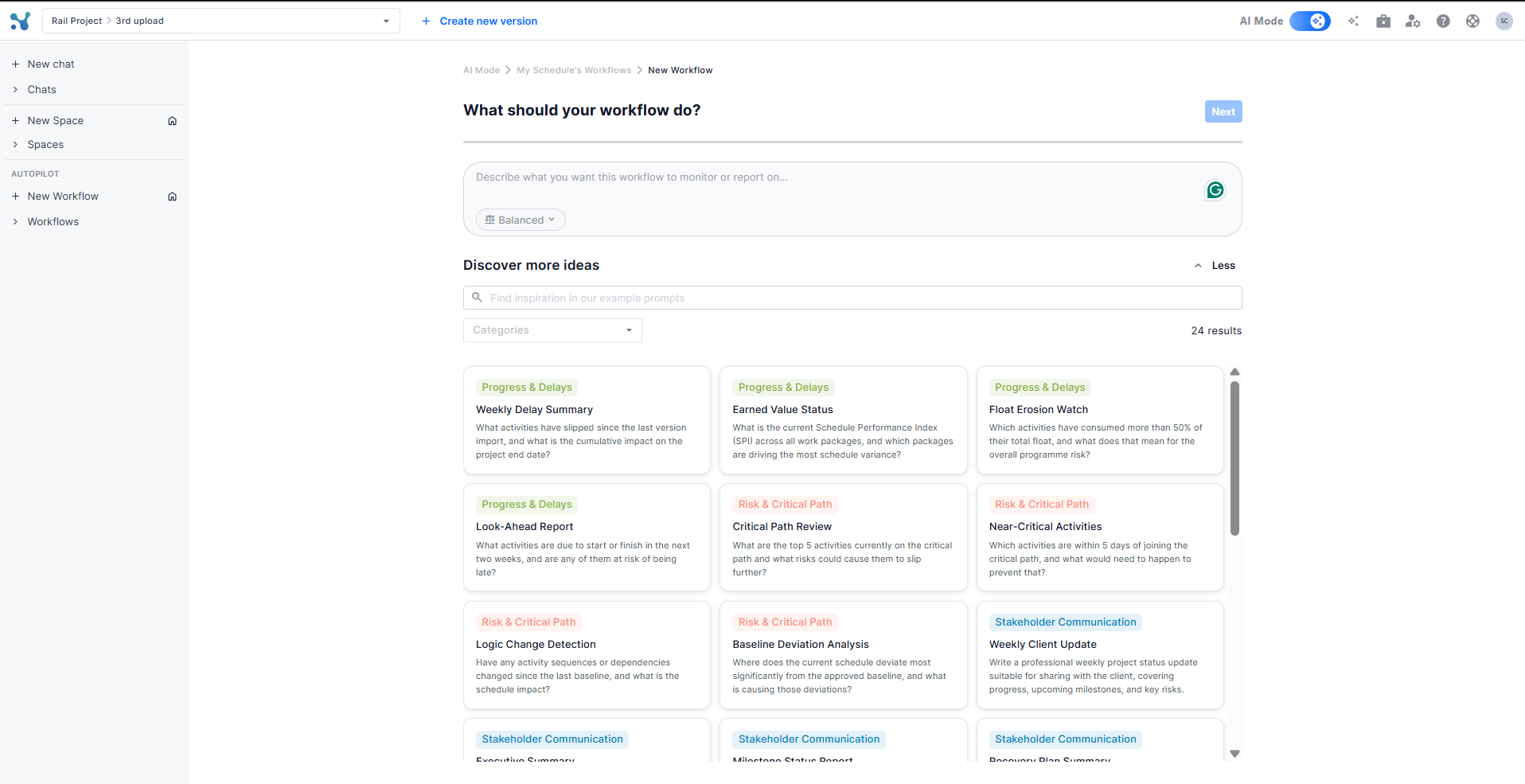
Go to AI Mode in your project. In the left sidebar, under the AUTOPILOT section, click + New Workflow. This opens the wizard with the question: "What should your workflow do?"
You will see six ready-made template categories below the text area:
- Progress and Delays: Slippage, earned value, float erosion, look-ahead
- Risk and Critical Path: Top critical activities, near-critical risks, logic changes, baseline deviation
- Stakeholder Communication: Client updates, executive summaries, milestone reports, recovery plans
- Integrity and Quality: Schedule integrity checks, baseline comparisons, data quality, productivity
- Weekly Reports: Digest, risk pulse, critical path update, team briefing
- Monthly Reports: Progress report, trend analysis, forecast update, executive dashboard
There are 24 templates in total. Click More workflow ideas to expand the full library, use the search bar to find one by keyword, or filter by category using the Categories dropdown.
Step 2: Choose your prompt and output style
Using a template
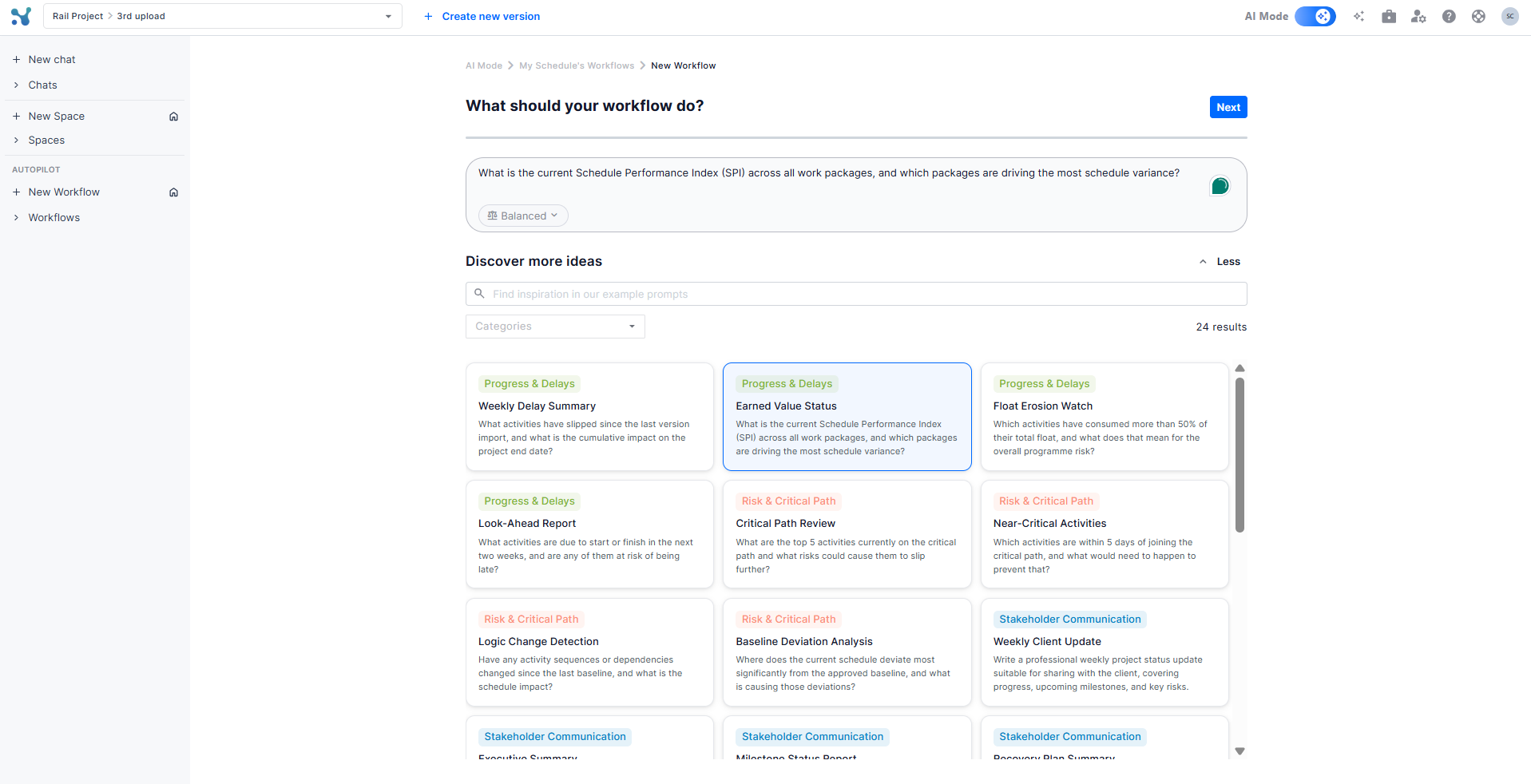
Click any template card to pre-fill the prompt text area with its question. The card highlights with a blue border to confirm your selection. You can edit the text freely after selecting it - the template is just a starting point.
Writing your own prompt
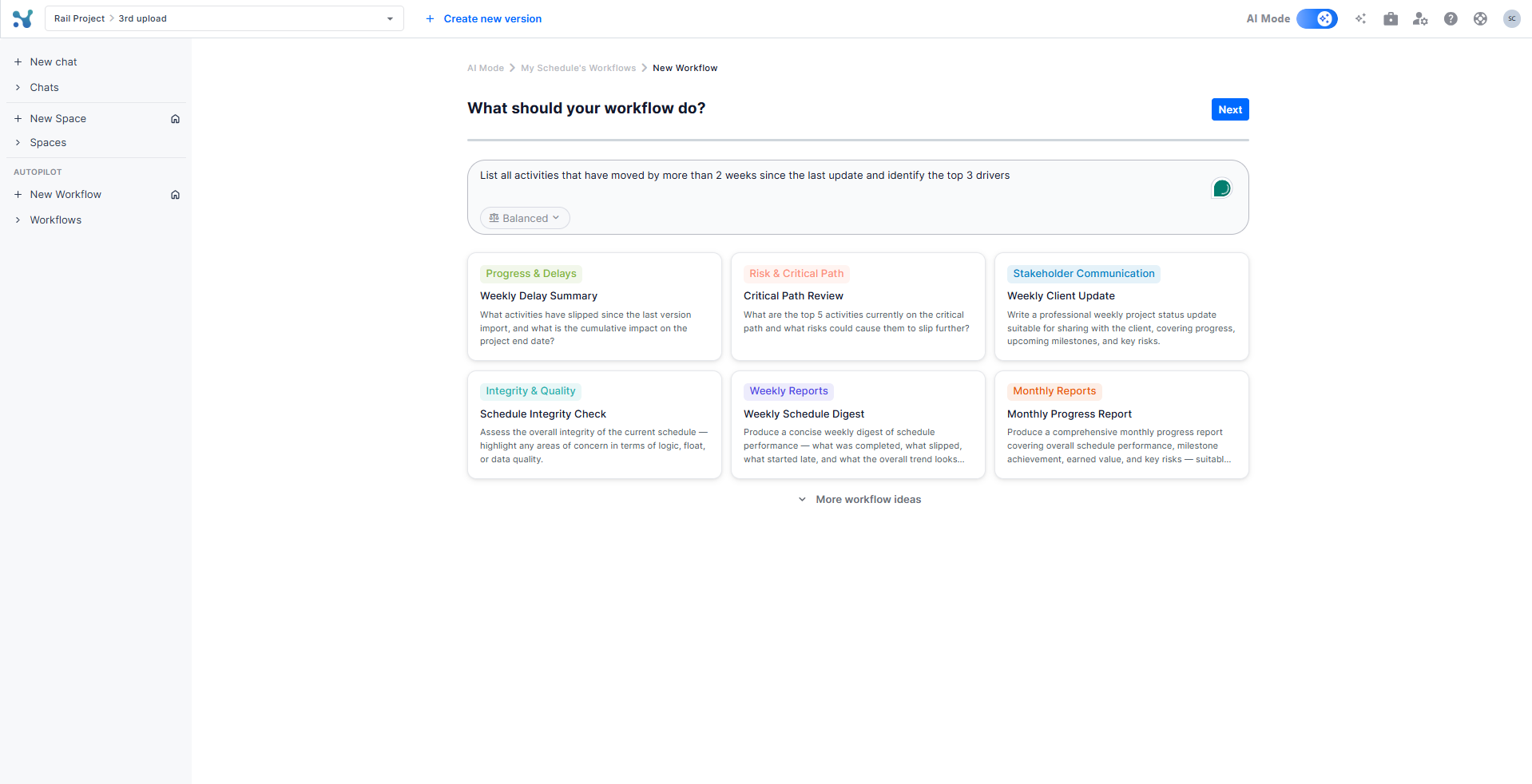
If none of the templates fit, type your own question directly in the text area (maximum 1000 characters). For example: "List all activities that have moved by more than 2 weeks since the last update and identify the top 3 drivers."
Choosing your output style
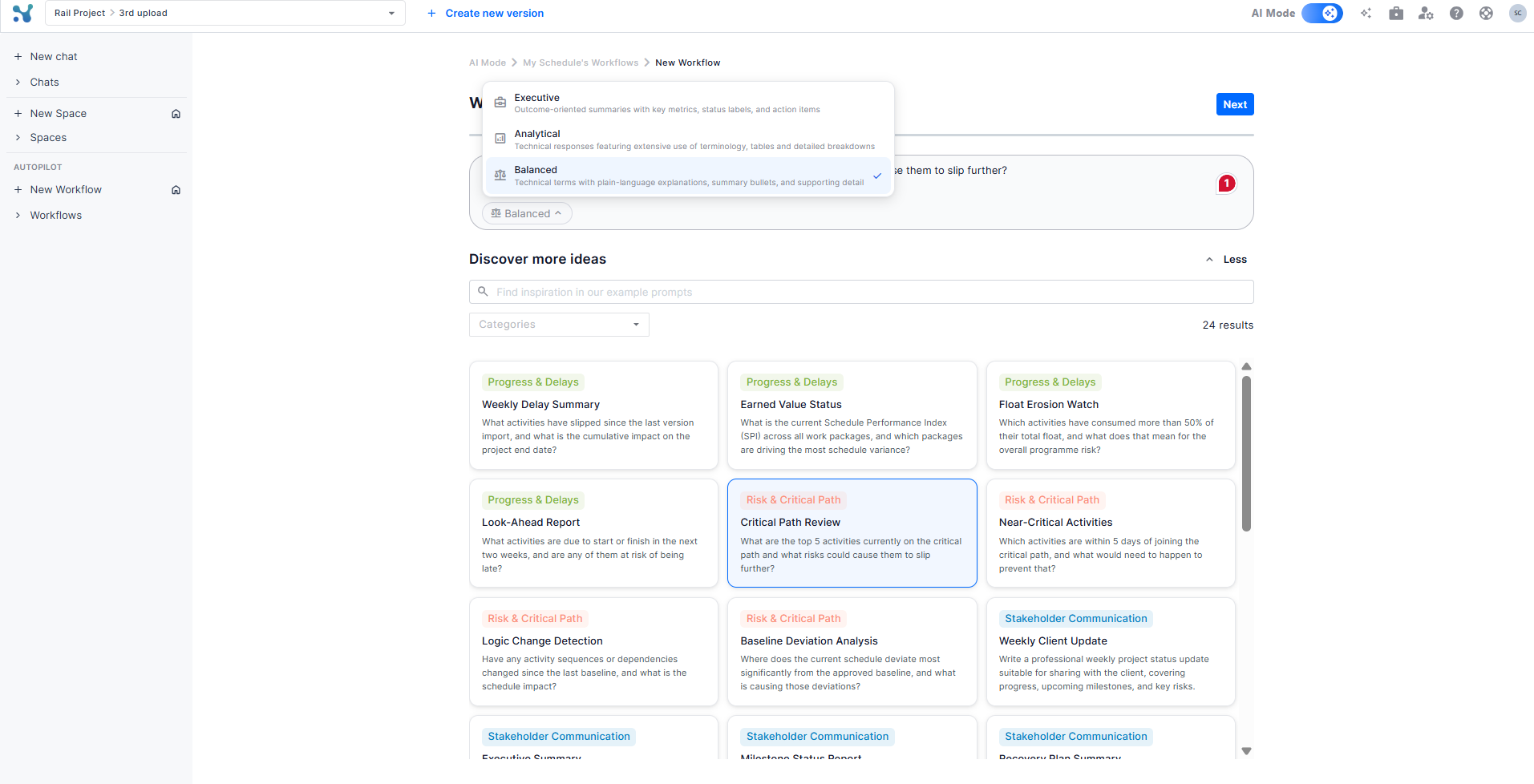
Click the style selector (shown as Balanced by default) to pick how the AI structures its response:
- Executive: Outcome-oriented summaries with key metrics, status labels, and action items. Best for steering committee reports.
- Analytical: Technical responses with extensive use of PM terminology, tables, and detailed breakdowns. Best for planners and project controls teams.
- Balanced: Technical terms explained in plain language, with summary bullets and supporting detail. Good for mixed audiences.
Once you are happy with your prompt and style, click Next.
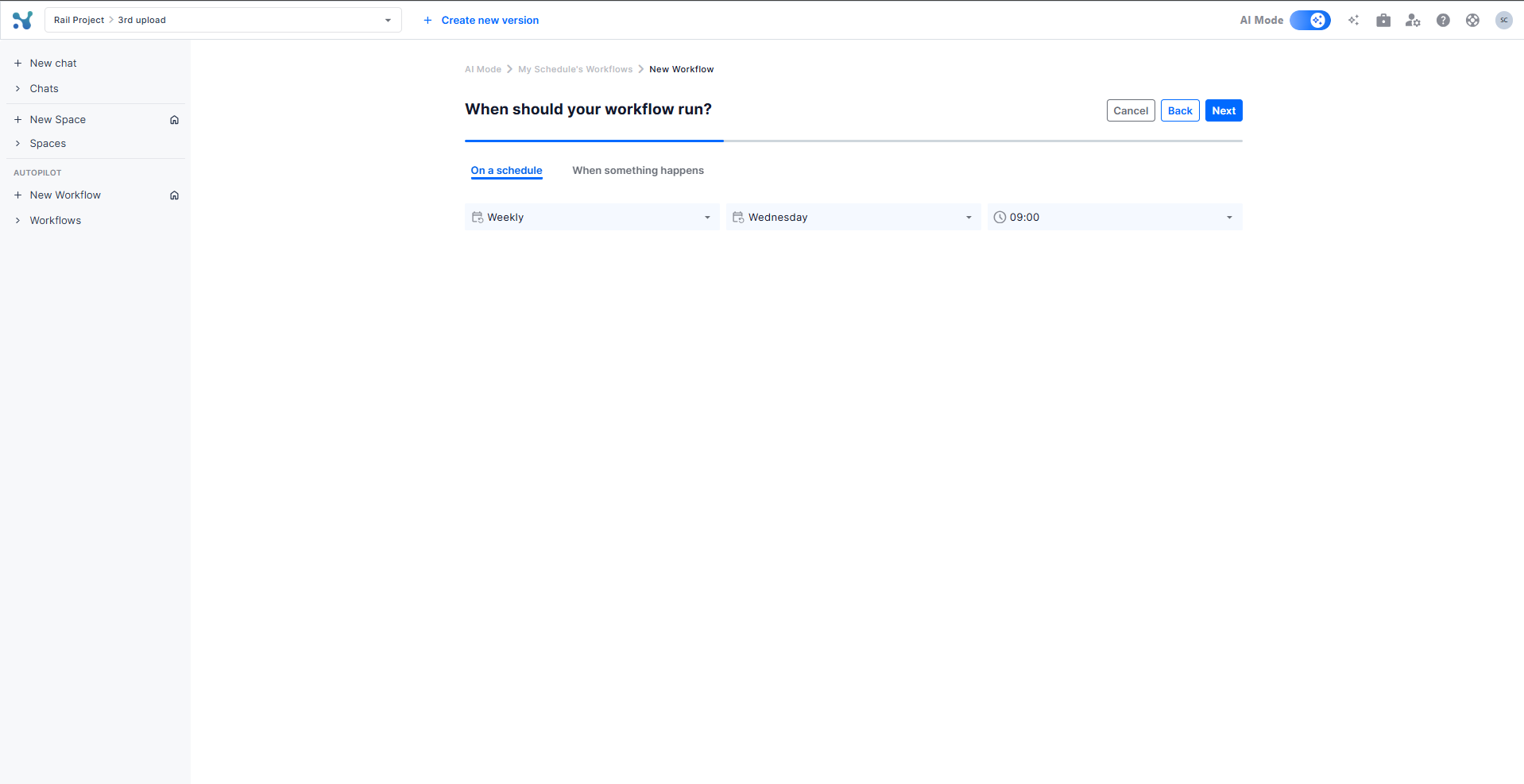
Step 3: Set when it runs
This step has two tabs.
On a schedule
Choose a recurring cadence. Three frequencies are available:
- Daily: Pick the time of day.
- Weekly: Pick the day of the week and the time. Default is Monday at 09:00.
- Monthly: Pick the day of the month (e.g. 1st) and the time.
This is the right option for regular reports like weekly delay summaries or monthly progress packs.
When something happens
Choose an event that automatically fires the workflow the moment it occurs:
- New upload: Triggers as soon as a new schedule version is imported into the project. Ideal for a post-upload delay summary or integrity check.
- New QSRA run: Triggers when a new Quantitative Schedule Risk Analysis is completed.
- Drop in integrity: Triggers when the schedule integrity score falls below your configured threshold.
- Baseline change: Triggers whenever the project baseline is updated.
Step 4: Choose who receives it
This step shows a searchable list of all members on the project. Your own account is pre-selected. Tick any additional colleagues you want to receive the workflow results - they will each get the output delivered to their email.
You can add or remove recipients at any time after the workflow is activated.
Step 5: Name and activate
Give your workflow a clear name - something that tells you and your team exactly what it does and when. The field allows up to 80 characters. Below the name you will see a summary of the trigger you chose.
Click Activate Workflow to go live. The workflow is now active and will appear in your My Schedule's Workflows dashboard and in the sidebar under Workflows.
Step 6: Choose the projects it will run
You can select a workflow to run on multiple projects (up to ten). You can select those projects here.

Your workflow detail page
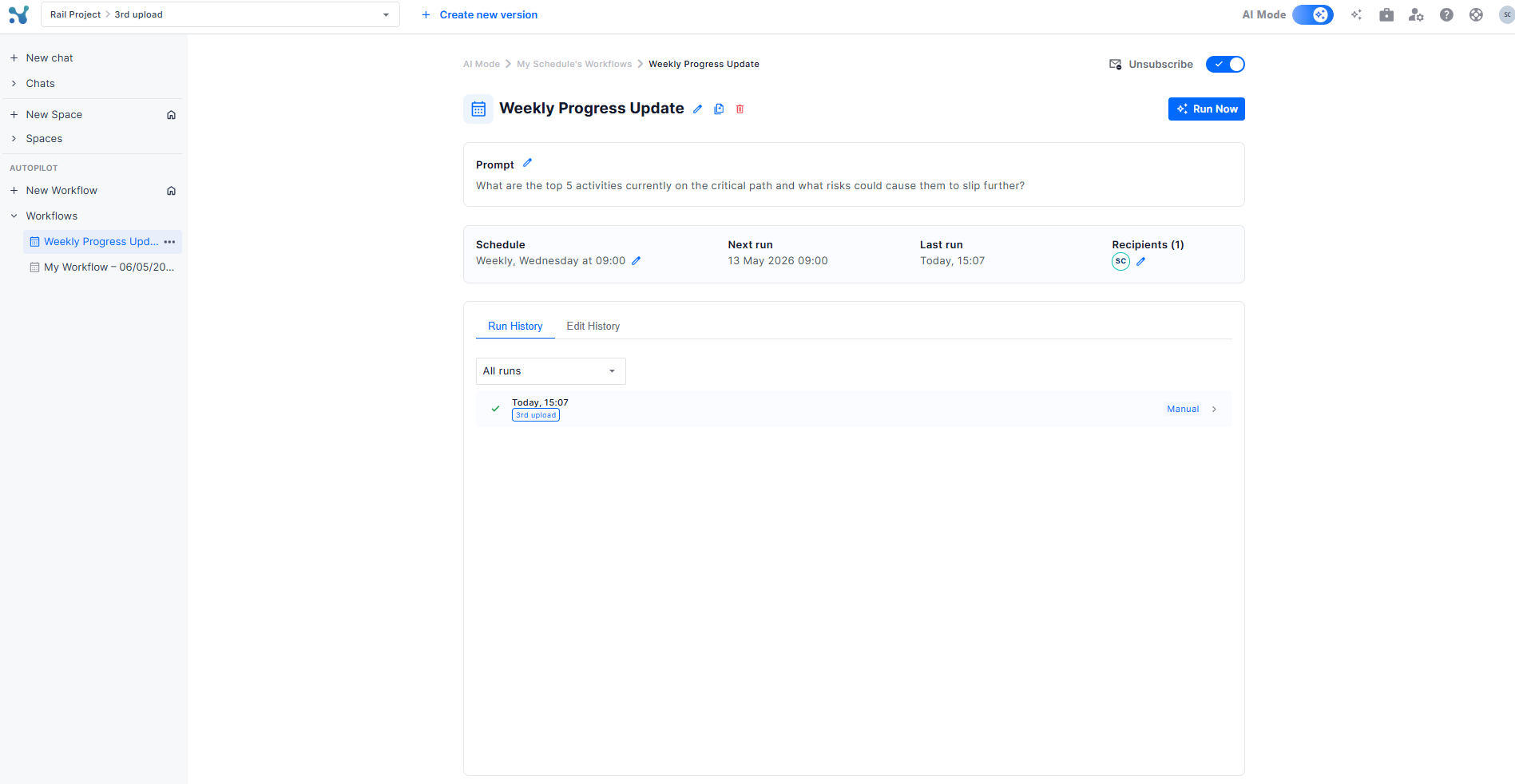
After activation you land on the workflow detail page. This is your command centre for that workflow.
Header area
- Edit name (pencil icon)
- Duplicate (copy icon)
- Delete (trash icon)
- Unsubscribe toggle
- Run Now button: Fire a manual run immediately, without waiting for the next scheduled trigger.
Workflow summary card
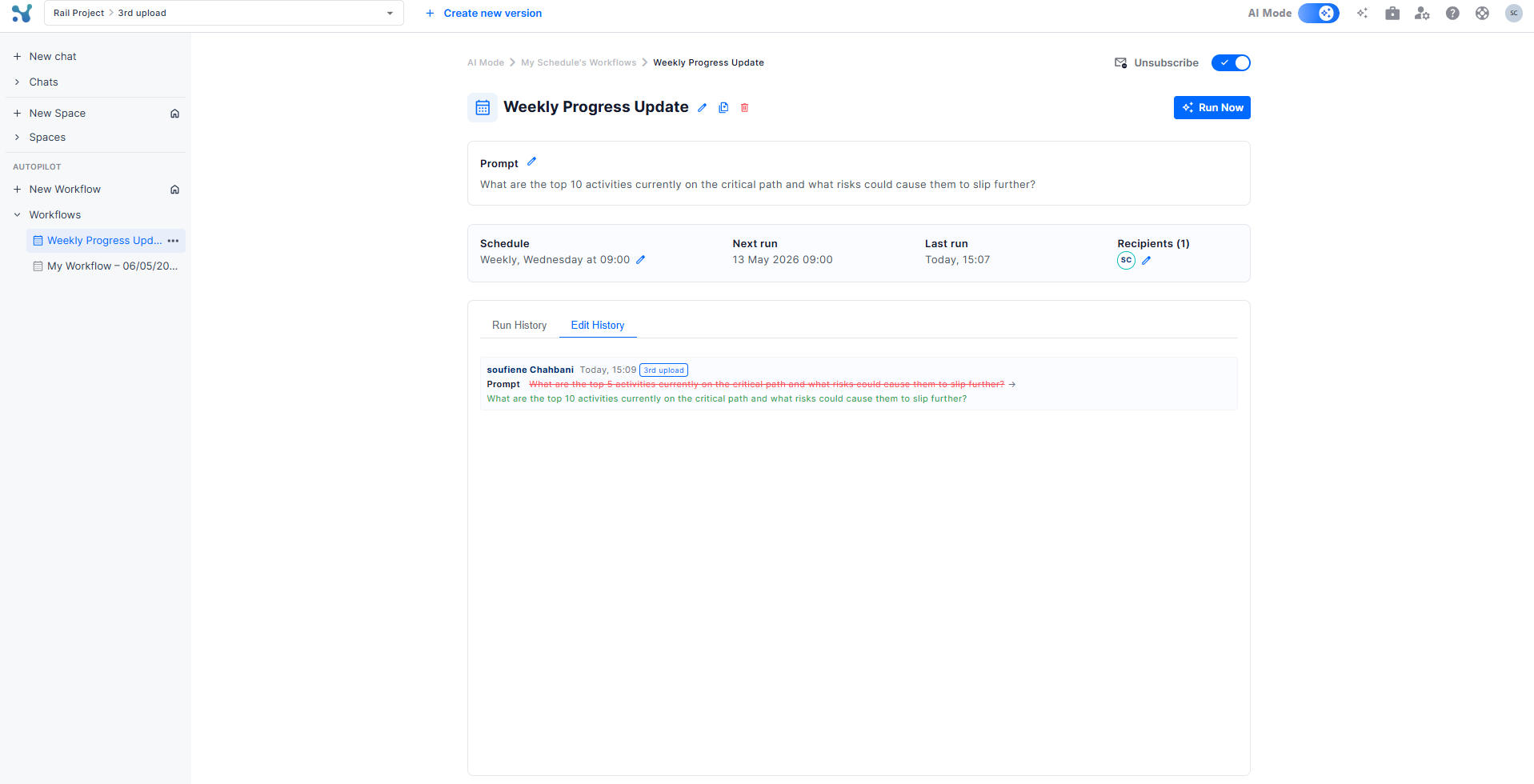
- Prompt (editable inline): Click the pencil icon to open an in-place editor where you can update the question and change the output style, then hit Save. Every change is recorded.
- Trigger (editable): Click the pencil to change the trigger type or cadence.
- Last run: The timestamp of the most recent execution.
- Recipients (editable): Click the pencil to add or remove recipients.
Run History tab
Every execution appears here as a row showing the timestamp, the schedule version it ran on, and how it was triggered (Manual or automatic). A green checkmark means the run completed successfully. Click any row to open the full AI output in the chat view, where you can also ask follow-up questions.
Edit History tab
A full audit log of every change made to the workflow prompt, trigger, recipients, or name - with timestamps and the user who made each change. Starts empty and fills over time as the workflow evolves.
Reading a workflow result
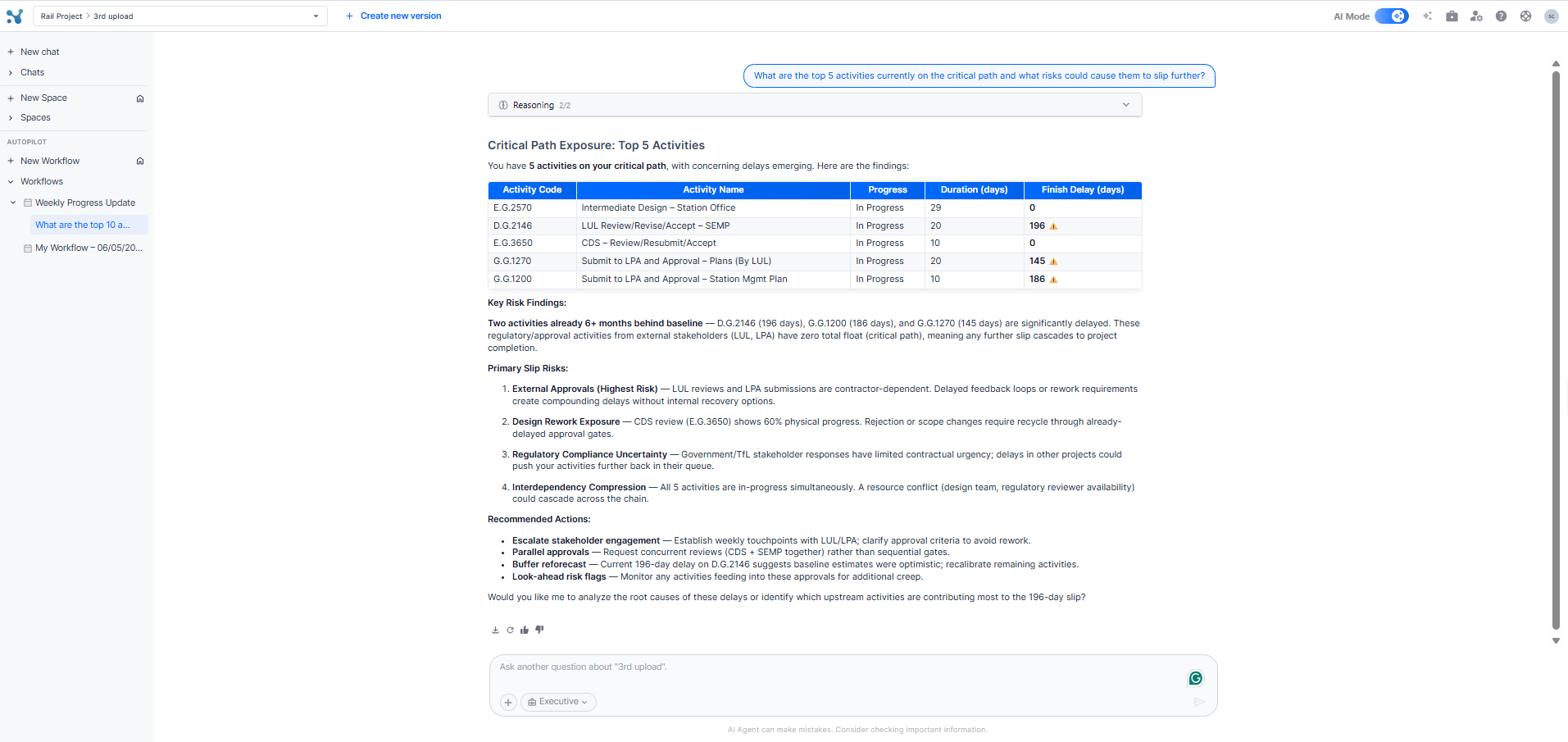
- When you click a completed run, it opens in the AI chat view. The output follows the same structure as a regular AI Mode response: The original prompt is shown as a chat bubble at the top.
- A Reasoning section (collapsible) shows the AI's step-by-step thinking. You can expand it to verify how it arrived at its conclusions.
- The main answer is delivered below, in the output style you selected.
- At the bottom you will find action buttons: download the response, regenerate a fresh run, and thumbs up or down to rate the quality.
- An Ask another question input lets you drill deeper into anything in the result, combining the repeatability of a workflow with the flexibility of free-form chat.
Managing all your workflows
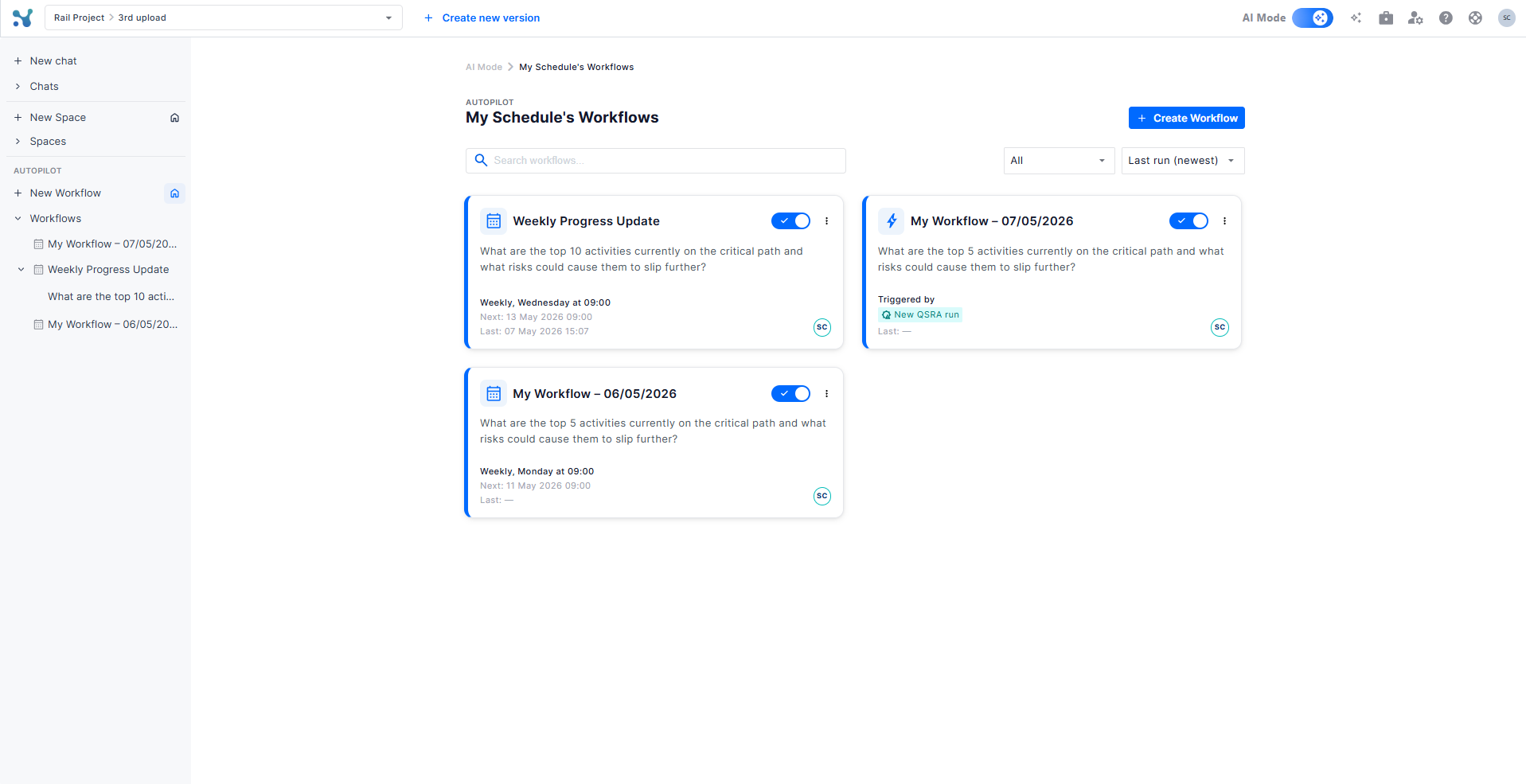
- Click on the Home icon in the sidebar to view all workflows for the current project. Each card shows:The workflow name and icon (lightning bolt for event-triggered, calendar for scheduled).
- The prompt preview.
- The trigger type and the timestamp of the last run.
- The recipient avatars.
- An active or inactive toggle: flip it to pause a workflow without deleting it.
- A context menu with Rename, Copy workflow, Unsubscribe, and Delete.
Use the search bar to find a workflow by name and the sort dropdown to order by last run date.
Tips to get the most out of Workflows
- Tune the output style to the audience. Set client-facing workflows to Executive, internal controls workflows to Analytical, and mixed-audience reports to Balanced. You can change the style at any time from the workflow detail page without creating a new workflow.
- Use event triggers for reactive monitoring. Pairing a Schedule Integrity Check or a Logic Change Detection workflow with the New upload trigger means your team gets an automatic health check the moment each revision comes in.
- Iterate on your prompts. If a result is not specific enough, click the pencil on the Prompt card and refine the prompt. The Edit History tab keeps a record of every version so you can always compare or roll back.
You are ready to go!
Once your first few workflows are active, recurring reporting runs itself. From here, you can keep building new workflows whenever a stakeholder asks a question that you find yourself answering the same way every week.