Configuration
Overview
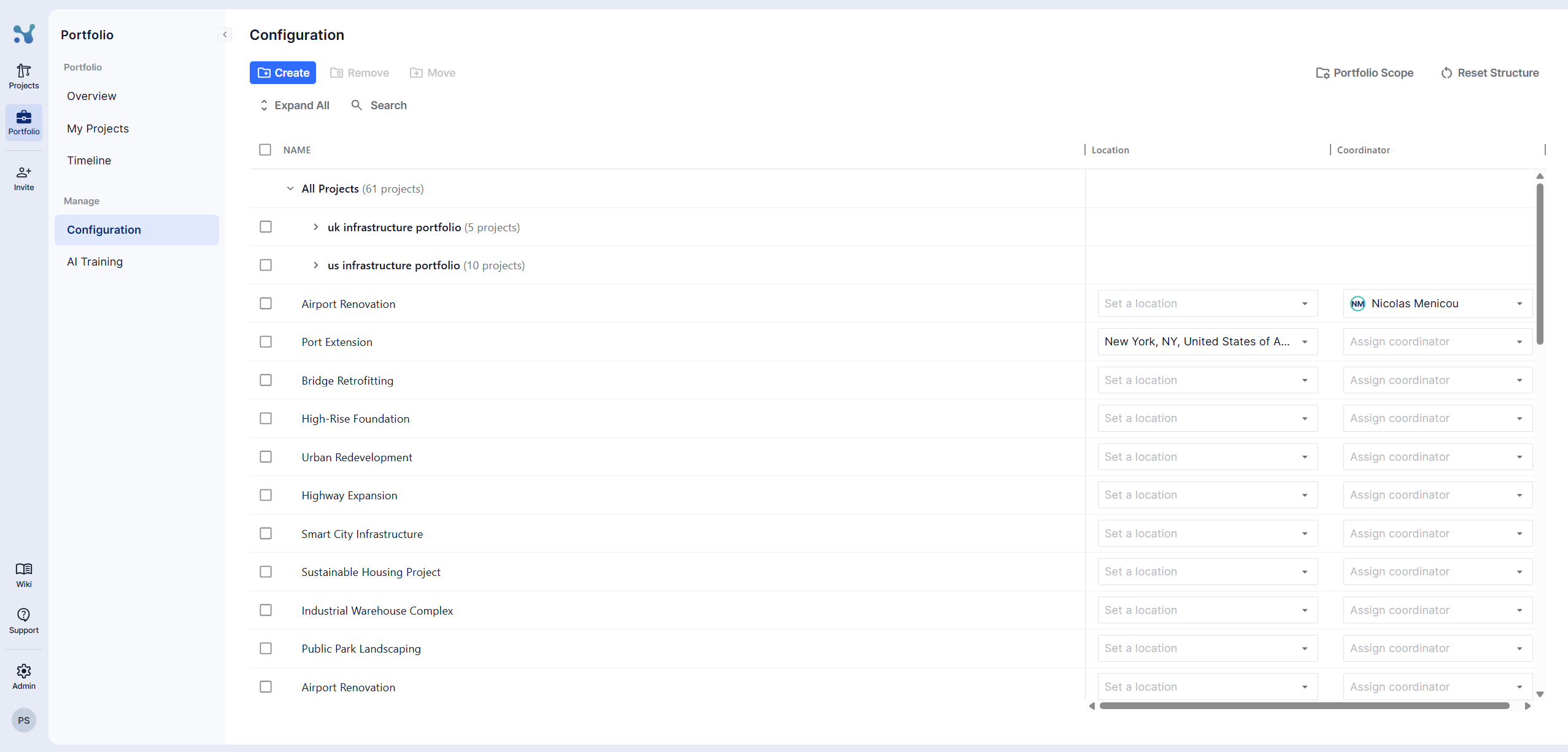
The Portfolio Configuration page provides a flexible and powerful way for administrators to organize and manage all projects across the account.
Initially, no structure exists — admins must create the structure manually based on their organizational needs.
The structure is completely flexible. This flexibility allows organizations to mirror their actual operational hierarchies, whether simple or complex. A project can also exist directly under a portfolio, without being nested inside a program.
Key Functionalities
Creating the Structure
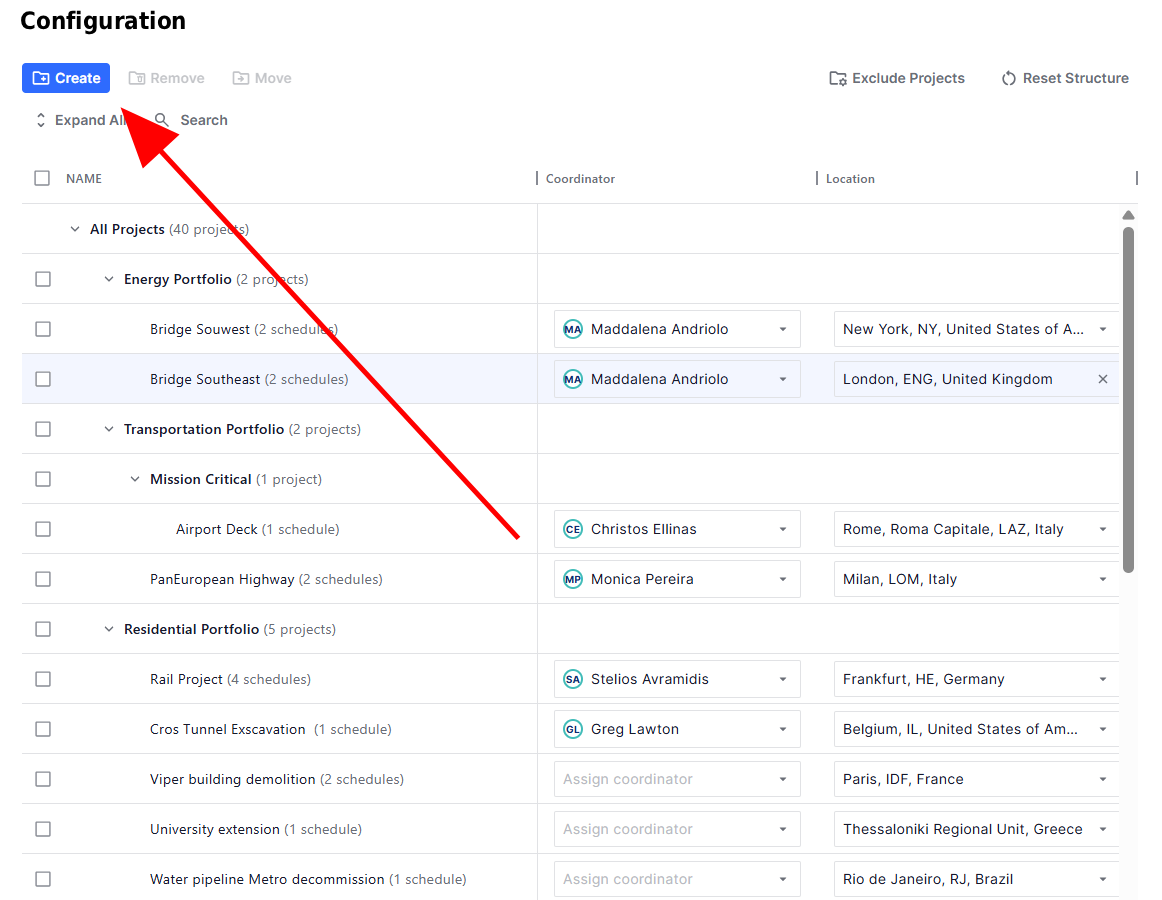
Admins can create new Portfolios and Programs at any time using the Create button at the top of the page.
Selection-Based Actions
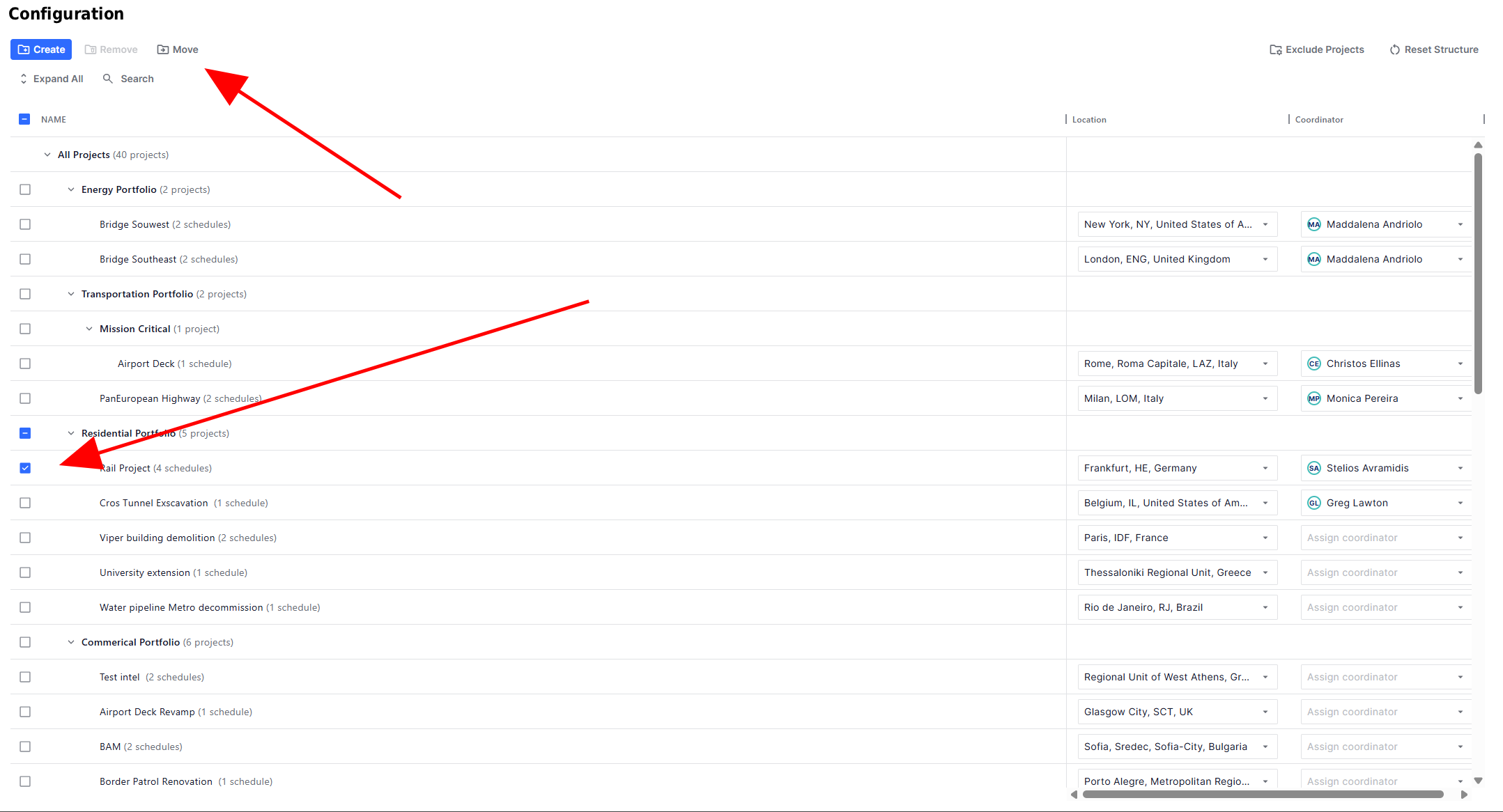
Actions like Move and Remove become available only after selecting one or more items (projects, portfolios, or programs).
Without a selection, these action buttons remain disabled, ensuring a clean and error-free workflow.
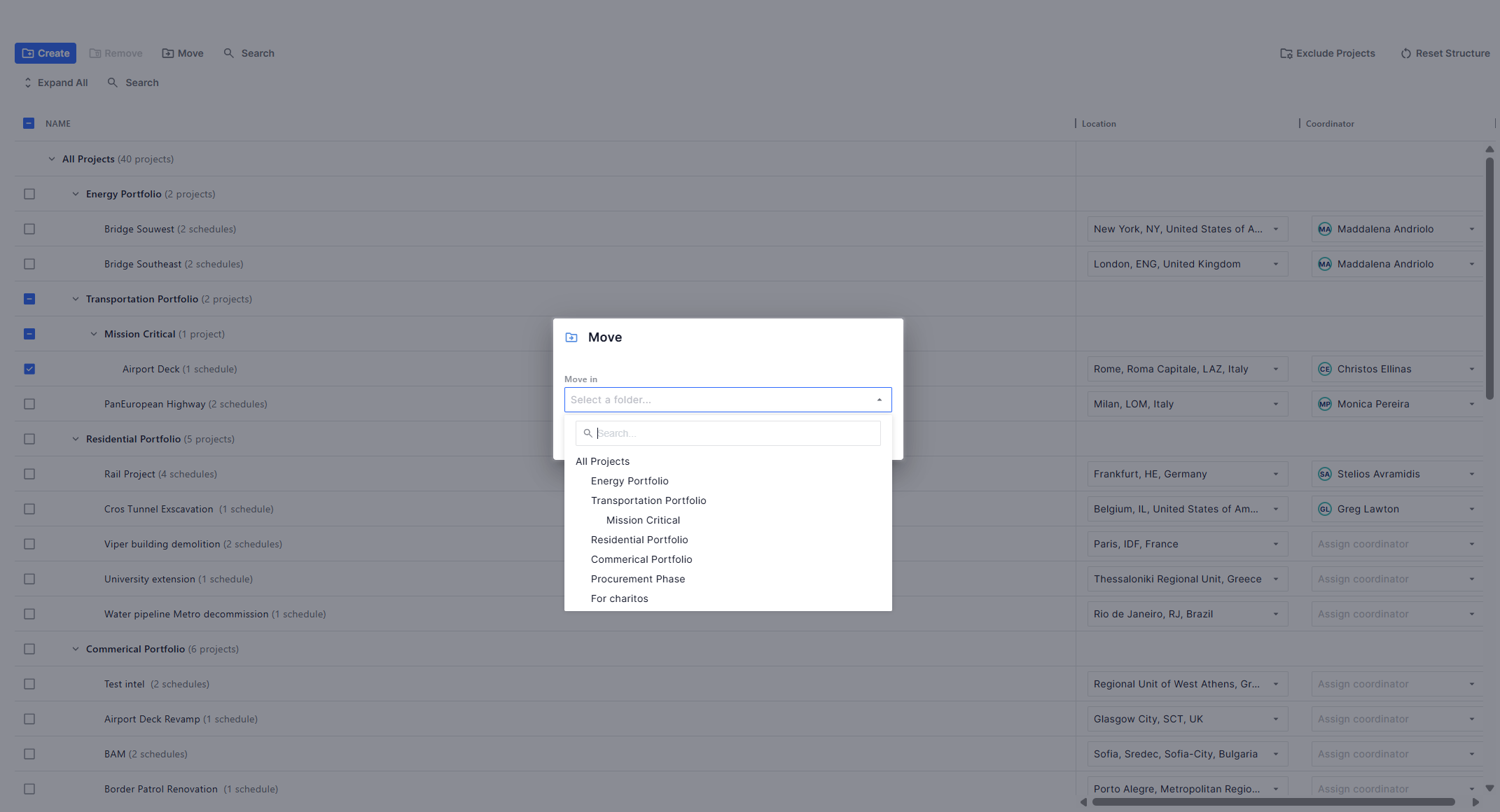
Moving Projects
Projects can be moved between portfolios, programs, or even placed directly under the account.
To move a project:
- Select the project(s).
- Click the Move button.
- Choose the new destination.
Renaming Portfolios and Programs
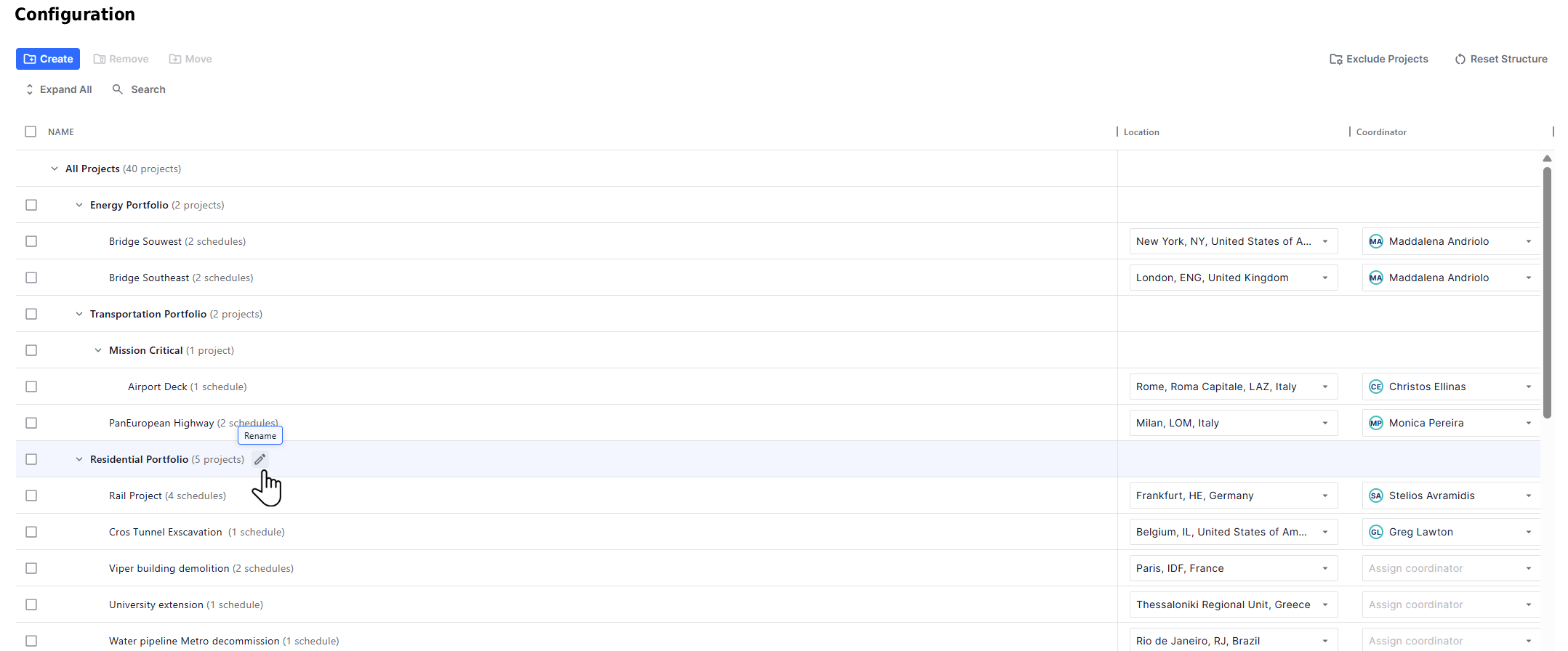
Administrators can rename existing portfolios or programs:
- Hover on an item.
- Click the Rename pencil button.
Assigning Coordinators and Locations From the Portfolio Structure page
Administrators can assign a Coordinator and a Location to each project. These are set at the project level:
- Hover over a project row to reveal the edit options.
- Assign or update the Coordinator (a team member responsible for that project).
- Assign or update the Location (used to plot the project on the map in the Portfolio Overview).
Coordinator assignments drive the Coordinator column and filter on the Projects page. Location assignments drive the map widget on the Portfolio Overview.
Excluding Projects from Portfolio Calculations
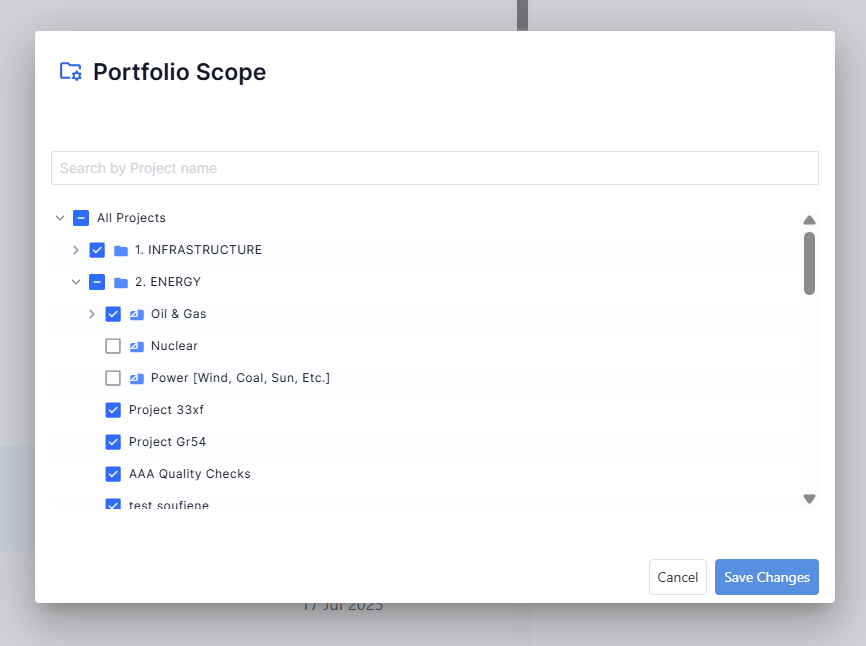
You can include or exclude portfolios, programs, projects, and project schedules from portfolio calculations.
Exclusions are configured from the Trends page by clicking the three-dot menu (top right) and selecting Exclude projects.
- Settings are saved at the account level
- Excluding a portfolio or program excludes everything inside it
- New projects are included by default
- Archived projects are ignored
These settings also determine which projects are used for Portfolio AI training.