Users
You can view all users who have access to your N&L workspace in the Admin Tool by clicking Users in the left navigation bar.
Each row is a user, and for each user, you can see useful information including
- Platform Role
- Last Login
- Projects they are part of
- MFA (On/Off)
- SSO (On/Off)
- Account Status (Active/Suspended)
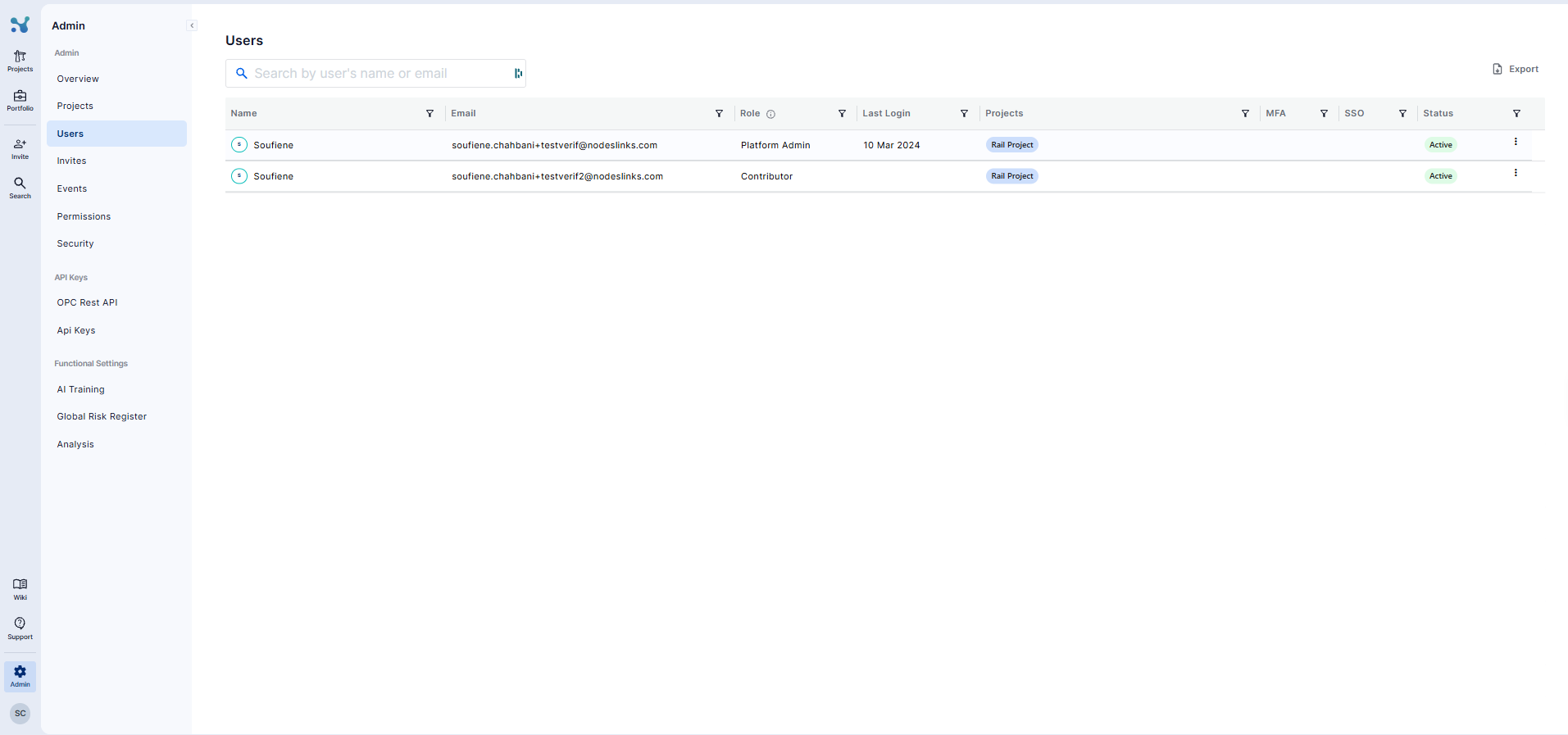
You can use the search bar to search for a specific user, along with being able to filter and/or sort based on the information within any given column.
You can also export the information for your record - click the "Export" button on the Top right of the screen and you will receive a copy of the information shown on your screen.
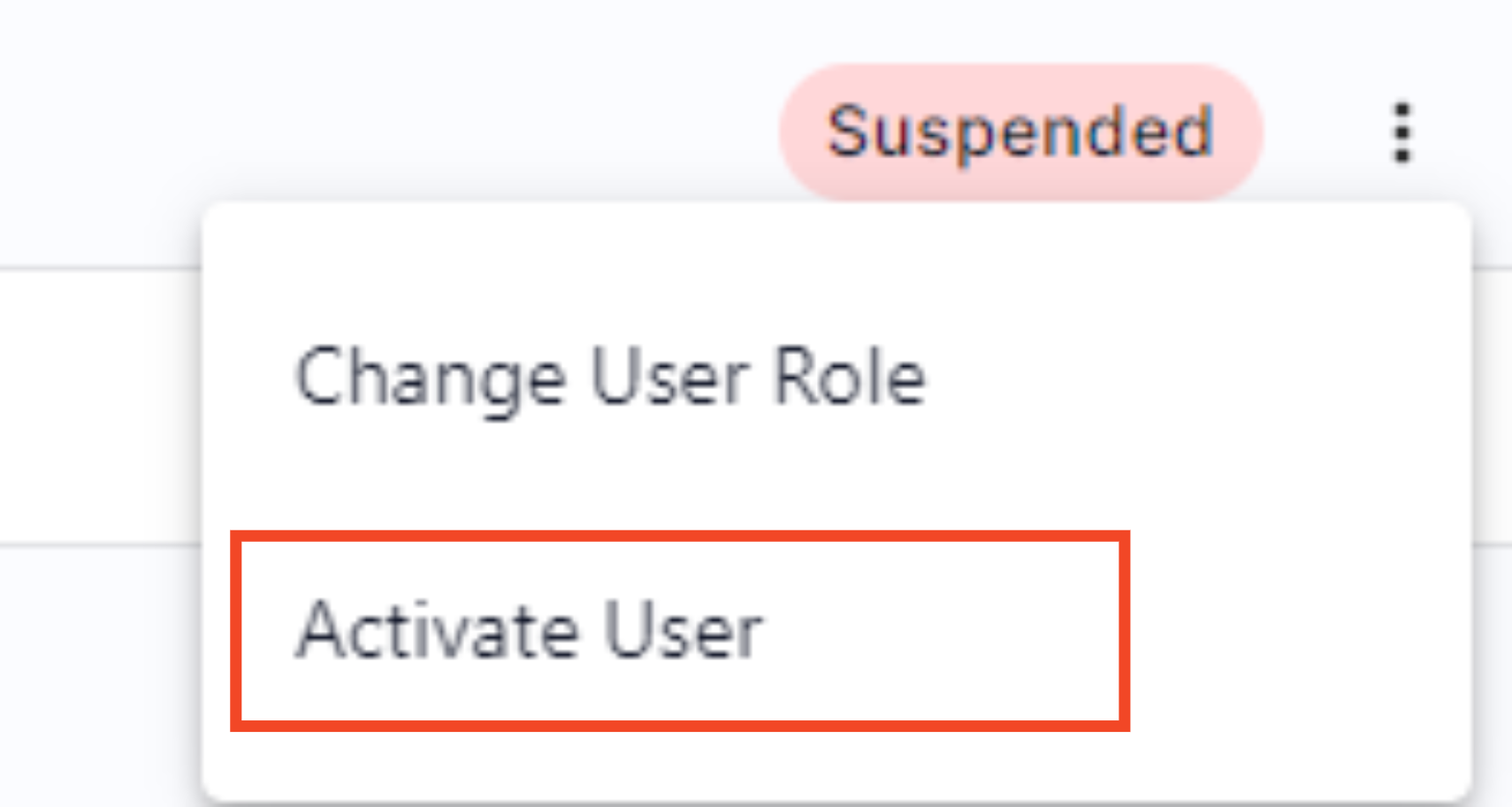
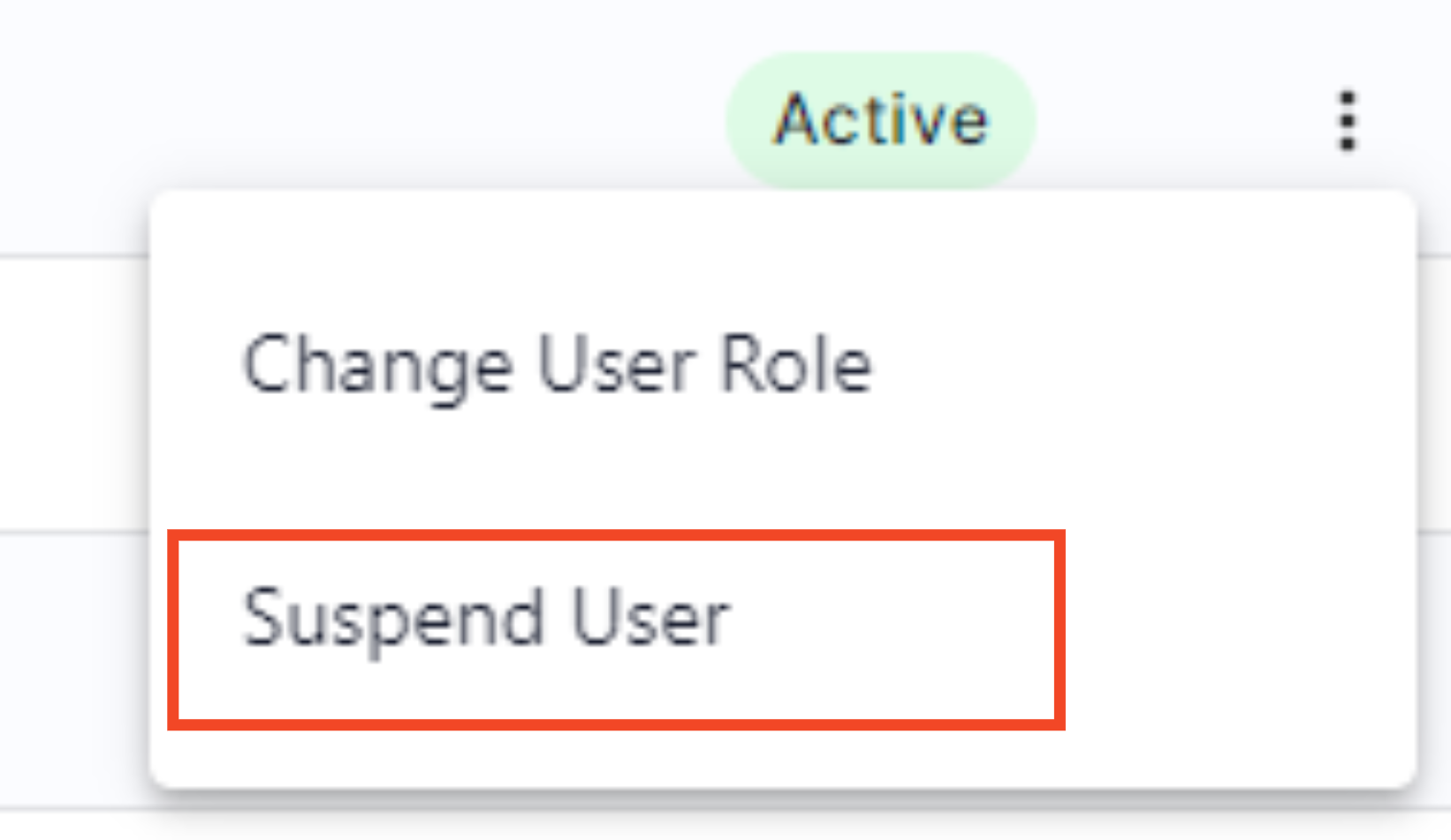
The Admin Tool also enables you to Change the platform role of a user, along with Suspend or Activate a user.
To Change a user role:
- Locate the user whose role you wish to change.
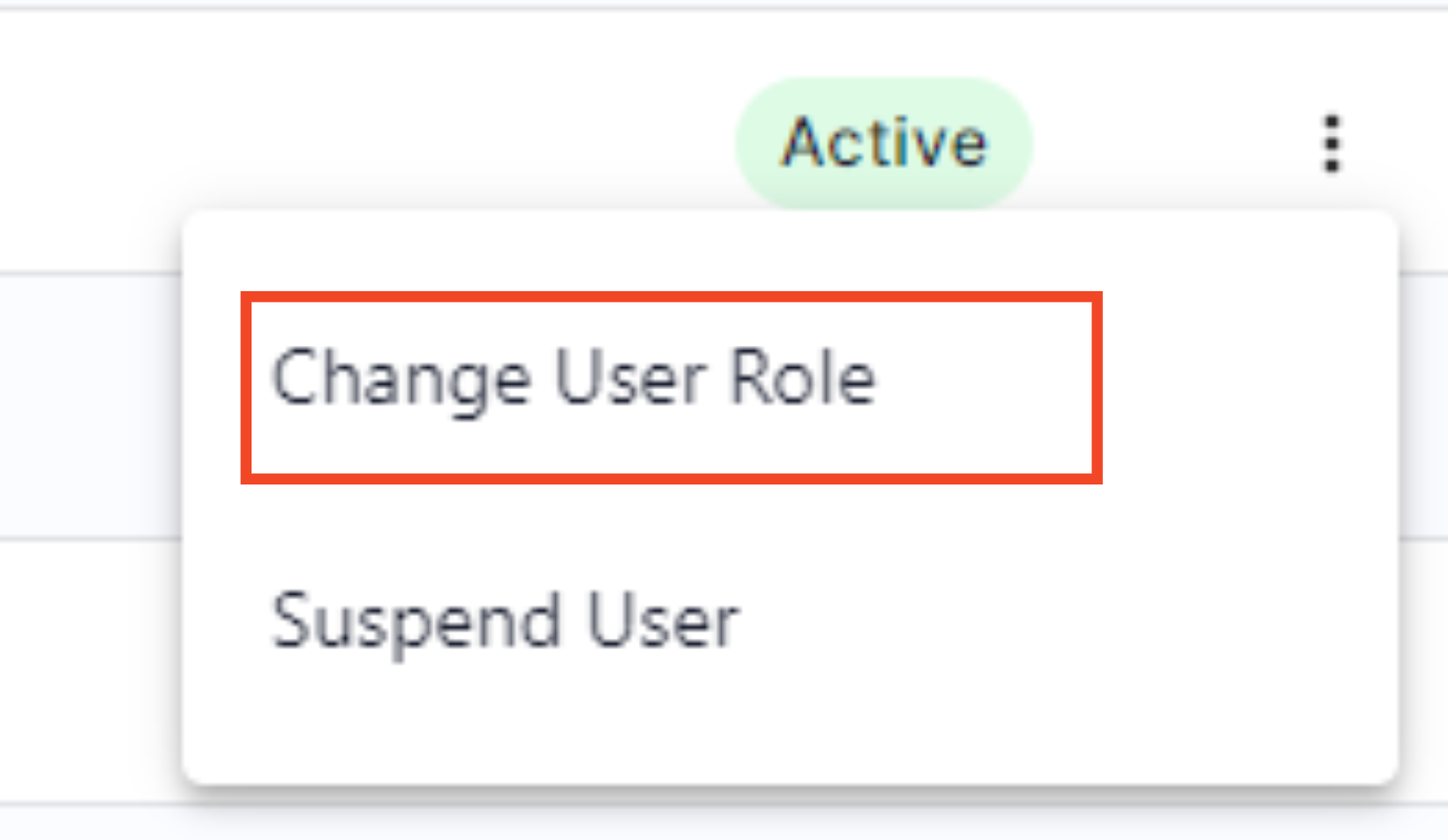
- Click on the three dots next to the Status column.
- Select "Change User Role" from the options.
- Select the new role from the drop-down and click Done.
To Suspend/ Activate the user:
- Locate the user you wish to suspend.
- Click on the three dots next to the Status column.
- Select "Suspend User" or "Activate User" from the options.
- Confirm the suspension/activation when prompted.