
Analysis
You can configure workspace-level calculation preferences by clicking on “Analysis” under Functional Settings in the Admin left navigation bar.
The Analysis page allows you to select the Critical Path calculation mode that will be used across the workspace. This setting determines the method used to identify the activities that drive the overall project completion date.
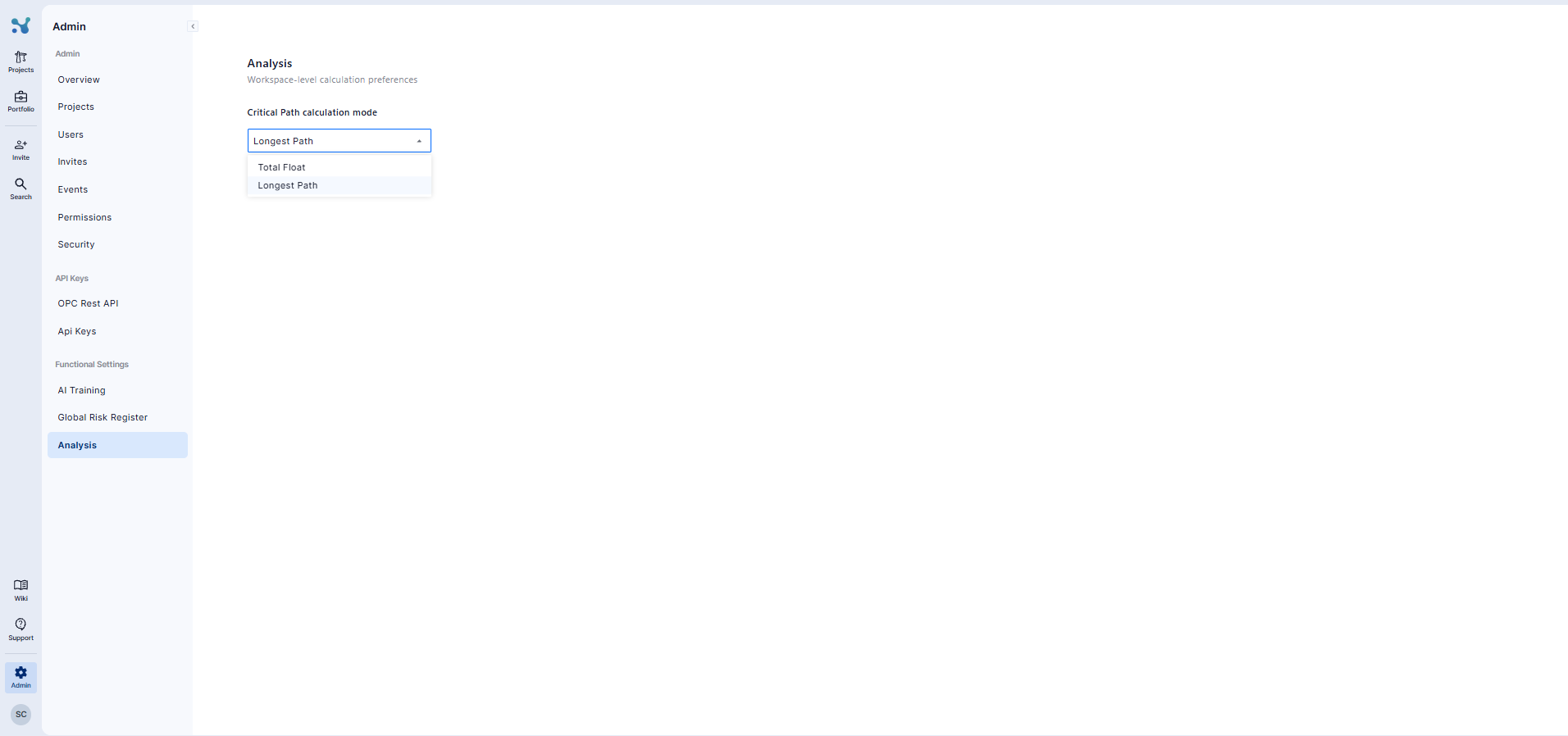
Available calculation modes
| Calculation mode | Description |
|---|---|
| Longest Path | The critical path is taken directly from the longest path as defined in the uploaded .xer |
| Total Float | The critical path is calculated based on the float values of activities. |
To change the Critical Path calculation mode:
- Navigate to Admin from the main navigation bar.
- Under Functional Settings, click “Analysis.”
- Open the “Critical Path calculation mode” drop-down list.
- Select either “Longest Path” or “Total Float.”
- Click “Save” to apply the selected calculation preference.
The selected setting is applied at workspace level and will be used when determining the critical path in project schedule analysis.
🧠 This setting affects how the project’s critical path is displayed across the platform — including in Timelines, Paths, and Reports.