
Signals
📄 Signals
The RFI answered over breakfast. The change order approved at lunch. By the time they reach your schedule, if they reach it at all, the dates they affect have already moved.
Signals changes that. Every RFI and Change Order raised in your project’s Aconex shows up here, in Nodes & Links, next to the schedule it can shake. See it early, link it to the activities it threatens, and let the AI factor it in, before it becomes a surprise.
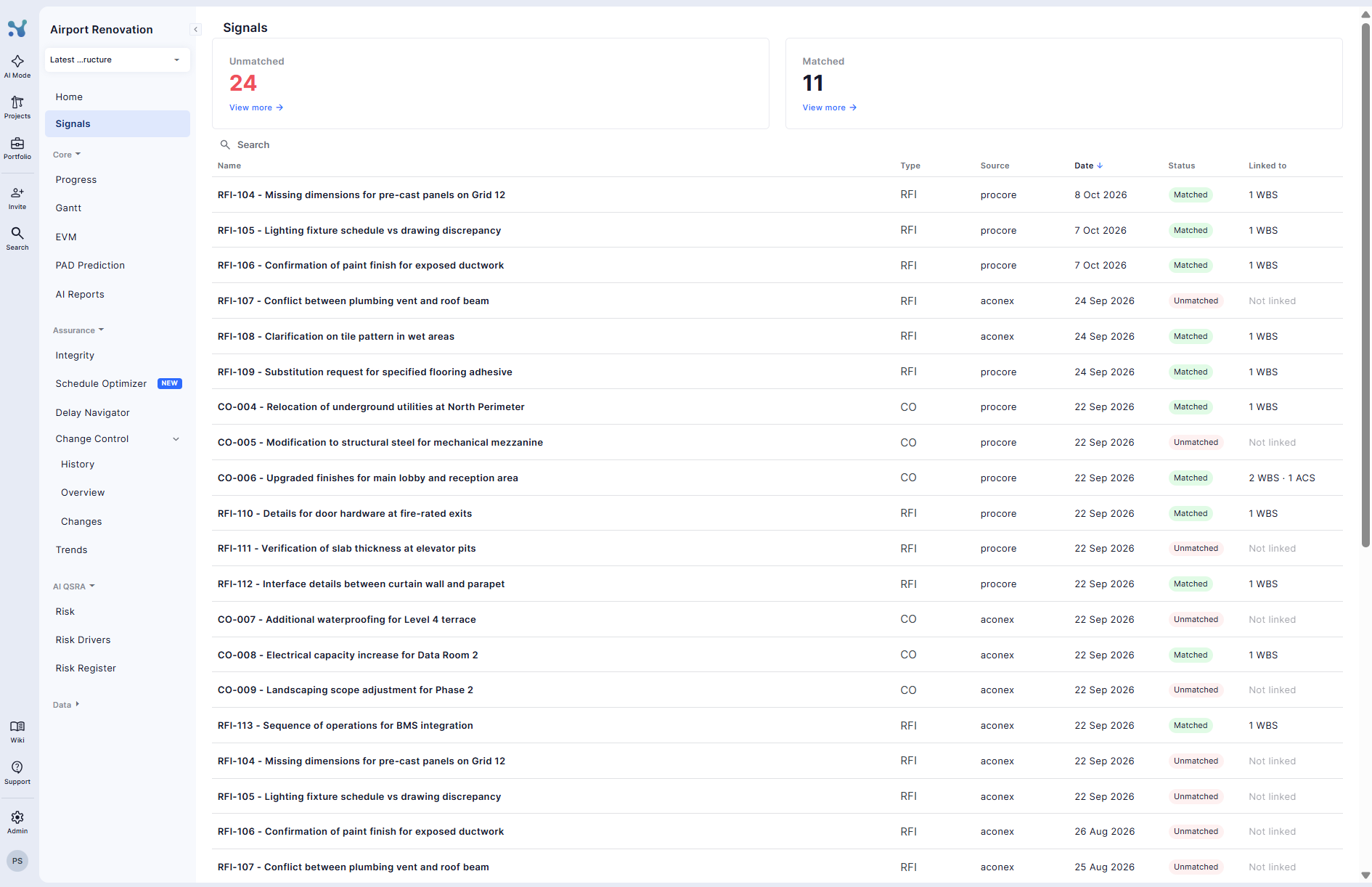
Where to find it
Open your project and click Signals in the navigation, right below Home.
💡 Don’t see it? The feature may not be enabled for your workspace yet, ask your workspace admin.
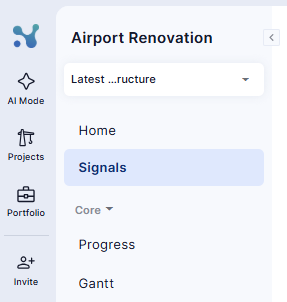
What you’re looking at
Each row is one external document, with everything you need to triage it at a glance:
- Type: RFI or Change Order
- Title: its title or reference number, as named in the source system
- Source: Aconex (More integrations to come)
- Date
- Status
- Linked to: the WBS node or Activity Code it’s matched to, once you’ve linked it
Sort by date to see what’s freshest, or by type to work through one category at a time.
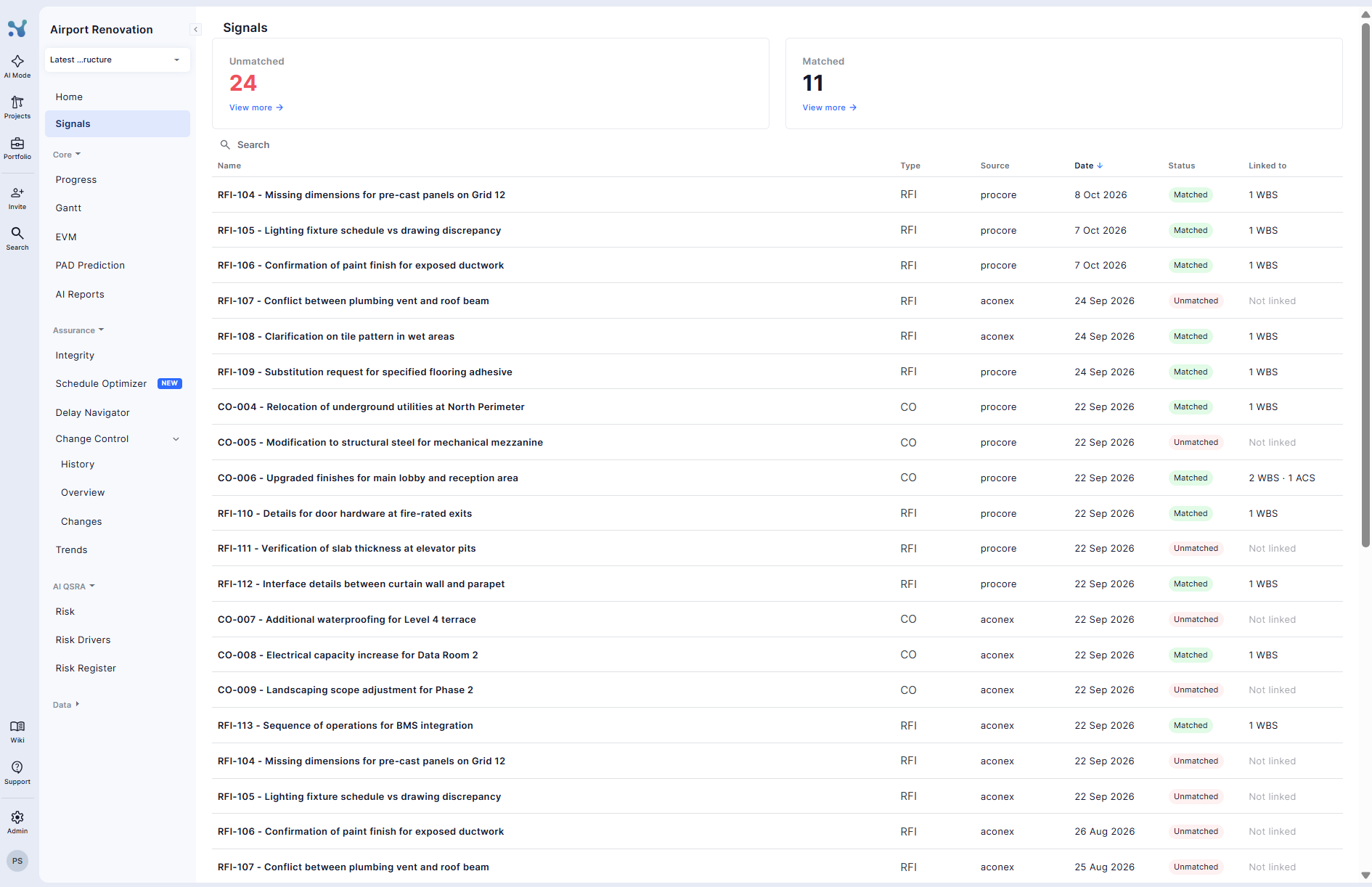
Inspecting a document
Click any row to open the full picture without leaving the page: title, type and any attachments it carries.
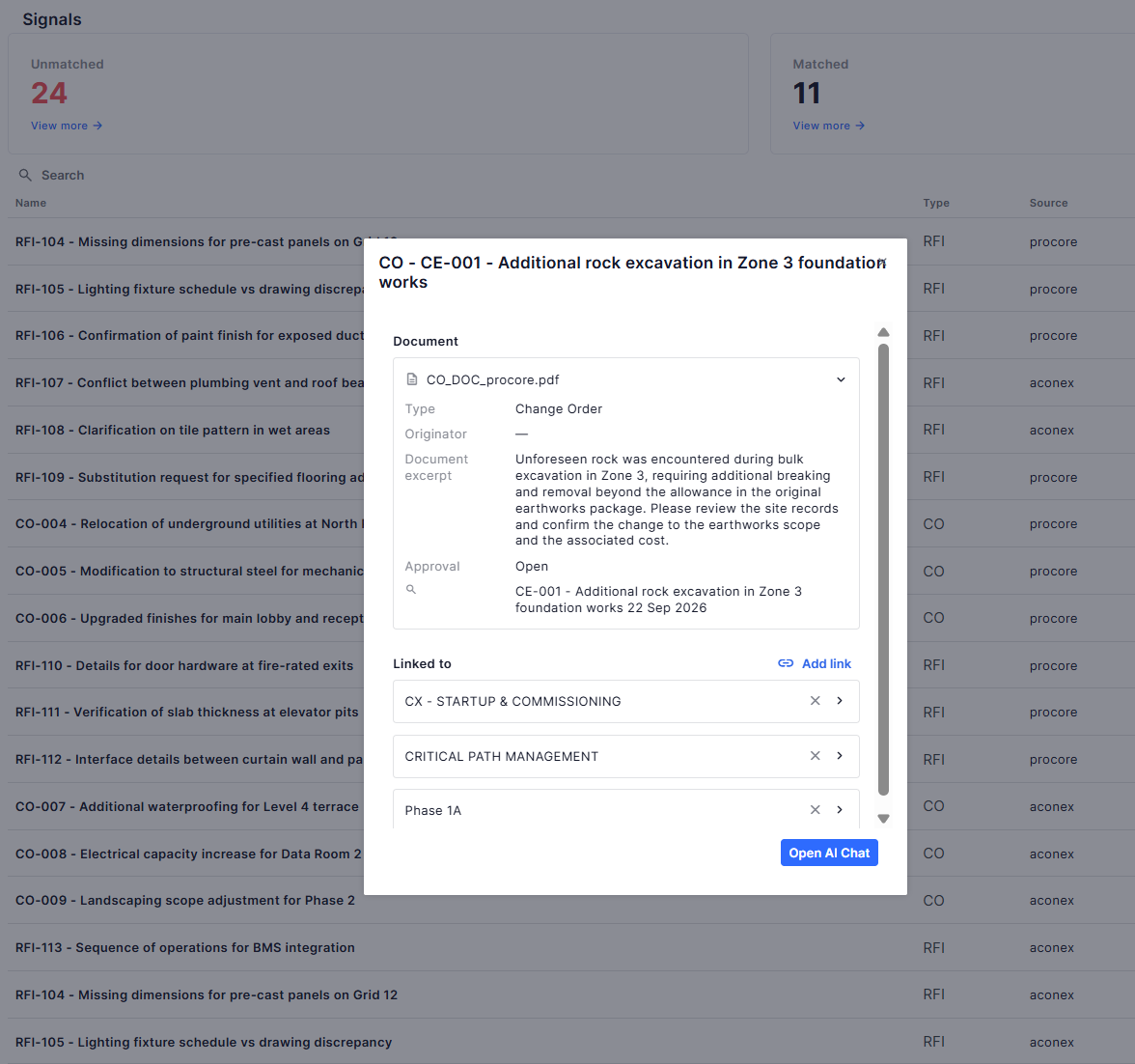
💡 Documents carry a short excerpt, a preview of their content pulled from its key details, like the subject, status, and questions or description.
Open in AI & jump to source
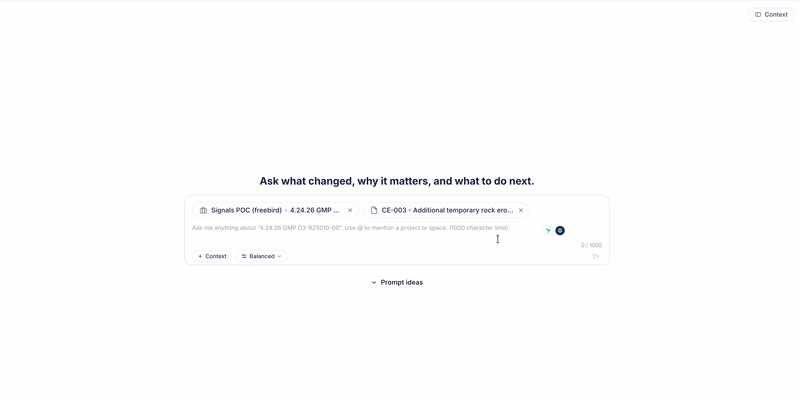
Want to dig deeper? Hit Open in AI and the document opens in the AI in a new tab, a conversation about it already started, no copy-pasting, no re-explaining what it is.
Need the original, the full thread, the signatures, the attachments in context? Hit Open in Aconex and the document opens in Aconex, in a new tab, exactly where it lives.
💡 Aconex decides who can see what, so if the document turns out to be restricted, that’s your provider’s permissions talking, not Nodes & Links. You’ll see a heads-up explaining this before you jump.
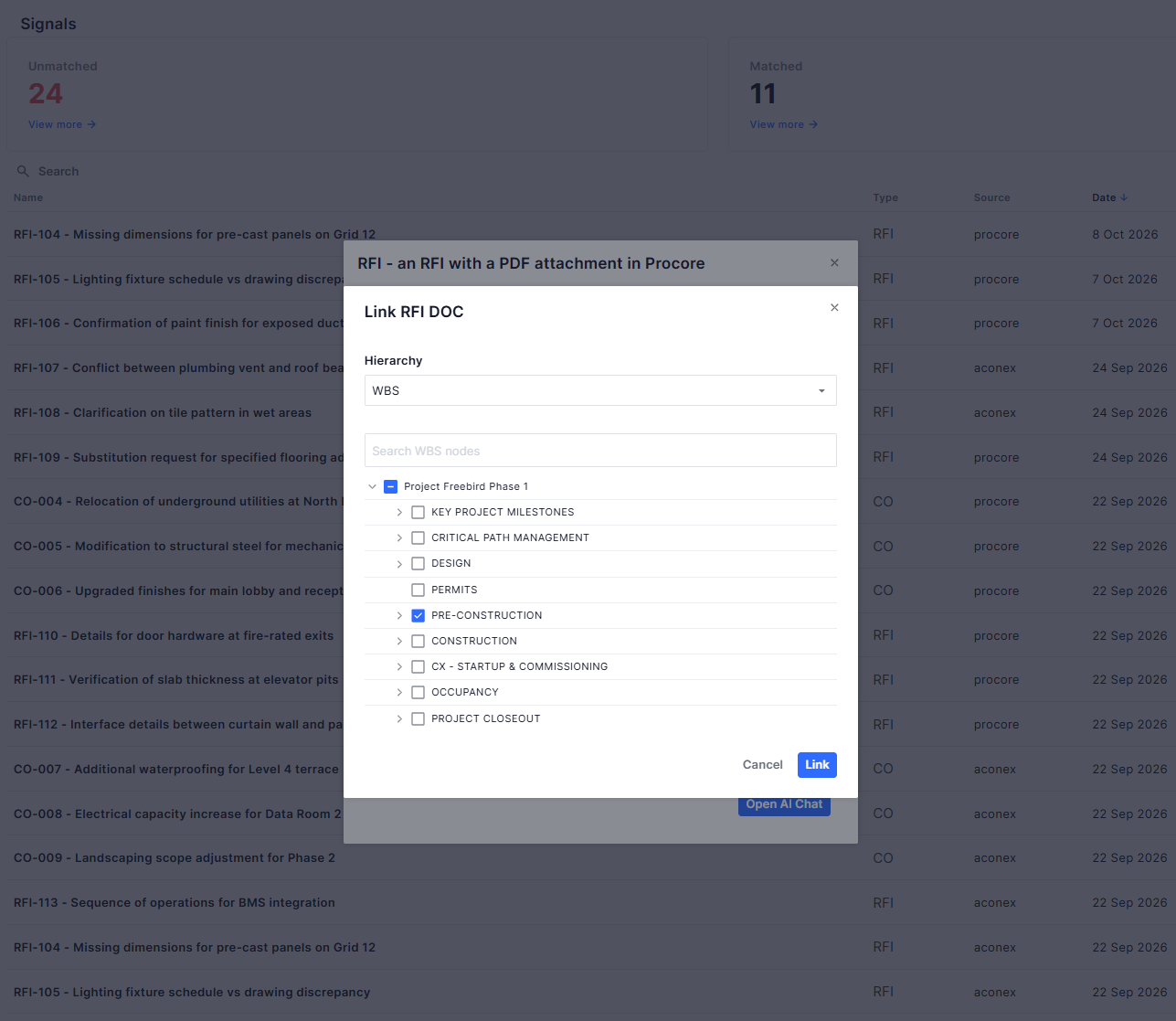
Link it to the schedule, this is where it gets valuable
An unread RFI is trivia. A linked RFI is a schedule risk you’re managing.
- Open the document and use the match action.
- Pick the WBS node or Activity Code it threatens or informs.
- Done, the link shows in the Linked to column.
Changed your mind? Remove the match the same way, any time.
Let the AI do the reading
The moment a document is linked, it becomes part of what Nodes & Links’ AI knows about your project. Ask about it in AI chat: the AI can pull its content, cite it directly, and factor it into its answers, you’ll never have to re-read a 40-comment RFI thread to remember what was decided.
Nothing here yet?
Documents start flowing the moment an admin connects your platform and maps this project, after that, they refresh automatically every day.
If the Signals page is empty you can contact your Nodes&Links platform administrator and request a Signals connection!
You are ready to go!
Check Signals when you start your day, link what matters, and let the AI keep the thread. Your schedule’s blind spots just got a lot smaller.
Don’t hesitate to get in touch if you have any further queries!