
🧠 AI Mode
What is AI mode?
AI Mode is your built-in conversational assistant that helps you explore and understand your project schedules directly inside Nodes & Links. It uses product insights, reasoning, and domain expertise to answer your questions and help you complete workflows.

How it works
When you ask a question, it understands your question, consults its knowledge base, decides on the steps to answer, and then executes. The AI mode shows its reasoning process as it works, so you can understand how it arrived at its answer. We trained it using a knowledge base that we created that includes the PMBOK guide (https://www.pmi.org/standards/pmbok) and AACE guidelines.
Example:
Use the following prompt:
Look at my portfolio in KPIs such as CP length, Progress, Risk and Integrity and find patterns that can expose my projects to risk and make me a presentation about it
Let’s break this down:
| Statement | Value |
| Look at my portfolio in KPIs such as CP length, Progress, Risk and Integrity... | Gets insights from our platform even when asked in natural language |
| …and find patterns that can expose my projects to risk … | Applies reasoning as an experienced expert to those insights. |
| …and make me a presentation about it | It can complete workflows |
As you can see, AI Mode can do much more than just provide you with insights.
How to use the AI Mode
Global (workspace) — best for cross-project work
- Open AI Mode from the AI Mode entry in the left navigation rail, or from the Projects Overview.
- No project is selected by default — you choose the context (one project, or many).
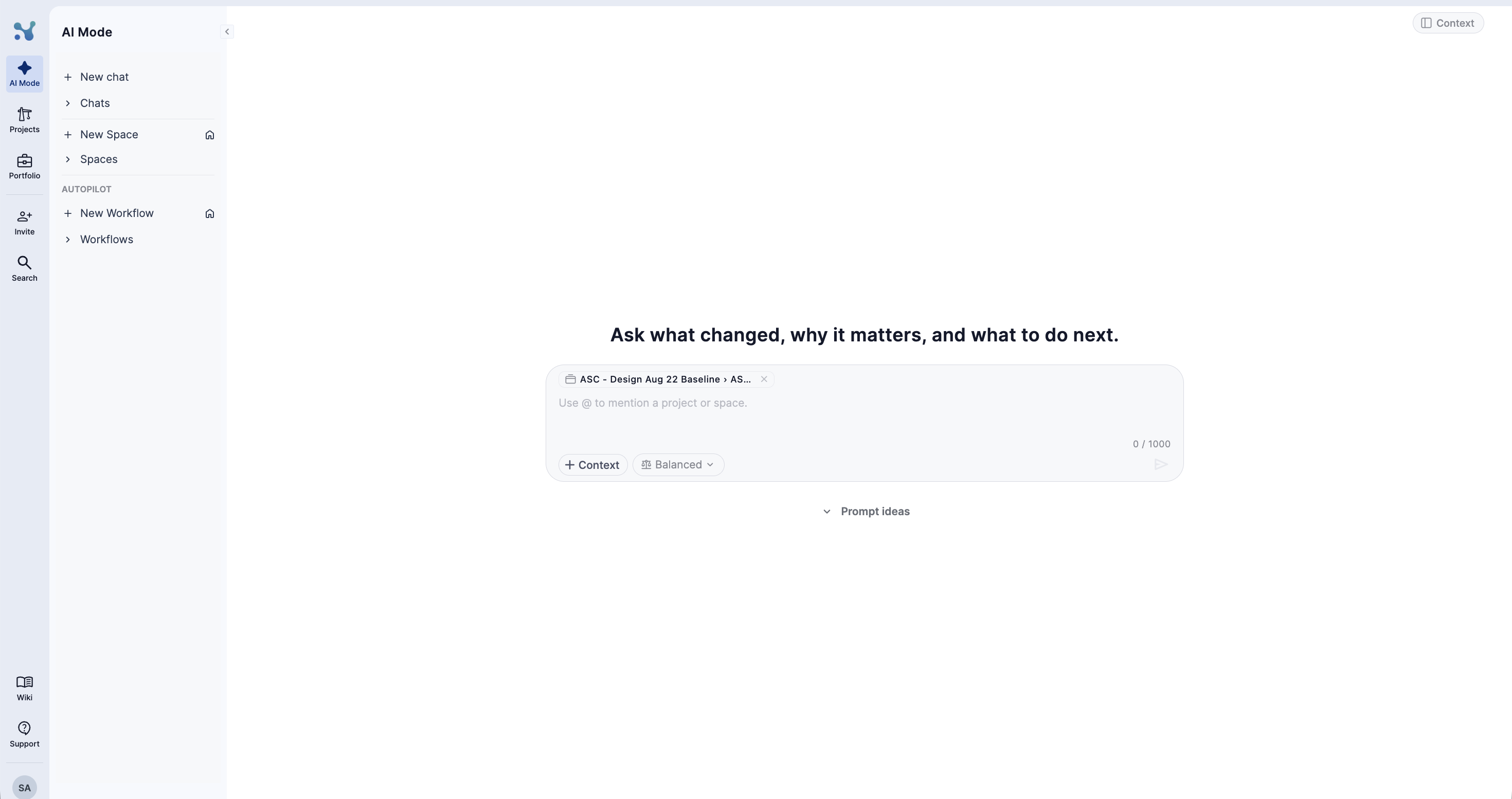
Note: You can switch back to the standard platform UI at any time by clicking the AI mode button again.
Ask your first question
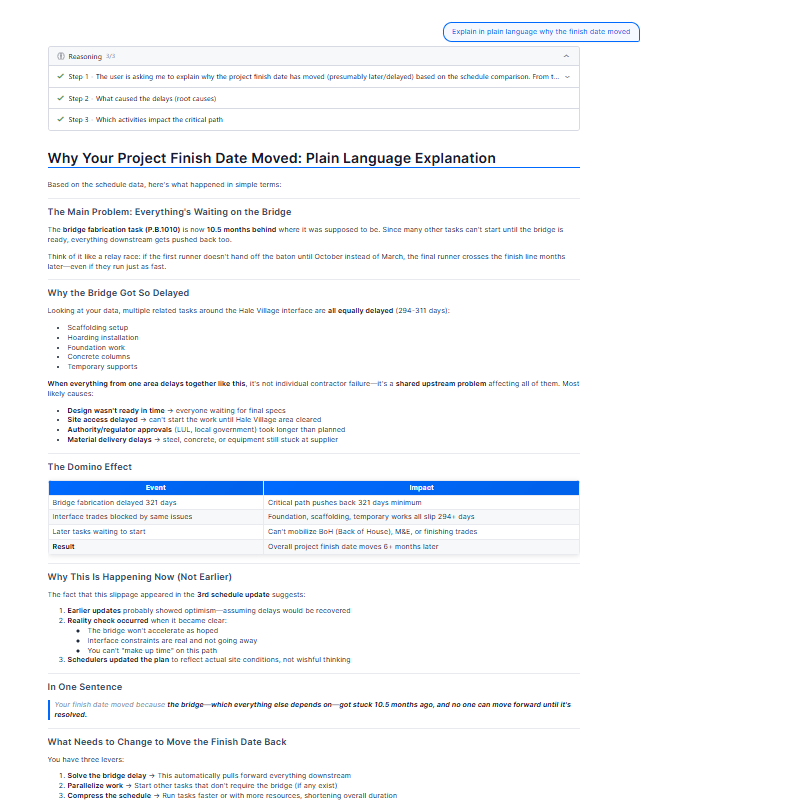
Type a project-related question into the input box at the bottom. Press Enter or click the send button to submit your question. The AI mode will analyze your project schedule and return an answer with supporting context, such as:
- Text
- Tables
- Graph and visuals (including Gantt charts)
- Excel
- Power Powet Presentation
- Recommendations for action
Add context to the AI
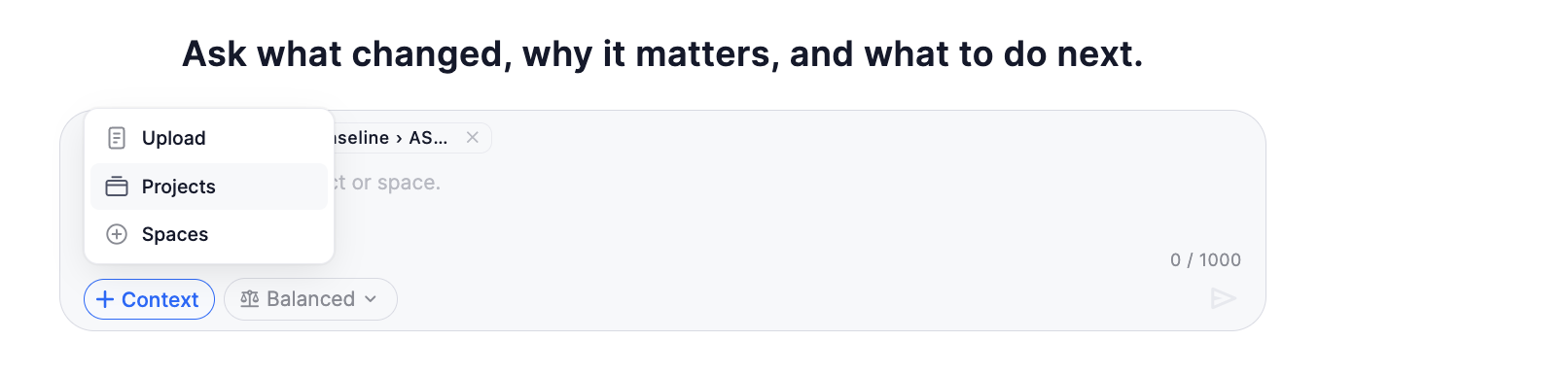
By default the AI mode will answer questions across your portfolio but if you want to focus on a specific project or version you can add that context by selecting Context => Projects => Select project or version
Review context
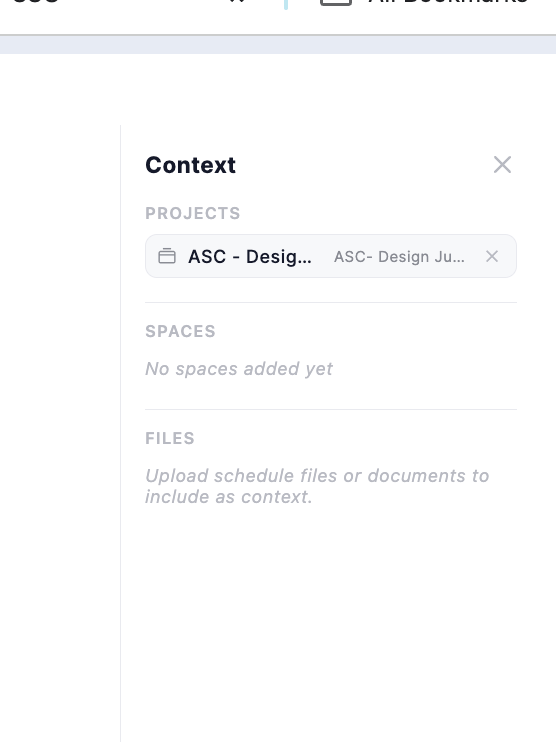
You can review the context the AI mode currently uses by clicking on the context button to the top right. You can also remove context from there.
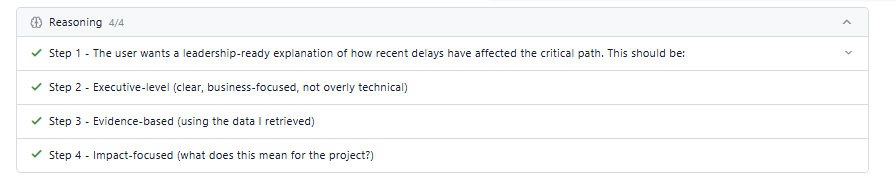
You can view the AI mode Reasoning section (collapsible) to see how it processed your question step by step.
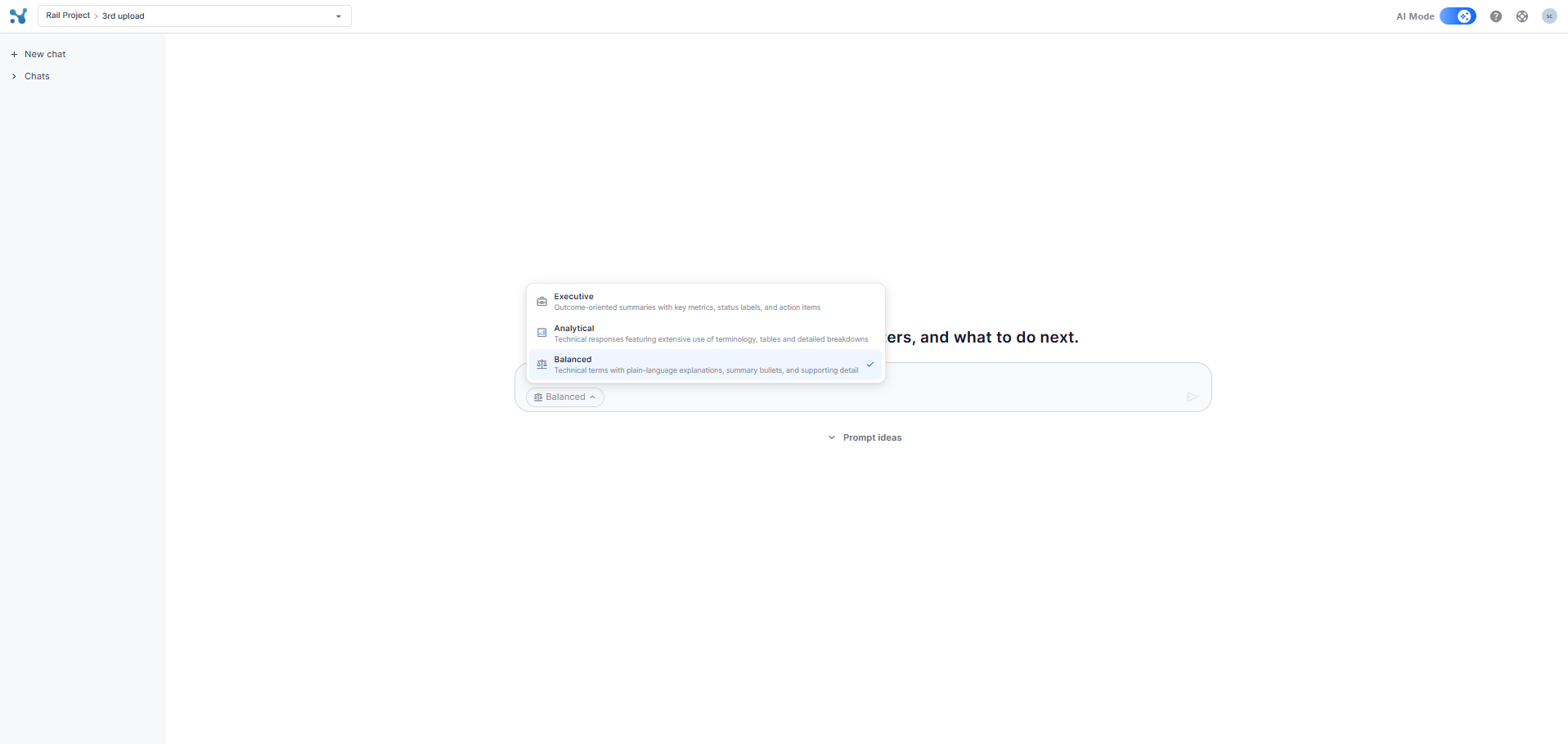
Choose the tone of the response
Before submitting a question, you can select the tone of the AI response using the tone selector inside the input box. There are three options:
• Executive — Outcome-oriented summaries with key metrics, status labels, and action items
• Analytical — Technical responses featuring extensive use of terminology, tables, and detailed breakdowns
• Balanced — Technical terms with plain-language explanations, summary bullets, and supporting detail
The selected tone applies to the current question and can be changed before any new message.
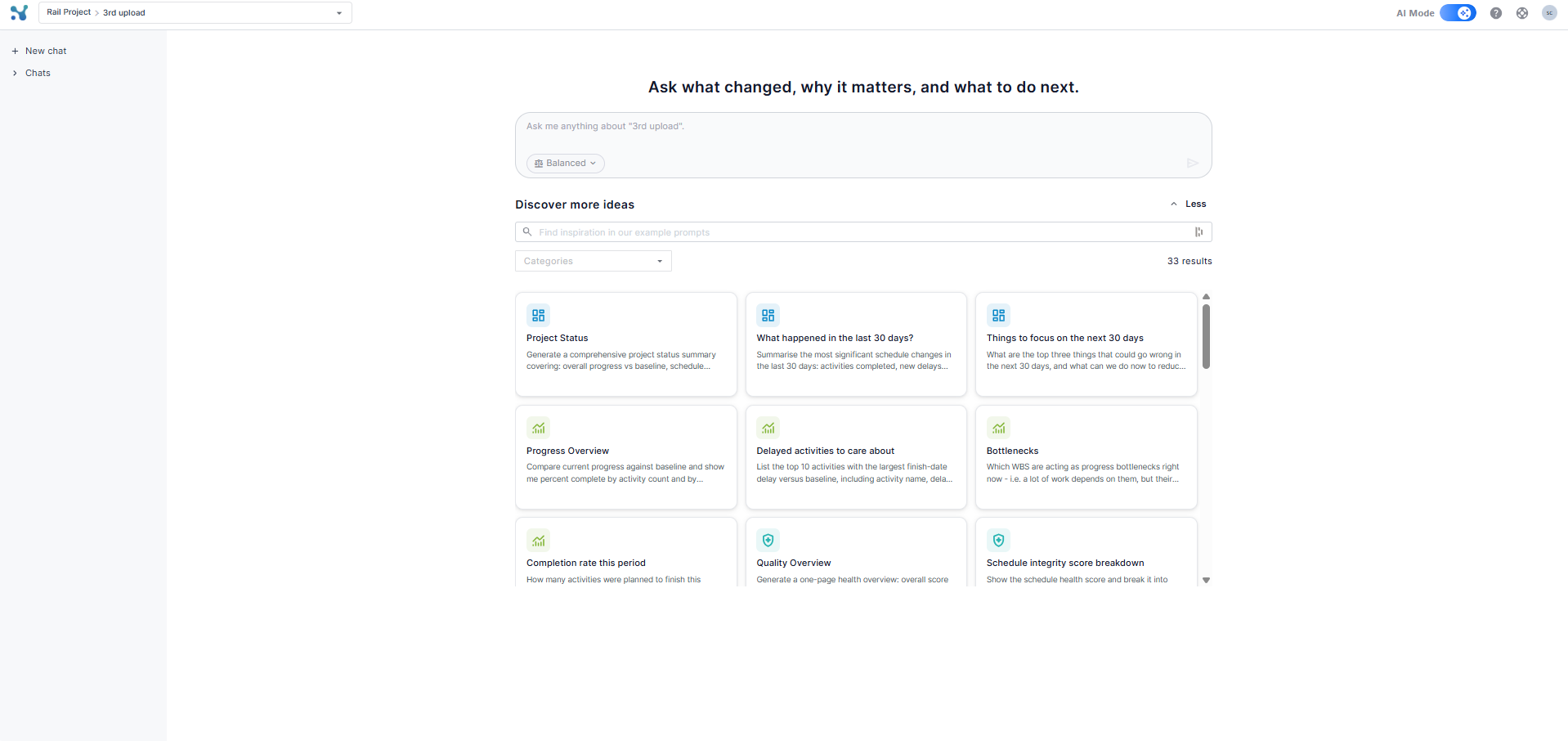
Discover prompt ideas
Below the input box, click Prompt ideas to expand a library of ready-to-use prompts. Each card shows a title and a short description of what it does. Click any card to load the prompt directly into the input box.
Use the search bar to find prompts by keyword, or filter by category: Overview, Progress & Tracking, Schedule Integrity, Change Control, Delays & Forensics, Risk & Uncertainty, and Resources & Cost.
5: Refine your questions and explore further
You can ask follow-up questions to dive deeper into your analysis. The AI maintains conversation context, so you can build on previous answers. Use more specific prompts (e.g., date ranges, WBS segments, phases) to get more targeted answers.
6: Manage and revisit chats
AI Mode saves your conversations as separate chats, making it easy to organize different analyses and return to previous work.
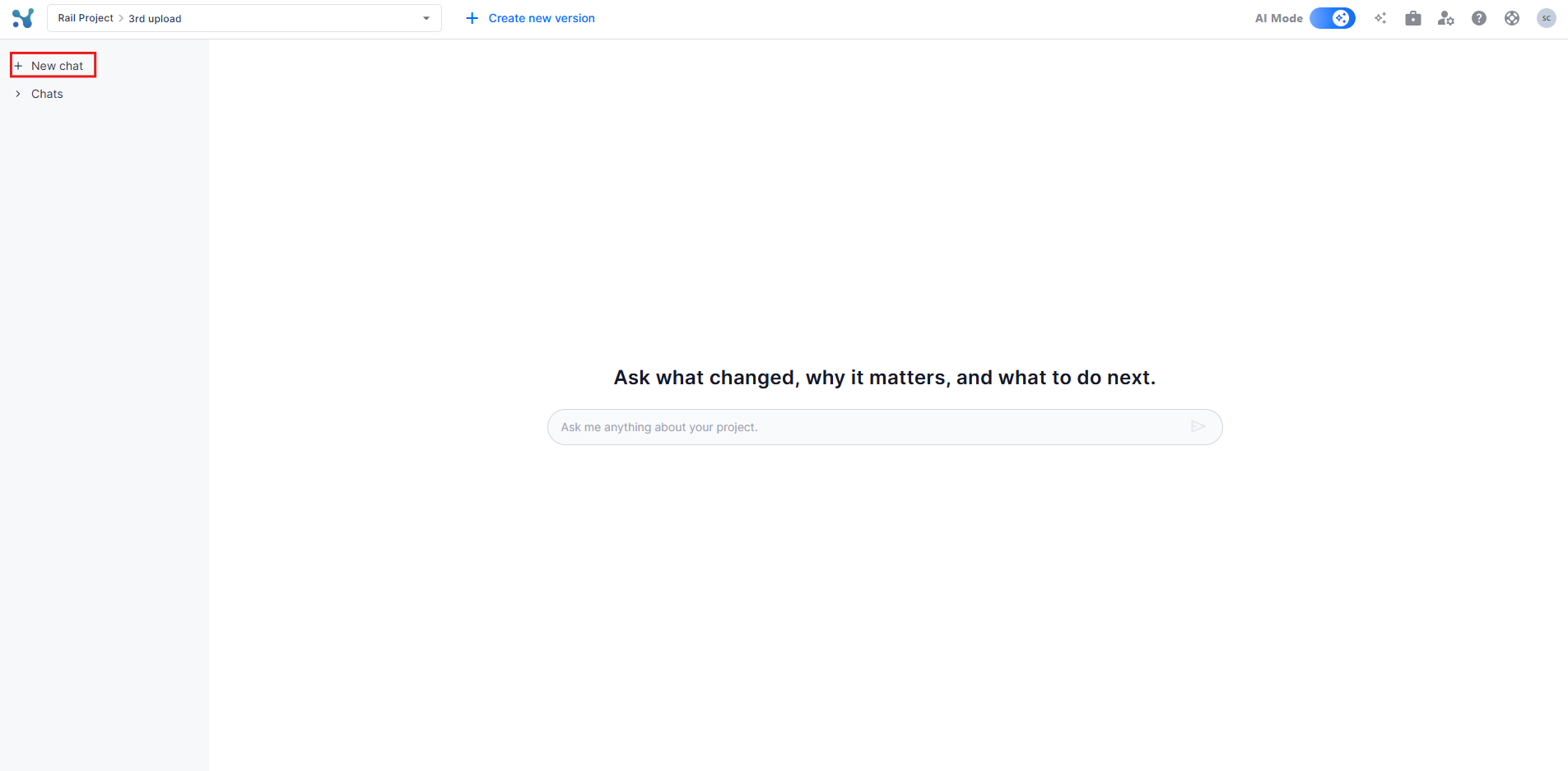
Starting a new chat
Click the "New chat" button in the left sidebar to begin a fresh conversation on a different topic. Each chat maintains its own independent history.
Accessing your chat history
All conversations are saved in the "Chats" section of the left sidebar, organized by date. Each chat is automatically named based on your first question.
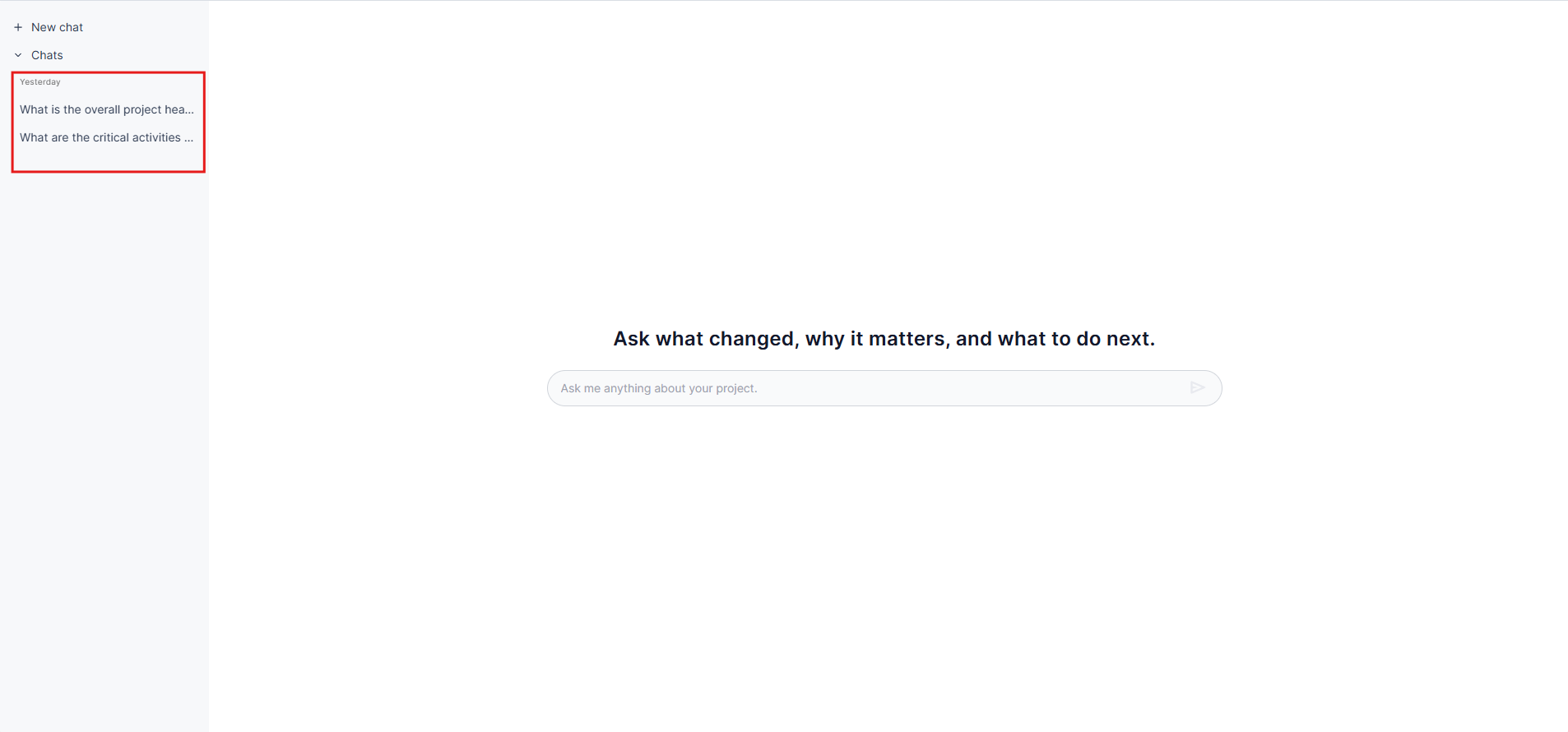
Click on any previous chat to reopen the full conversation, including all questions, answers, tables, and graphs. You can continue asking follow-up questions, and the AI will maintain context from that specific chat.
7: Spaces
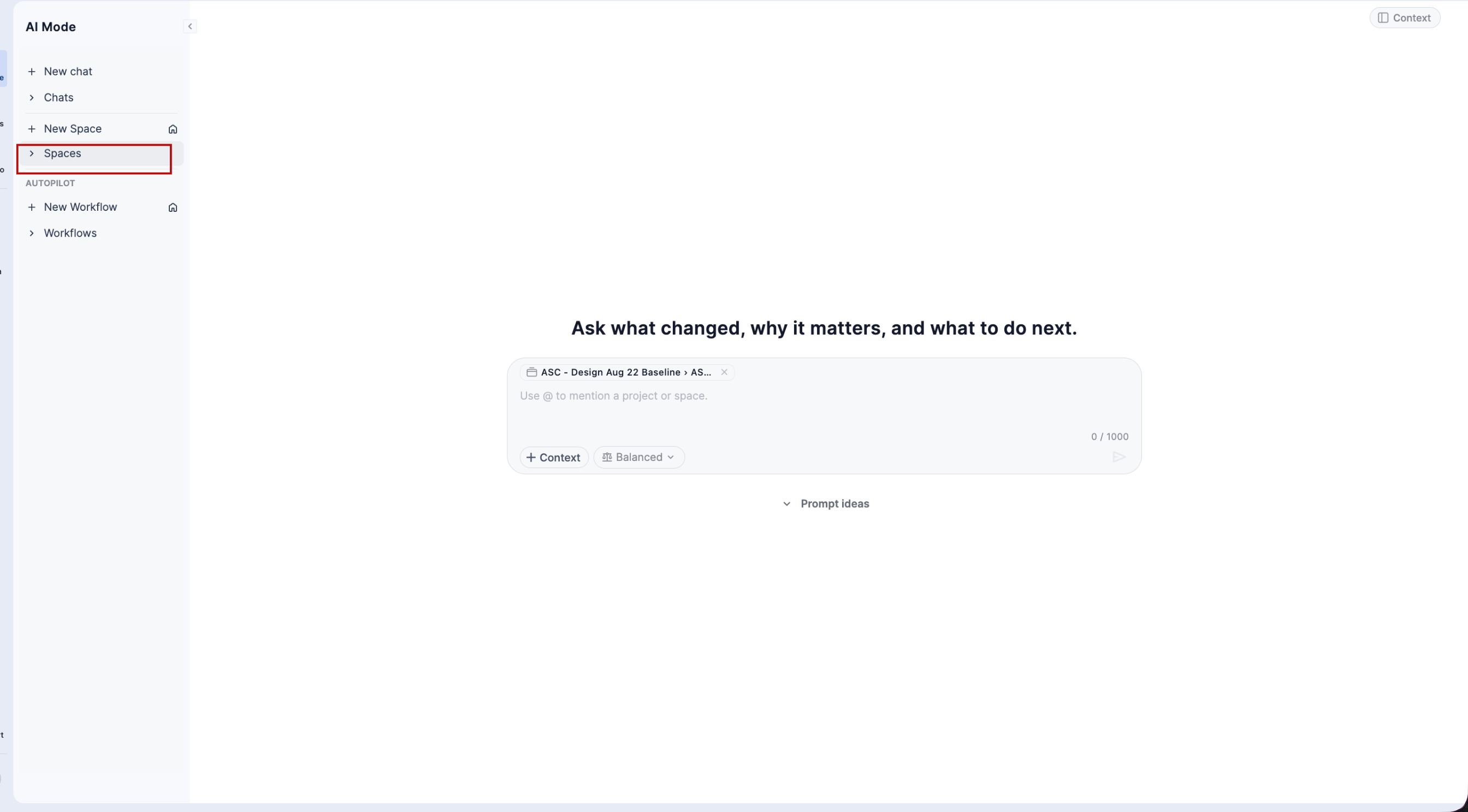
Spaces let you organise your AI Mode work into focused, named areas — each with its own set of chats and dedicated file context. Instead of having all conversations in a single list, you can create a Space for a specific analysis topic (e.g. "Risk Review Q2", "Contractor Progress Report") and keep everything related to that topic in one place.
Spaces are private by default and can be shared with specific teammates.
How to Create a Space
- In the left sidebar, click + New Space.
- A new Space is created immediately with the default name "New Space" and its homepage opens.
- Click the pencil icon next to the title to rename it.
- Type your chosen name and press Enter to confirm.
The Space Homepage
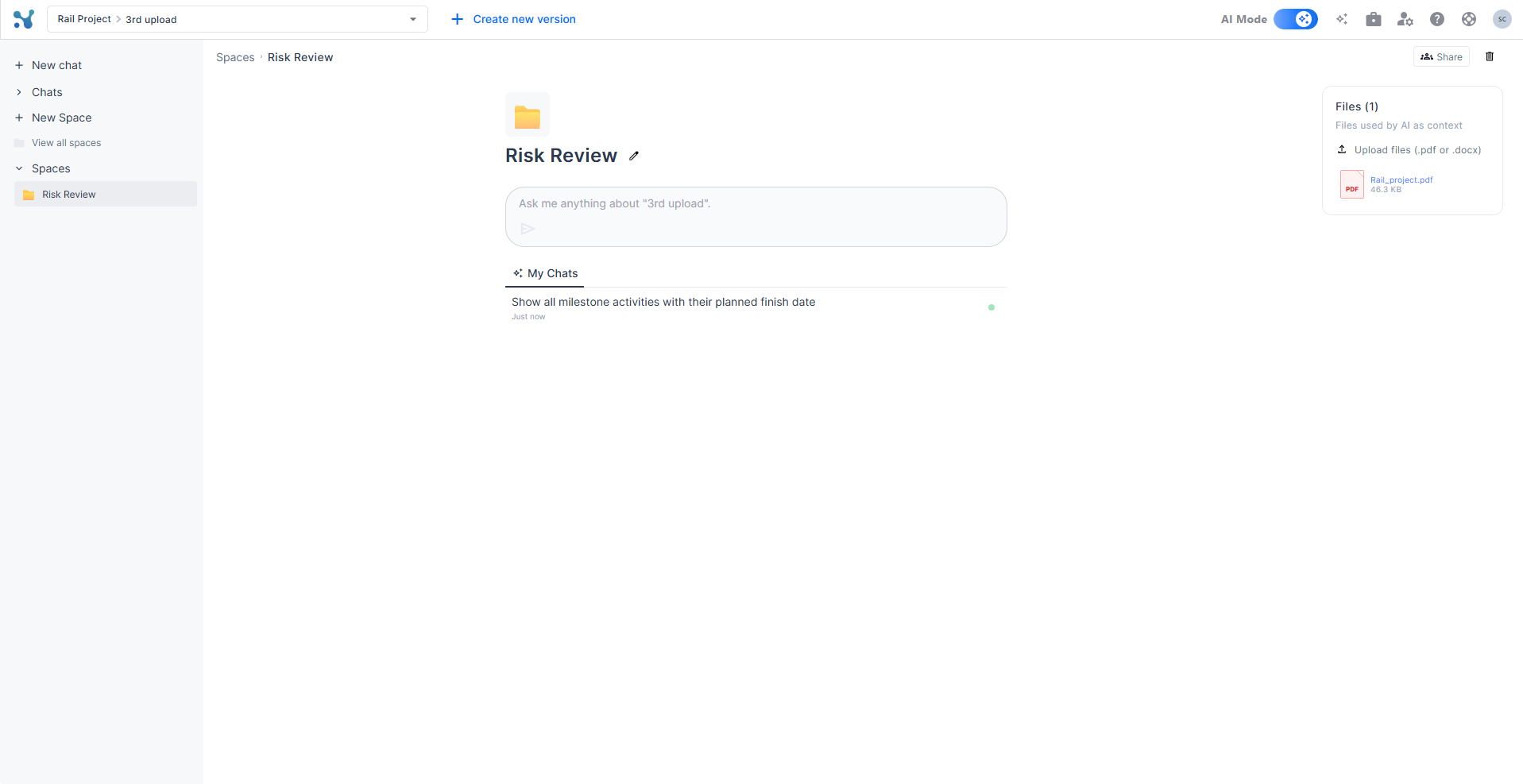
When you open a Space, you will see:
- Space name — editable via the pencil icon at any time.
- Chat input bar — ask any question here to start a new thread scoped to this Space.
- My Chats — a list of all conversations started within this Space, each shown with its title and timestamp.
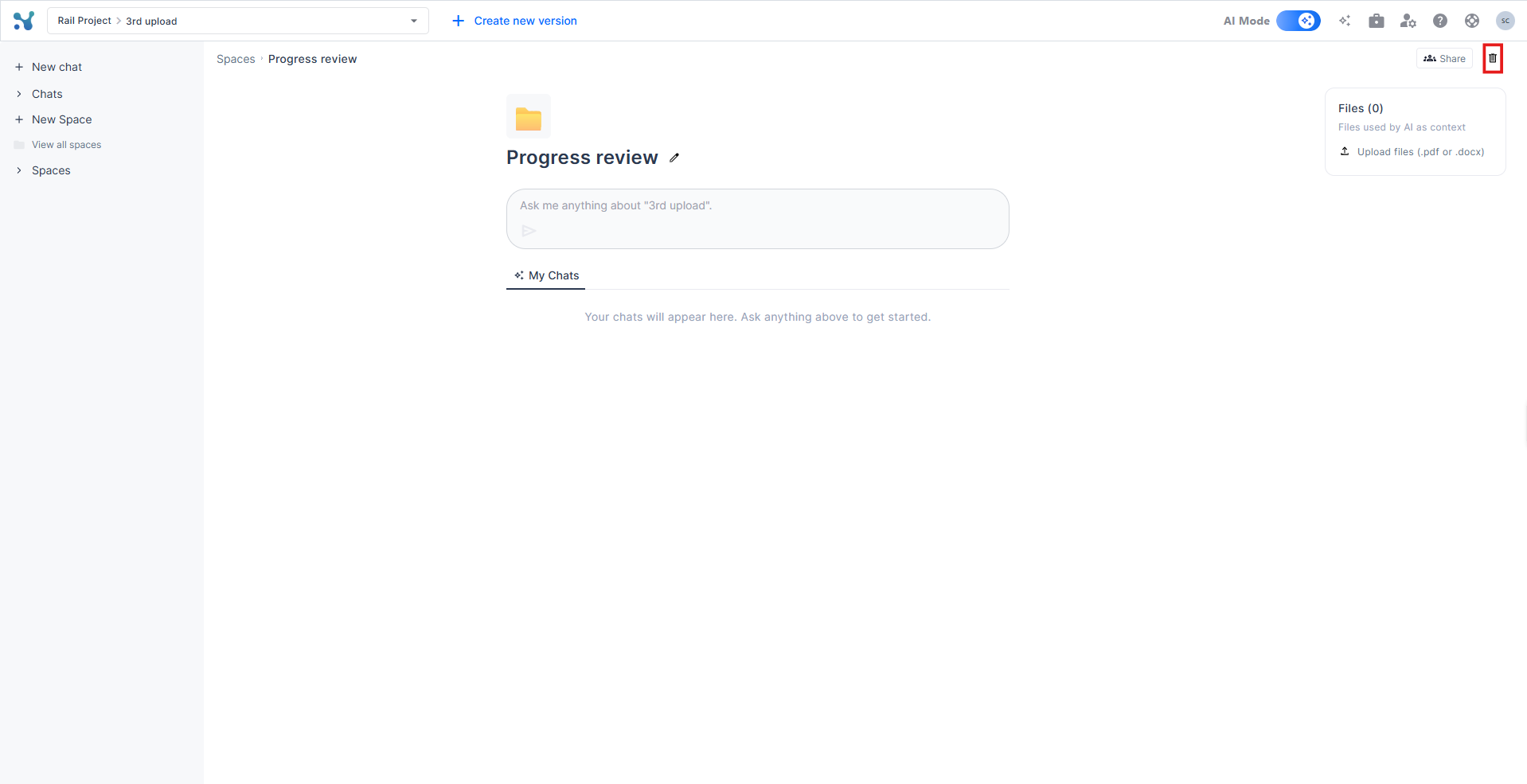
- Files panel (top right) — upload .pdf or .docx files that will be used by the AI as additional context for every chat in this Space.
Starting a Chat Inside a Space
Type your question in the chat input bar and press Enter or click the send button. A new chat thread is created and scoped to that Space. The breadcrumb at the top of the page reflects the full hierarchy: Spaces > [Space Name] > [Chat title]
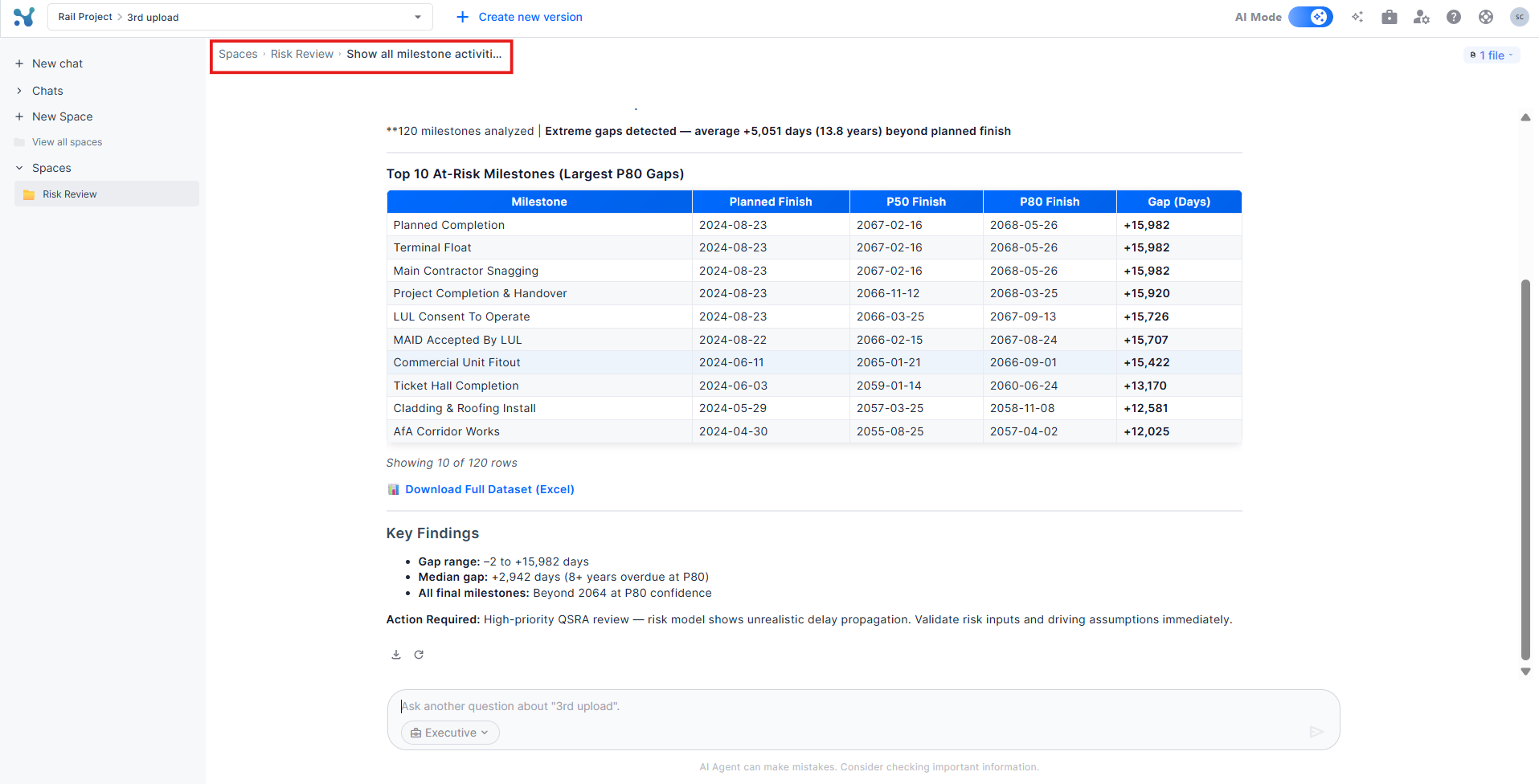
Click on the Space name in the breadcrumb at any time to return to the Space homepage and see all your chats at a glance.
Uploading Files to a Space
Files uploaded to a Space are used by the AI as additional context — on top of your project schedule data — when answering questions within that Space. This is useful for attaching documents like contract clauses, risk registers, or specification PDFs.
1. On the Space homepage, click Upload files (.pdf or .docx) in the Files panel on the right.
2. Select a file from your device.
3. Once uploaded, the AI will reference the file as context in all chats within this Space.
Supported formats: PDF and DOCX
Sharing a Space
Spaces are private by default. To share a Space with teammates:
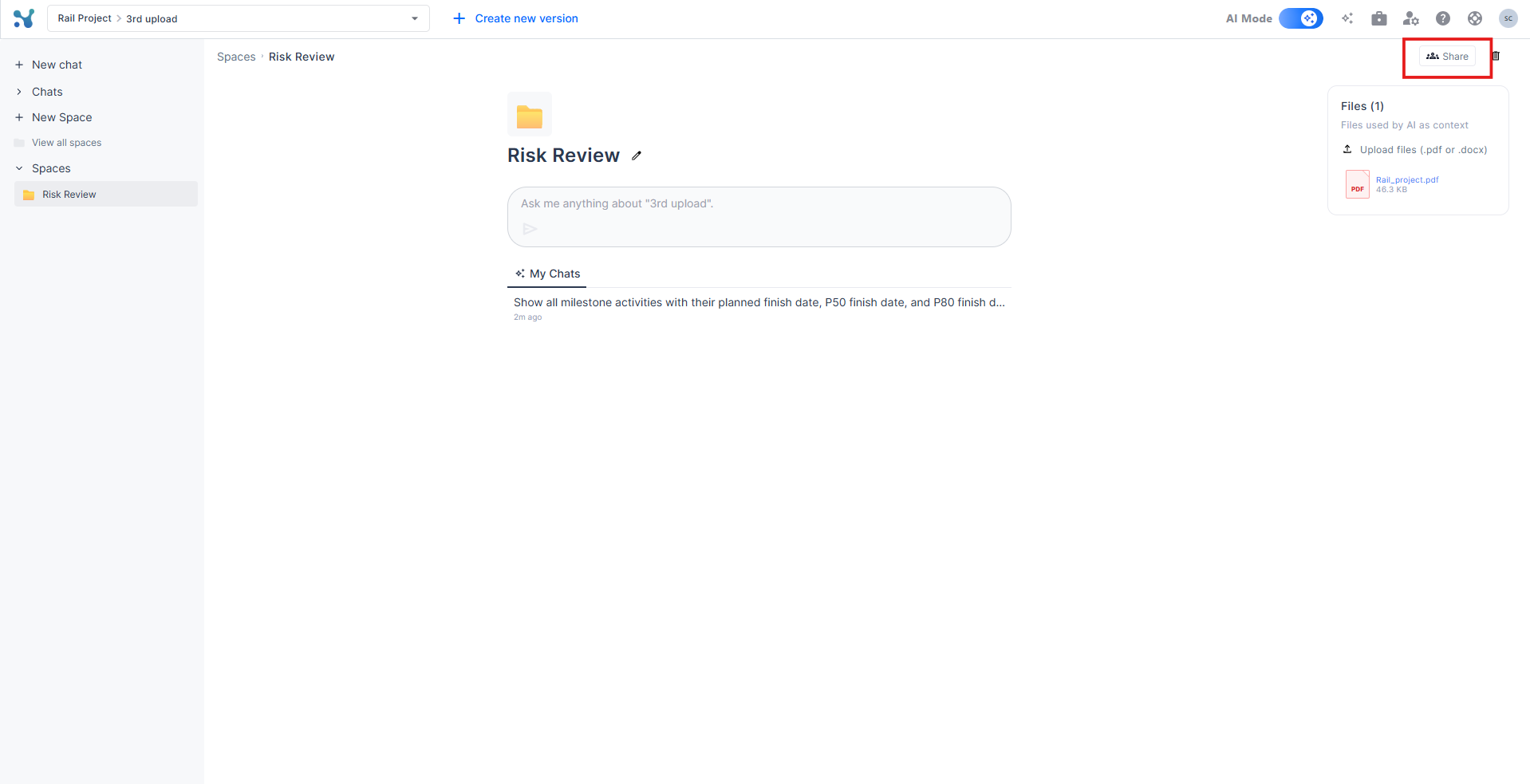
1. From the Space homepage, click the Share button in the top-right corner.
2. In the Share dialog, use the Search people field to find teammates by name.
3. Select the people you want to grant access to.
4. Click Save.
Once shared, those teammates will be able to see the Space and its chats.
Managing Your Spaces
View All Spaces
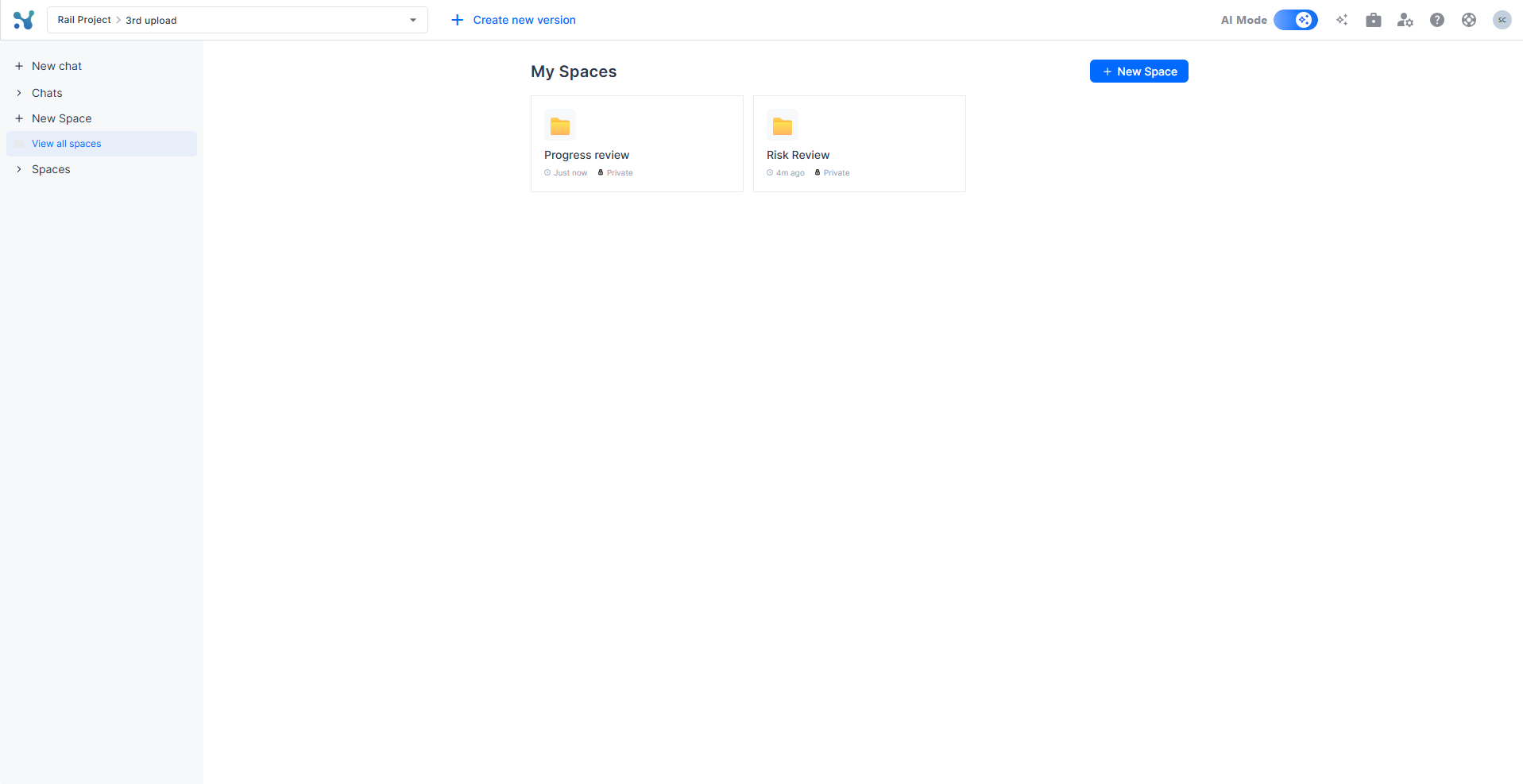
Click View all spaces in the left sidebar to open the Spaces gallery. Each Space is shown as a card displaying its folder icon, name, last-updated timestamp, and privacy status (e.g. Private). From here you can also create a new Space using the + New Space button in the top-right corner.
Rename a Space
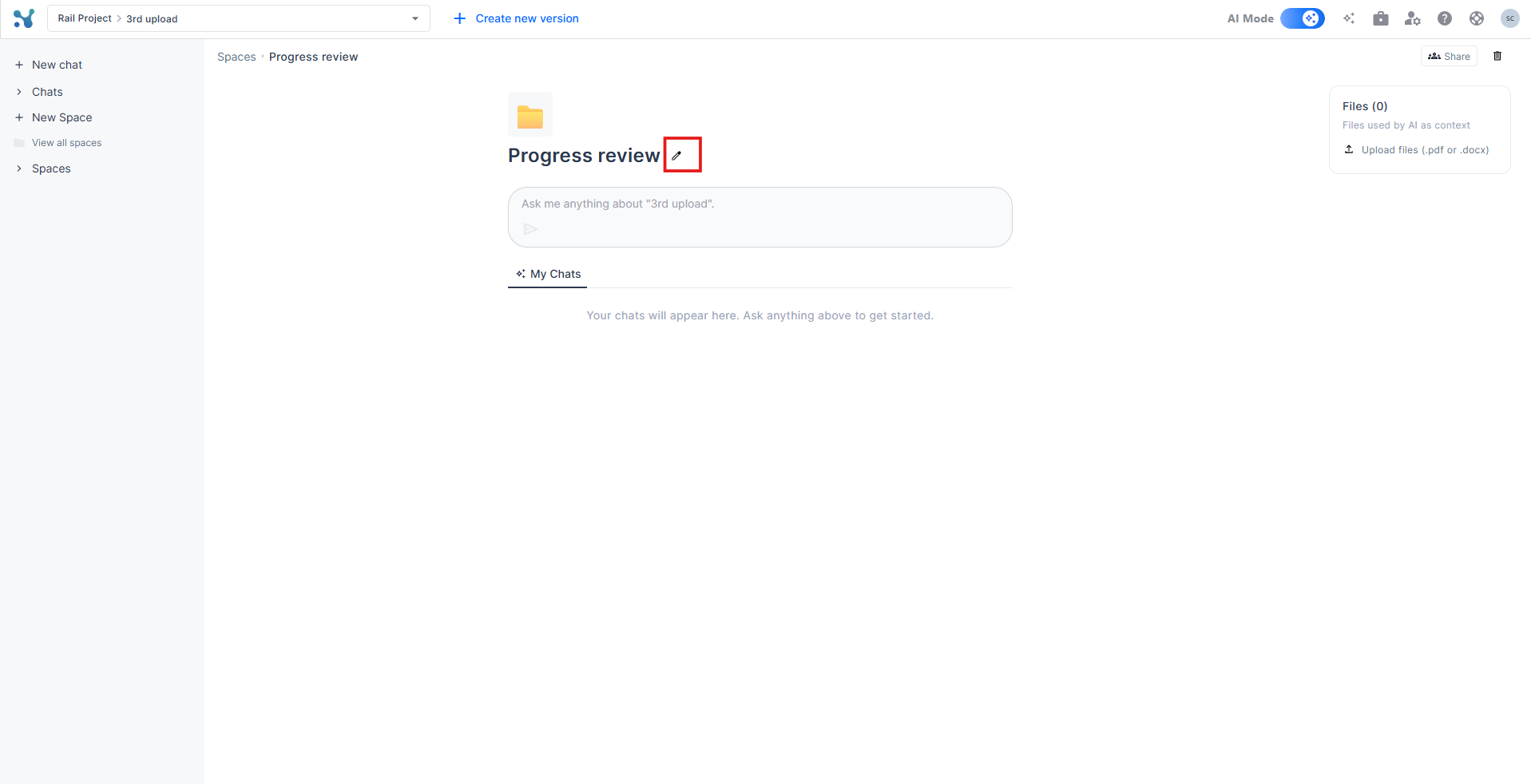
Open the Space and click the pencil icon next to the name. Edit the title inline and press Enter to save.
Delete a Space
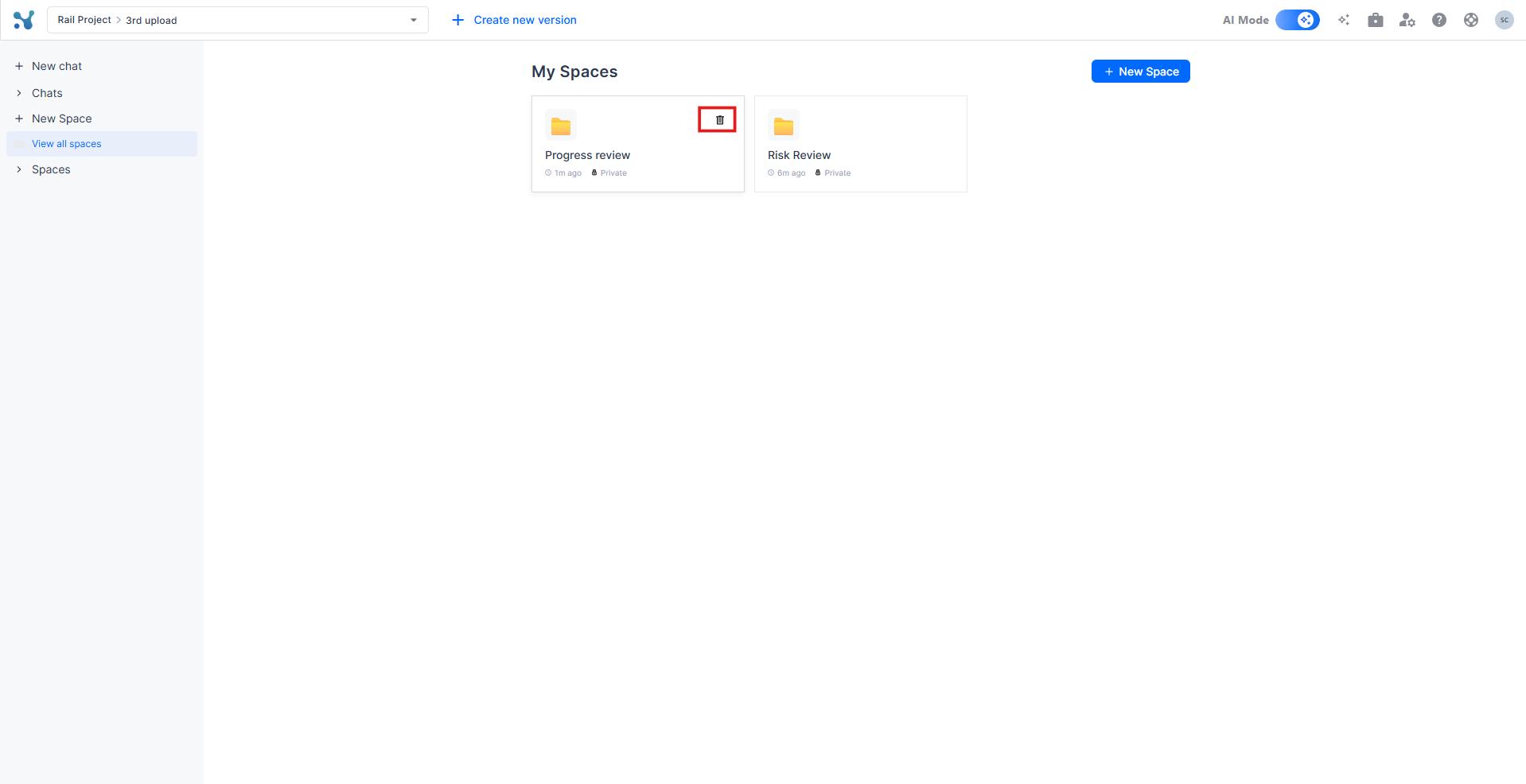
From the gallery: hover over a Space card and click the trash icon that appears in the top-right corner of the card.
From inside a Space: click the trash icon in the top-right corner of the Space homepage.
Tips for Getting the Most Out of Spaces
- Create a Space per project phase, workstream, or reporting cycle so your chats stay focused and easy to find.
- Upload a contract PDF or any other project-related document to a Space so the AI can reference it alongside your schedule data.
- Share a Space with your PMO team so everyone works from the same AI conversation context.
- Use Space-level chats to build up a thread of related questions over time instead of starting fresh in a new chat each session.
- Name your Spaces clearly (e.g. "Risk Q2 2026", "Contractor Delay Review") so they are easy to navigate as your project evolves.
8: Export data and graphs
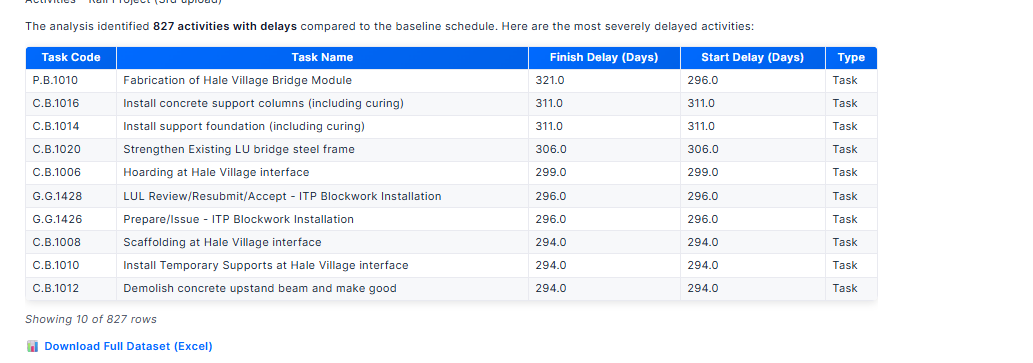
For many responses, the AI mode provides a "Download Full Dataset (Excel)" link, allowing you to export the underlying data for further analysis in Excel.
When the AI mode generates graphs or visual charts:
- Right-click on the graph
- Select "Save Image As..." from the context menu
- Choose where to save the image file
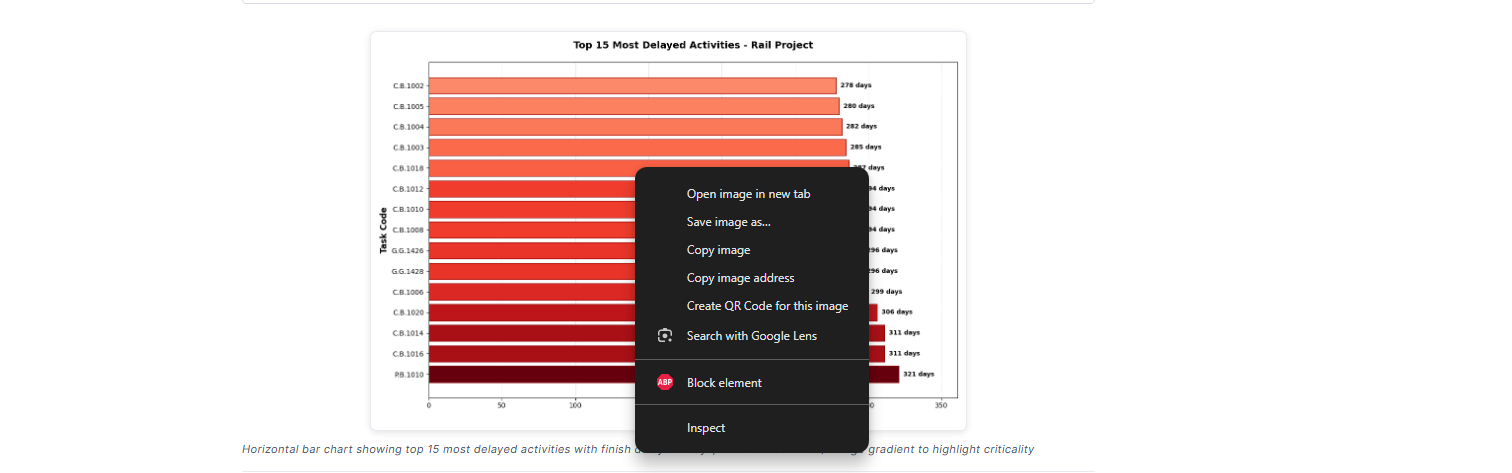
This allows you to include AI-generated charts in reports, presentations, or documentation.
9: Export a full response to Docx or PDF
You can export any AI response as a formatted document directly from the chat.
1. Click the download icon below the response.
2. Choose the format: DOCX or PDF.
3. The file downloads to your device, ready to share or include in reports.
10: Audit and Verify answers
All our answers are based on the insights of the models we have meticulously built. You can always use the platform mode to verify and audit the answers the AI mode is giving you.
How to get the most out of it
AI mode can do so much more than just insights! Ask it to write:
- Emails
- Reports
- Meeting agendas
- Create custom charts
Prompts examples
Here are sample prompts the AI mode can help you with:
- Compare this schedule version with the baseline, let me know about important changes, and draft up a quick email to share the update with the contractor.
- Explain in plain language why the finish date moved this week: the top 3 drivers, who own them, and what decision is needed.
- Write a one-slide update: what changed, why it matters, what we’re doing, and what leadership must decide by Friday.
- If leadership approves one action today, what single action gives the highest probability of protecting the next milestone?
- What should be discussed in tomorrow's daily huddle, based on the latest update?
- Create a calendar heatmap with the days that are the most critical for my schedule completion next month.
- Show me how the recent project delays have affected the critical path, and prepare an explanatory email to leadership outlining the impact.
- Identify which activities are lagging most this week and suggest short corrective actions.
- Tell me how my project is progressing, show me a timeline chart with my milestones delivery data, and compare it with the baseline.
- Identify near-critical path activities that could become critical, explain why, and give me a probability for each one of them.
- Analyze the top risks currently impacting the schedule and suggest mitigation actions.
- Review the latest project progress, highlight bottlenecks and their impact, and suggest better practices.