
Invite users
Overview
Use the Invite button to invite new users to the platform or give existing users access to additional projects.You can start the invitation process from anywhere in the platform. If you begin from within a project, that project is automatically pre-selected, which saves a step. You can still add access to other projects during the invitation process.
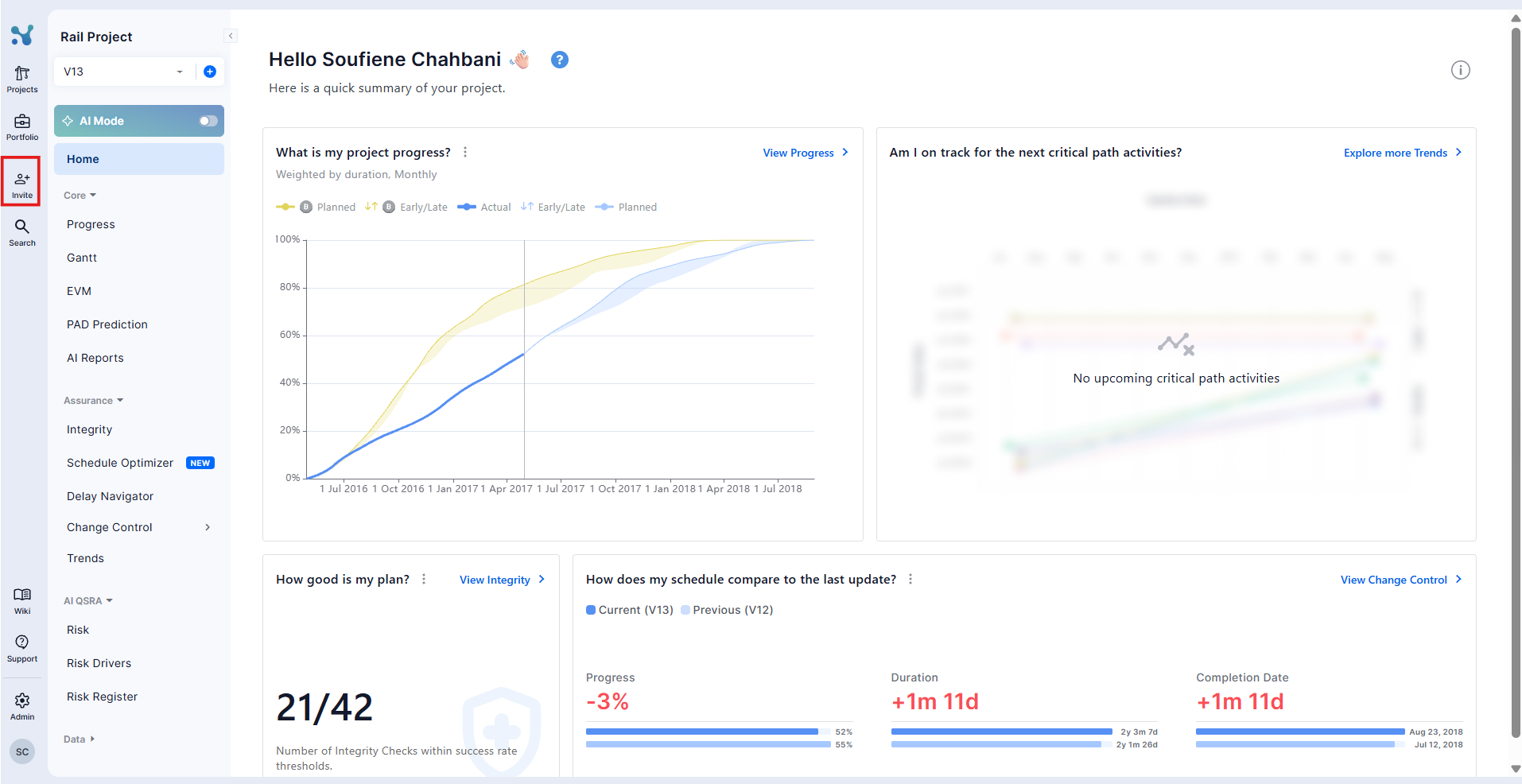
Invite a new user
To invite a user who does not yet have an account:
- Click Invite.
- Enter the email address of each person you want to invite.
- Press Enter or Space after each email address to add it to the invitation list.
- Select the platform role to assign:
- Member
- Contributor
- Platform Admin
- Click Next.
- Select the project or projects the user should be able to access.
- Click Next to review the invitation details.
- Click Send Invites.
The invited users receive an email invitation. Their status is shown as Pending until they accept the invitation. Once a user accepts the invitation and logs in, their status changes to Joined.
Inviting a Platform Admin
When assigning the Platform Admin role, you do not need to select any projects. Platform Admins automatically have access to every project in the Workspace.
Add an existing user to a project
Use this process when a Contributor or Member already has a platform account but does not yet have access to a specific project.
- Click Invite.
- Type the user’s name or email address.
- Select the correct user from the list of matching users.
- Click Next.
- Select the project or projects you want to grant access to.
- Click Next to review the details.
- Click Send Invites.
The user is added directly to the selected project or projects. They do not need to accept a new platform invitation.
Key points
- Use Invite for both new invitations and adding existing users to additional projects.
- Starting from a project pre-selects that project, but does not limit you to it.
- Contributors and Members only see projects they have been invited to.
- Platform Admins automatically have access to all projects and do not require project-level assignment.
- You can invite users only to roles at or below your own platform role. For example, a Contributor can invite a Member or another Contributor, while a Platform Admin can invite Members, Contributors, and Platform Admins.