
Accessing Portfolio & the Overview screen
Accessing Portfolio & the Overview screen
The Portfolio feature allows users to gain a high-level view across all their projects, aggregating data from multiple schedules into a centralised dashboard. It may be available to you depending on your subscription tier.
This article will guide you through:
- How to access the Portfolio area
- What information is available on the Overview screen
Accessing the Portfolio
To access the Portfolio, follow these steps:
- Navigate to the top-right corner of the platform.
- Click on the Portfolio icon (represented by a suitcase symbol).
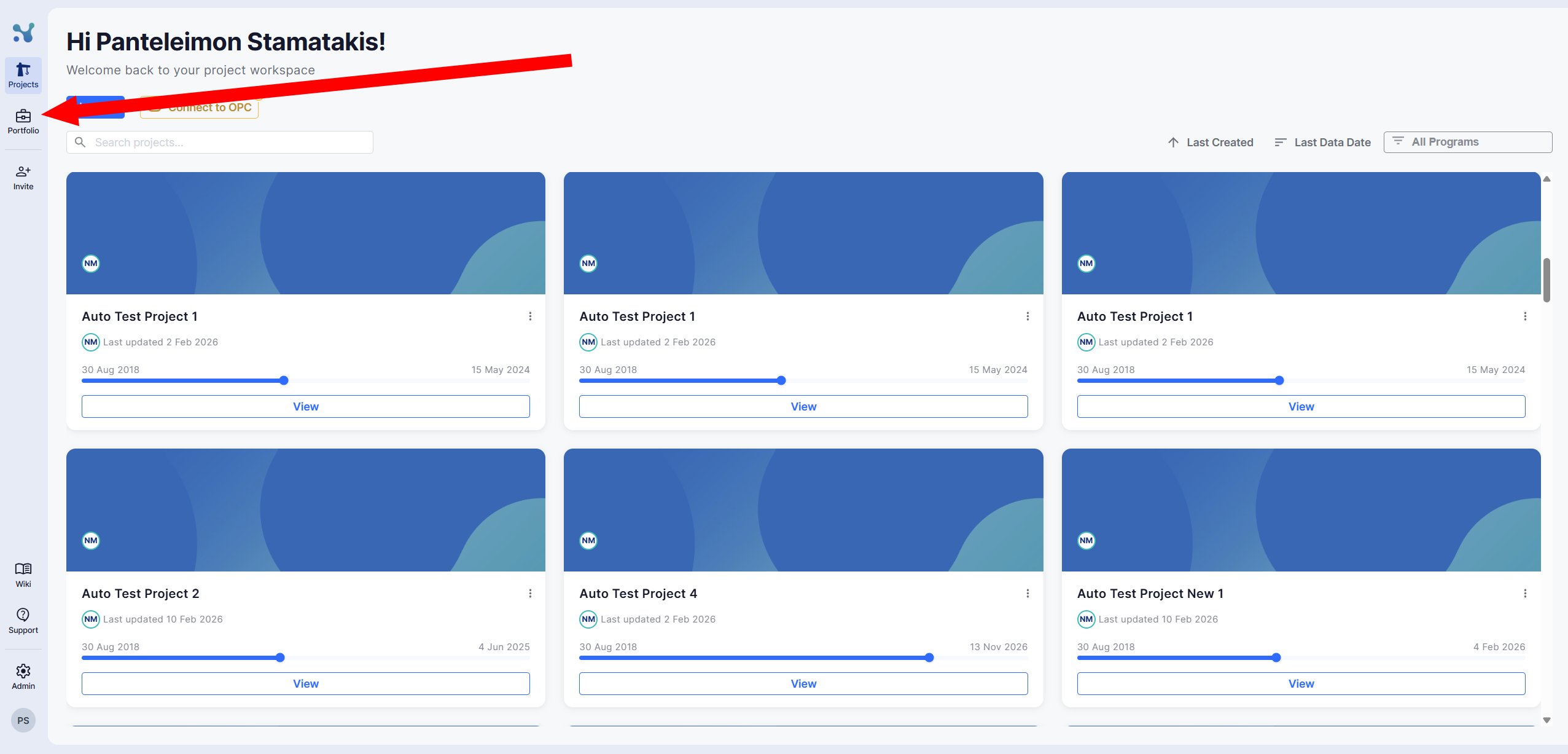
After accessing the Portfolio, you will land on the Overview screen.
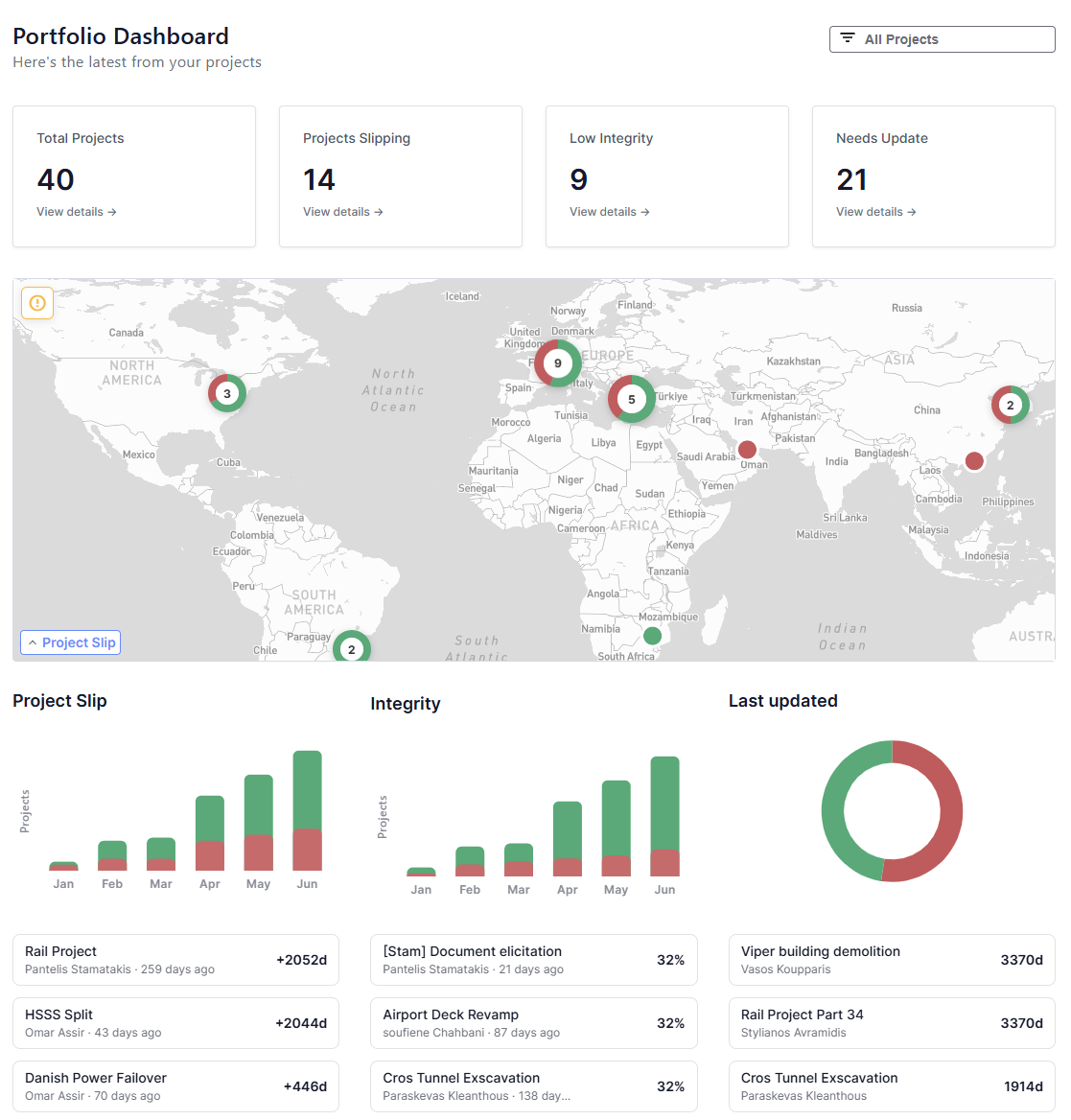
Understanding the Overview Screen
The Portfolio Overview is a purpose-built dashboard designed to surface issues immediately, so you always know exactly where to direct your attention. All metrics on this page respect your current portfolio include/exclude rules, so KPIs are never distorted by draft or irrelevant data.
The widgets on this page are driven by your personal KPI Thresholds settings, meaning each user can see a view calibrated to their own expectations. You define and adjust them on the Projects page. See the Projects page article for how to configure them.
KPI Scorecard
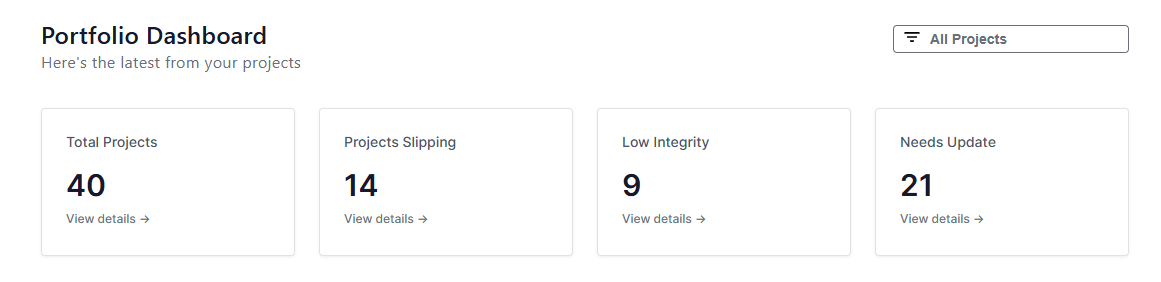
At the very top of the Overview, four KPI cards give you an instant portfolio health check:
| Card | What it shows |
|---|---|
| Total Projects | The total number of projects in your portfolio |
| Projects Slipping | Projects whose delay exceeds your personal delay threshold |
| Projects with low Integrity | Projects whose integrity score falls below your personal integrity threshold |
| Projects Needing Updates | Projects whose data is older than your personal data freshness threshold |
Clicking any of the three threshold-based cards takes you directly to the Projects page with the relevant filter already applied, so you can immediately review and act on the flagged projects.
Project Locations Map
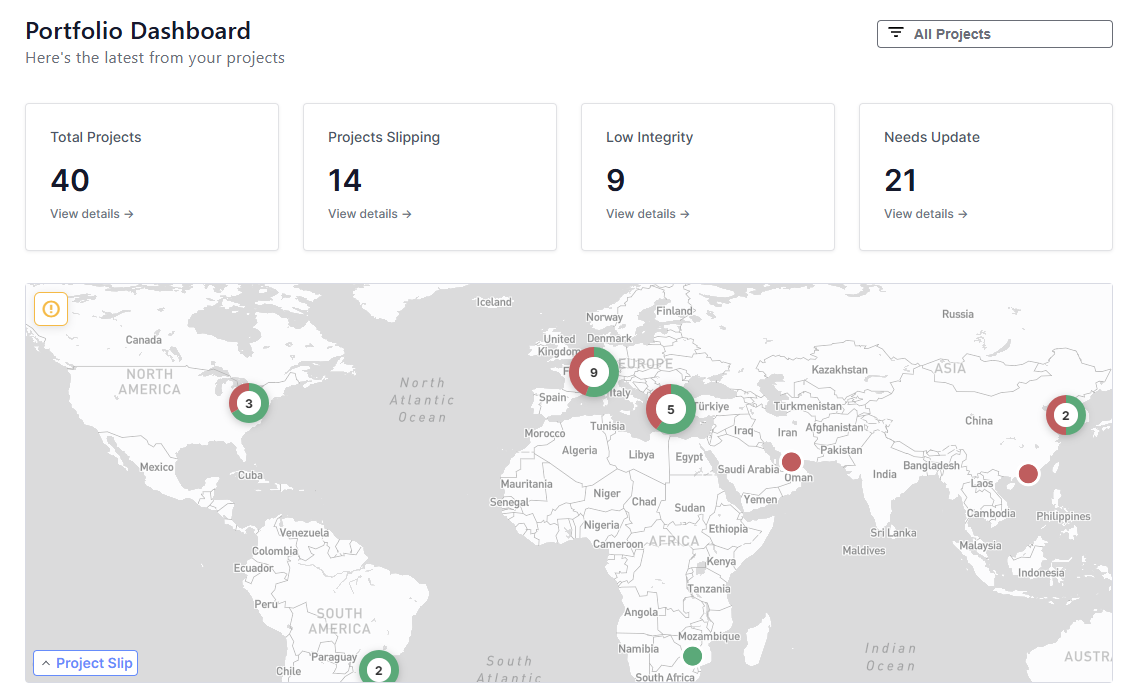
Below the KPI cards, a world map plots all your projects at their assigned locations. Each dot is coloured:
- Green: the project is performing within your threshold for the selected KPI
- Red: the project is breaching your threshold for the selected KPI
You can switch the KPI driving the colour coding using the dropdown at the bottom-left of the map. The available options are Project Slip (default), Integrity, and Last Updated.
Hovering over any dot reveals the project name and its current KPI value. Clicking on it navigates to that project in the Projects page.
6-Month Performance Charts
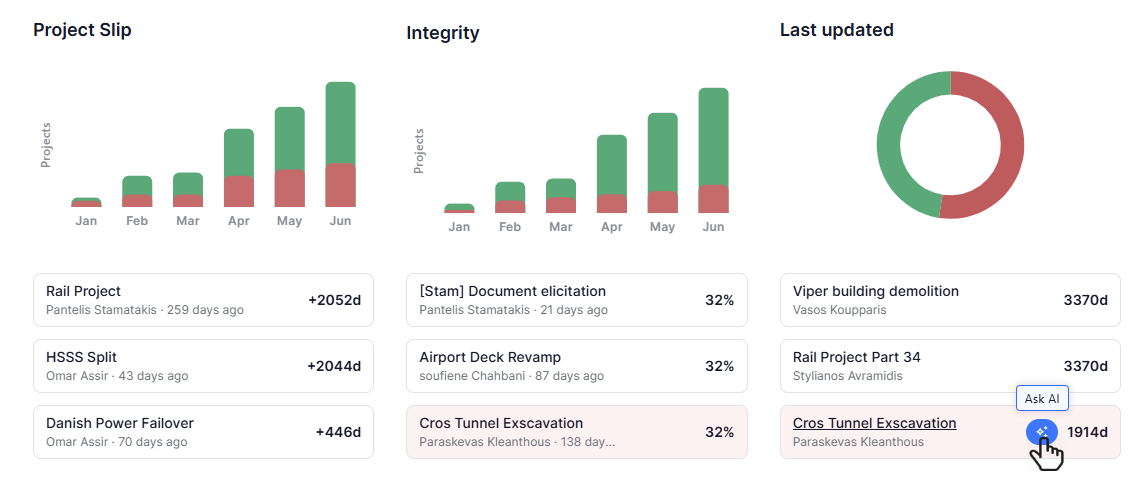
Below the map, three widgets provide a historical perspective across your portfolio:
Project Slip over time
A stacked bar chart showing, per month over the last 6 months, how many projects had a delay exceeding your threshold versus those that did not. Hovering over any bar reveals a tooltip with the exact breakdown.
Integrity over time
A stacked bar chart showing, per month over the last 6 months, how many projects passed or failed your integrity threshold. You can change which integrity score type drives this chart using the selector within the widget, Cut-off (default), Average, or Activity-based. Your selection is saved per user. When you click through from the Integrity chart to the Projects page, the integrity column that is brought into focus matches the mode you selected here.
Last Updated
A donut chart showing the split between projects that are up to date and those that are stale according to your data freshness threshold.
Worst Projects Spotlight
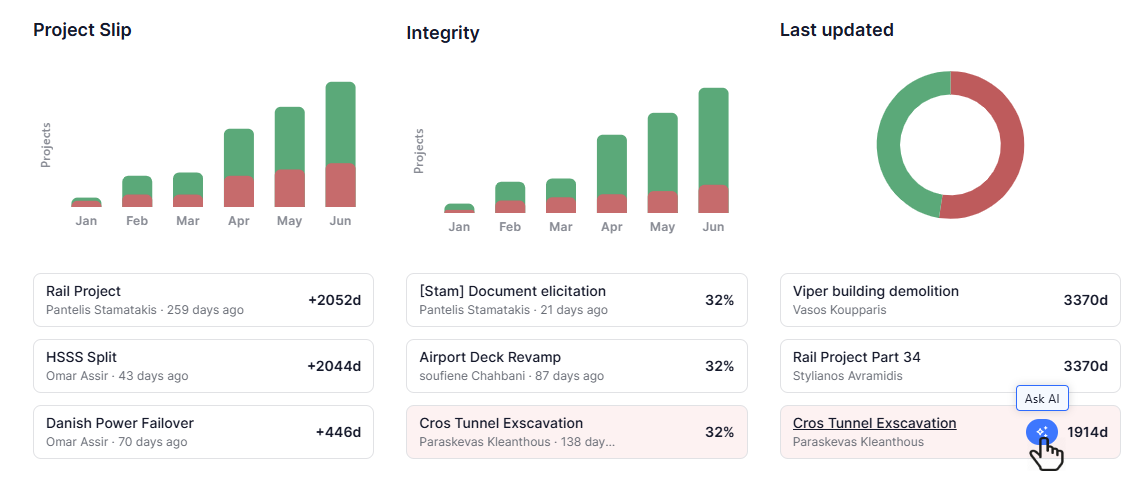
Alongside the charts, three curated shortlists highlight the projects that need your attention the most:
Most Delayed
The 3 projects with the highest schedule delay. For each project you can see the project name, who uploaded the latest schedule, how long ago that upload took place, the project slip value, and an Ask AI button that takes you to AI mode for that project.
Worst Integrity
The 3 projects with the lowest integrity score (using the mode selected in the Integrity bar chart). For each project you can see the project name, the time since the latest upload, the integrity score, and an Ask AI button.
Last Updated
The 3 projects whose data date is the oldest. For each project you can see the project name, who uploaded the version, how many days ago the data date falls, and an Ask AI button.
Clicking a project name in any of these lists navigates to that project in the Projects page.
Hovering on a project reveals the AI button , which will allow you to trigger the AI Mode and initiate a conversation about this project.
Recent Activity
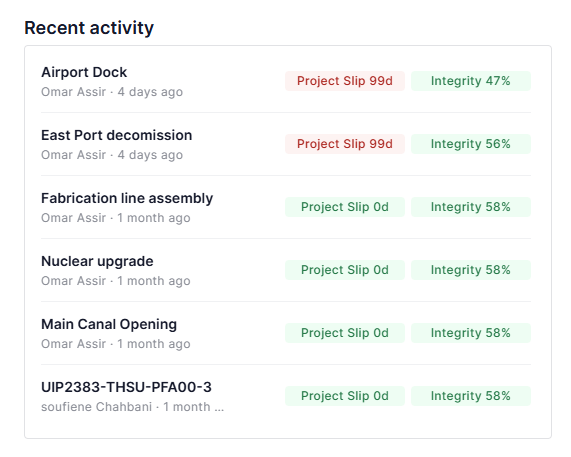
The Recent Activity feed shows the most recently uploaded projects, sorted from newest to oldest. For each upload you can see:
- The project name. Clicking it navigates to that project on the Projects page
- Who uploaded the schedule version
- How long ago the upload took place
- Two status pills, one for Project Slip and one for Integrity, coloured green (within threshold) or red (breaching threshold), based on your personal KPI Thresholds settings
- By hovering, an Ask AI button becomes available that takes you to AI mode for that project
Assigned Projects per User
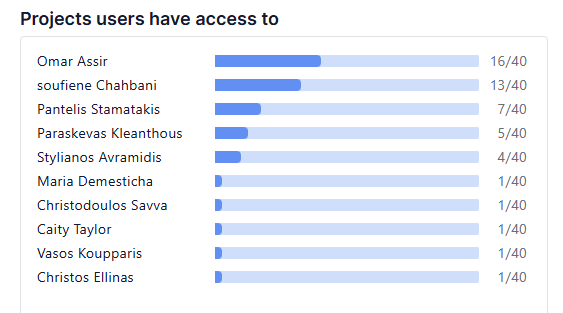
The Assigned projects per user widget visualises workload distribution across your team. Each bar corresponds to a user, and its length reflects the number of projects assigned to that person. User names are displayed alongside their bars, and the chart is sorted in descending order so the heaviest workloads are immediately visible at the top.
A lighter background portion of each bar serves as a reference against the total number of projects in the current portfolio context, making it easy to see what share of the portfolio each person is responsible for.
Filtering by Portfolio or Program
In the top-right corner of the Overview, a scope selector — labelled with your current choice (e.g. All Projects) — lets you focus the entire dashboard on a single layer of your portfolio.
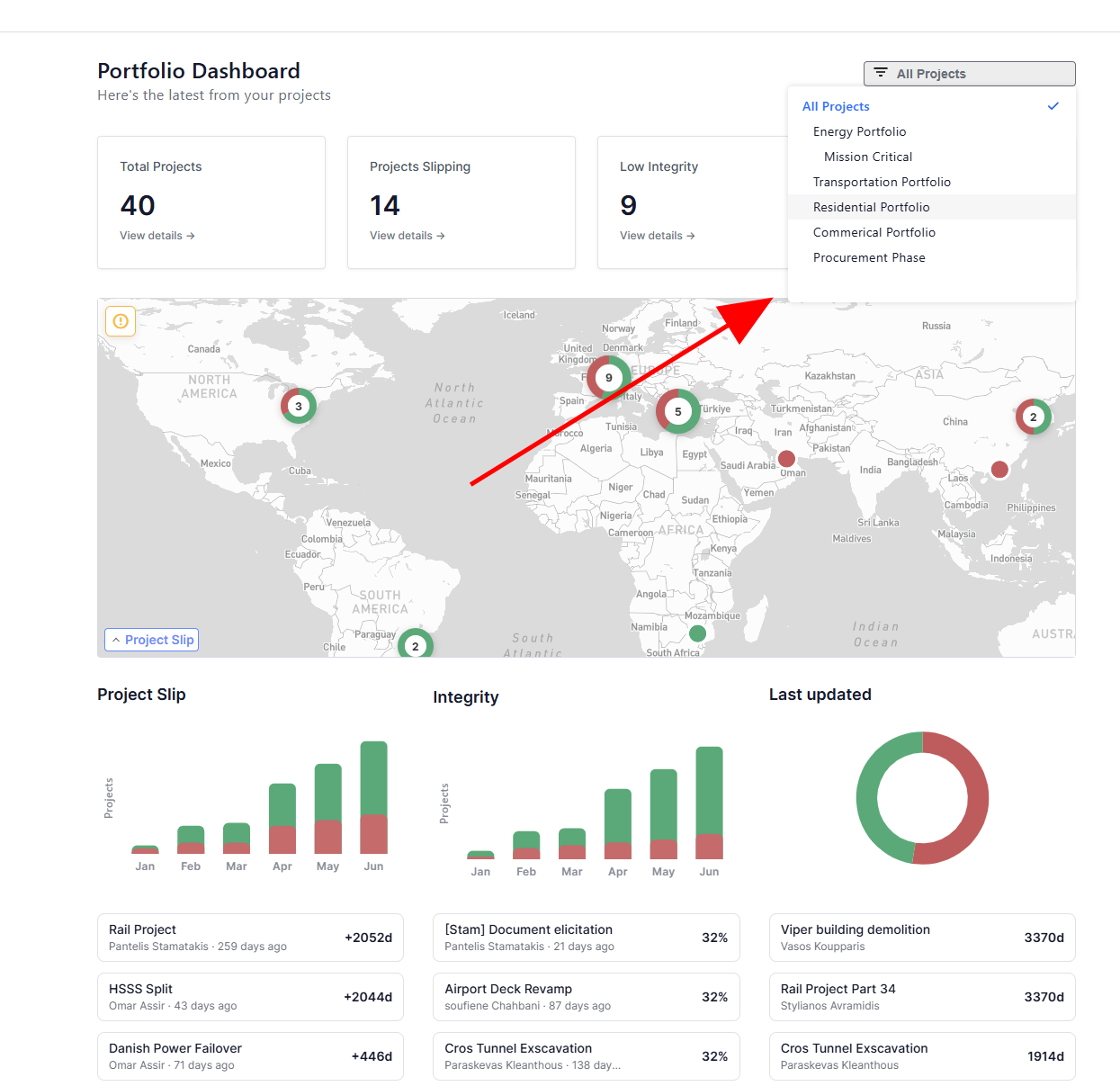
Open the dropdown and choose one of:
- All Projects (default) — the full set of projects in your portfolio context.
- A portfolio — for example, Energy Portfolio or Transportation Portfolio.
- A program nested within a portfolio — for example, Mission Critical shown indented beneath Energy Portfolio. Programs always appear under their parent portfolio in the list.
When you pick a layer, every widget on the page — the KPI scorecard, map, 6-month charts, Worst Projects spotlights, Recent Activity, and Assigned Projects bars — recalculates to reflect only the projects in that selection. Switch back to All Projects at any time to return to the full view.