📈 Schedule Optimizer
💡 Schedule Optimizer analyses your schedule and proposes concrete changes — more crew, extra shifts, fast tracking — to pull in your project End Date or bring a milestone forward. You stay in control: you choose the goal and the intensity, review every proposed change, and download the result.
🔍 What you'll learn:
- Choose your objective: improve the delivery date or accelerate a milestone
- Set how aggressive the optimisation should be
- Pick which types of changes the engine is allowed to use
- Read the forecast, the summary and the recovery breakdown
- Download the optimised schedule (XER) and the report
Accessing Schedule Optimizer
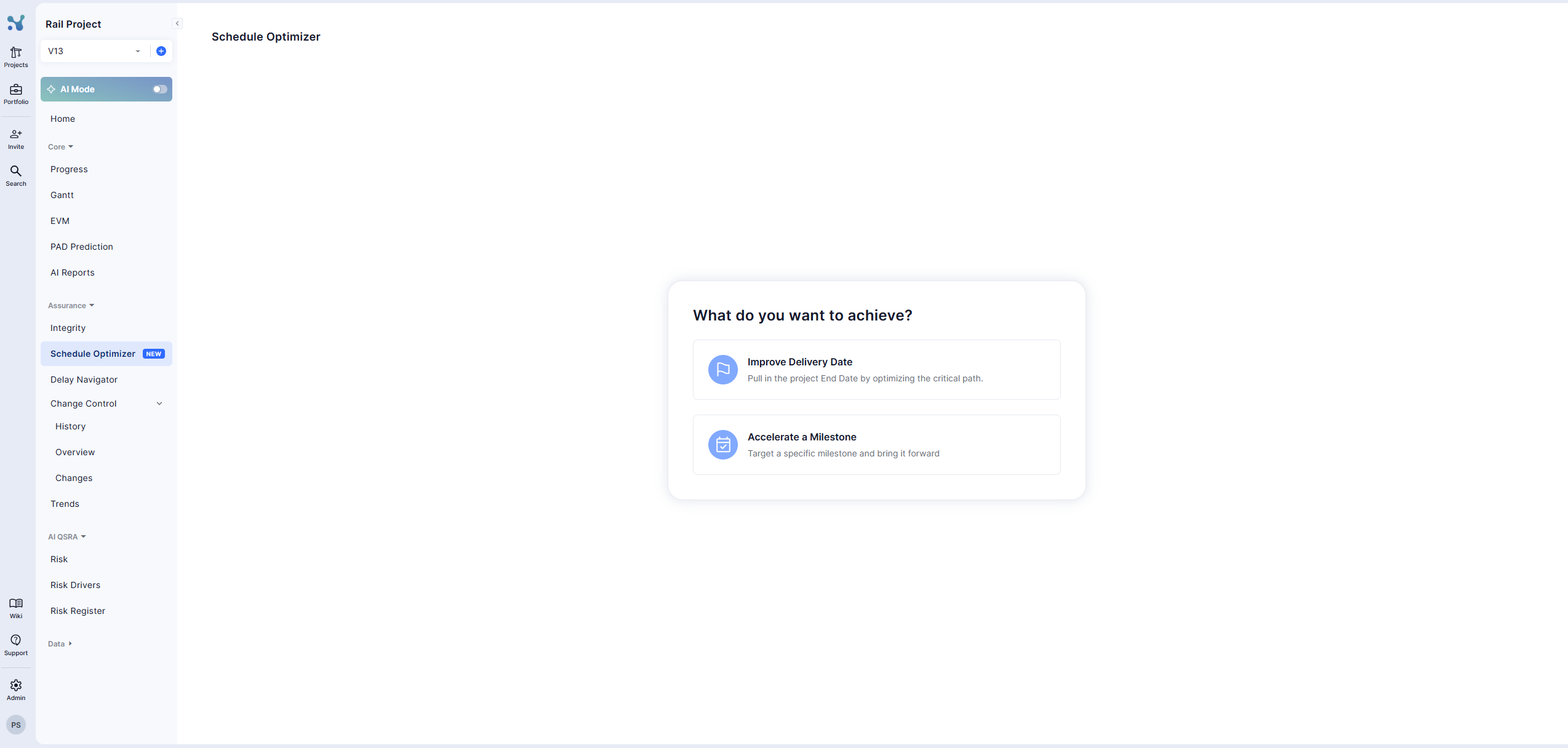
Open your project and go to the left sidebar under Assurance → Schedule Optimizer.
Step 1 — Choose your objective
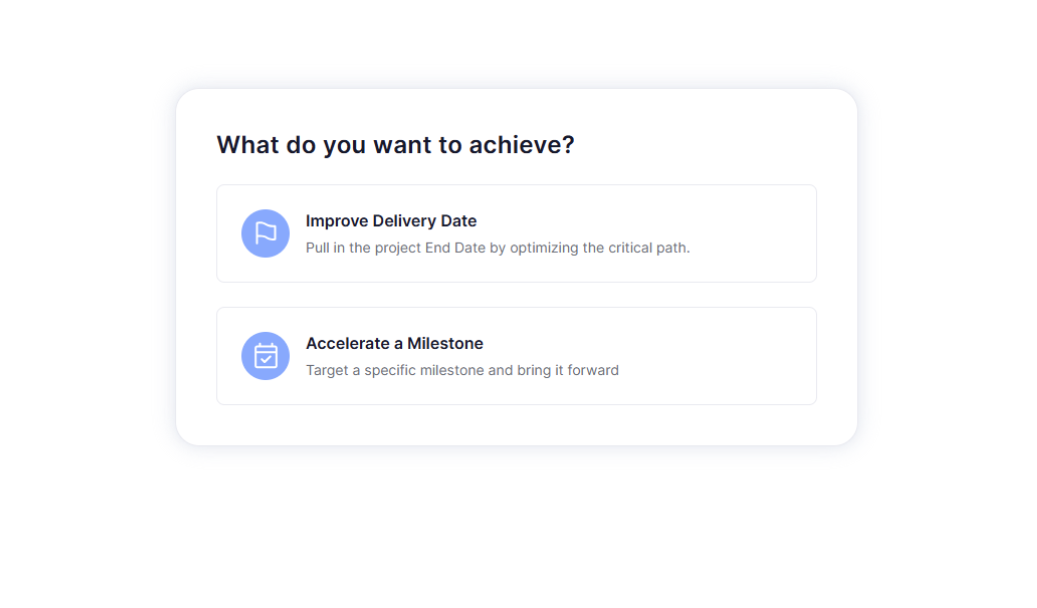
You start with a simple question: "What do you want to achieve?"
- Improve Delivery Date — pull in the project End Date by optimizing the critical path.
- Accelerate a Milestone — target a specific milestone and bring it forward.
Step 2 — Pick the milestone (milestone objective only)
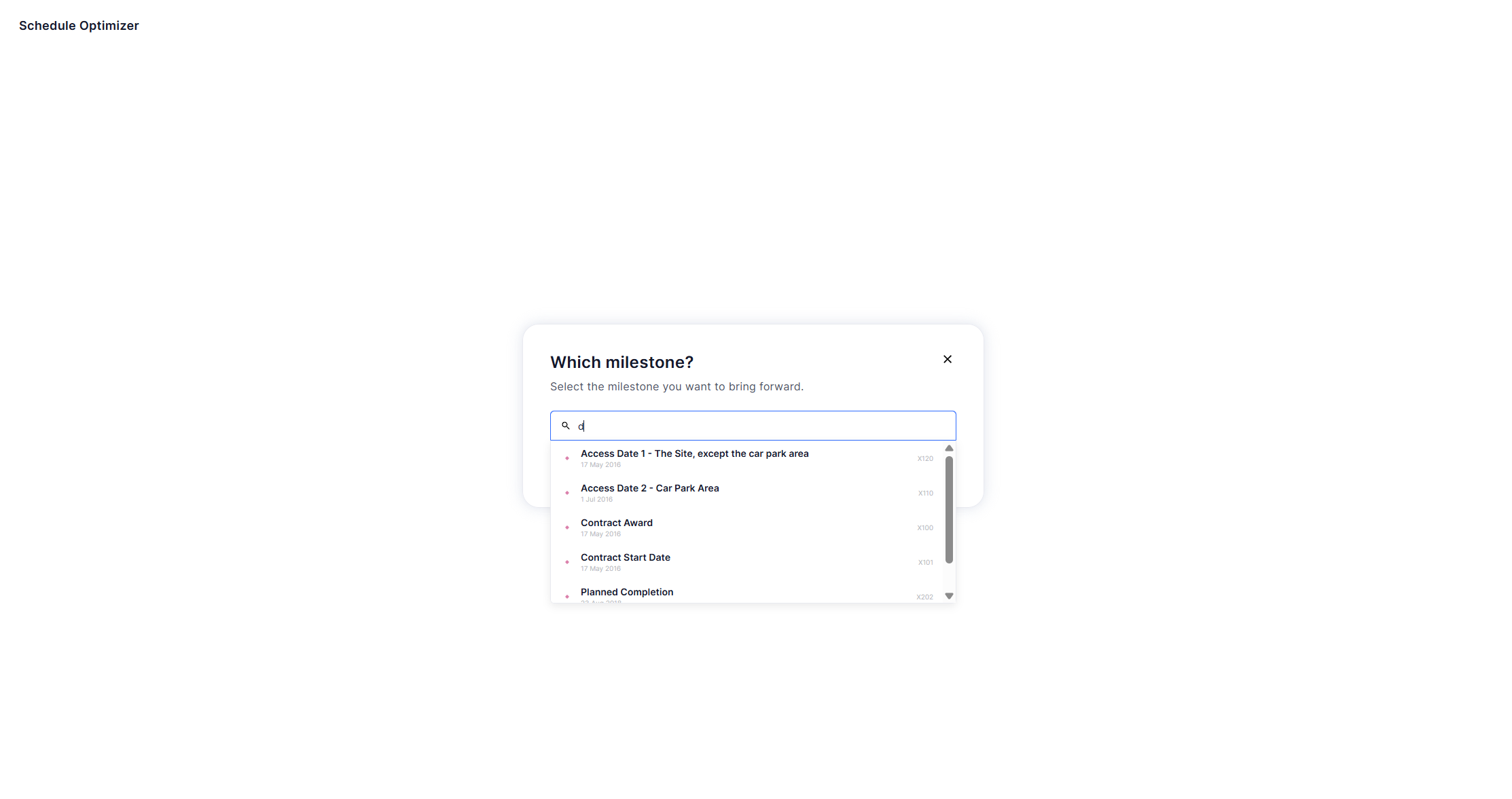
If you chose Accelerate a Milestone, search for and select the milestone you want to bring forward.
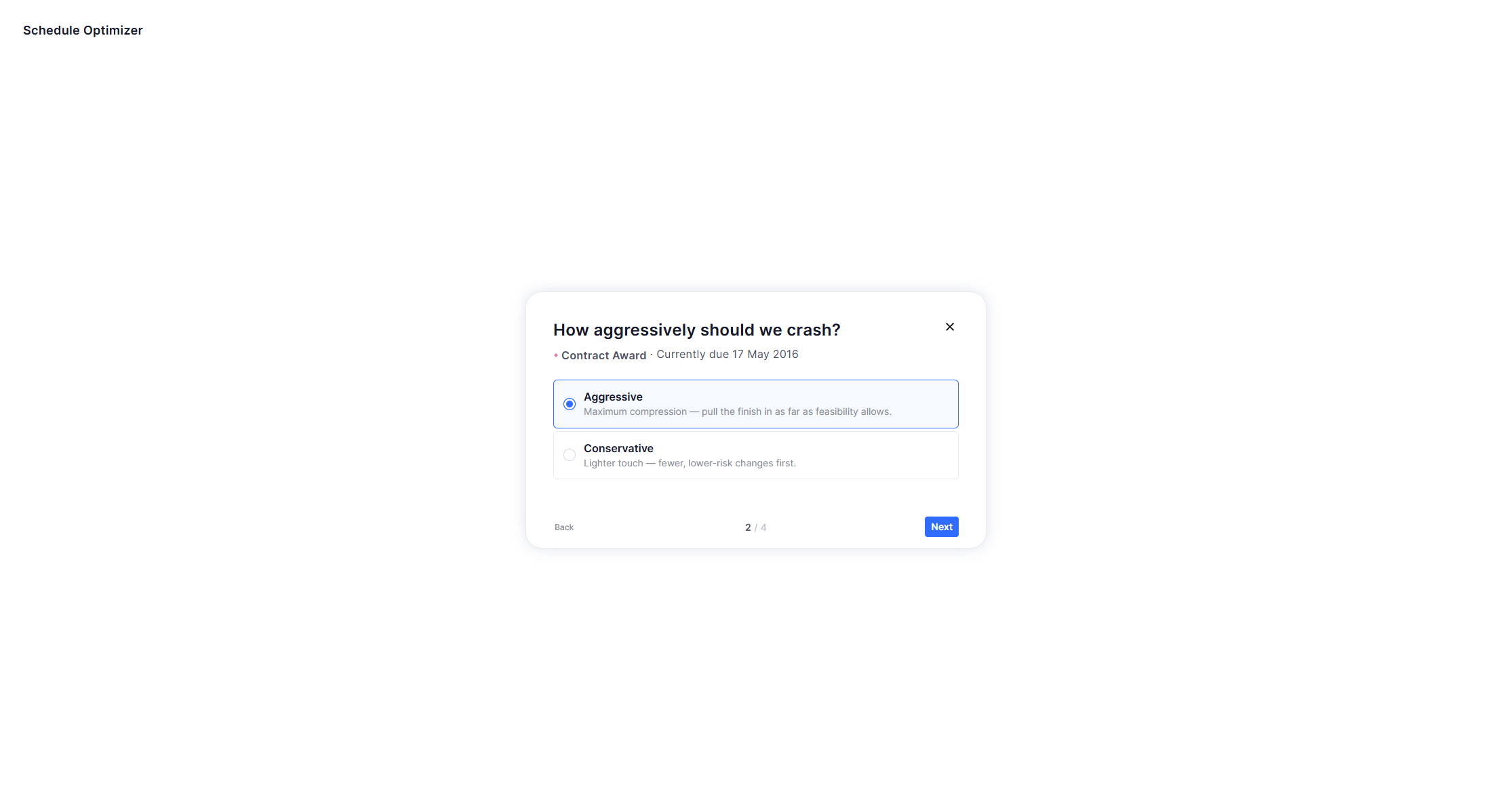
Step 3 — Choose the intensity
Tell the engine how hard it should push:
- Aggressive — maximum compression: pull the finish in as far as feasibility allows.
- Conservative — lighter touch: fewer, lower-risk changes first.
Step 4 — Choose the types of changes
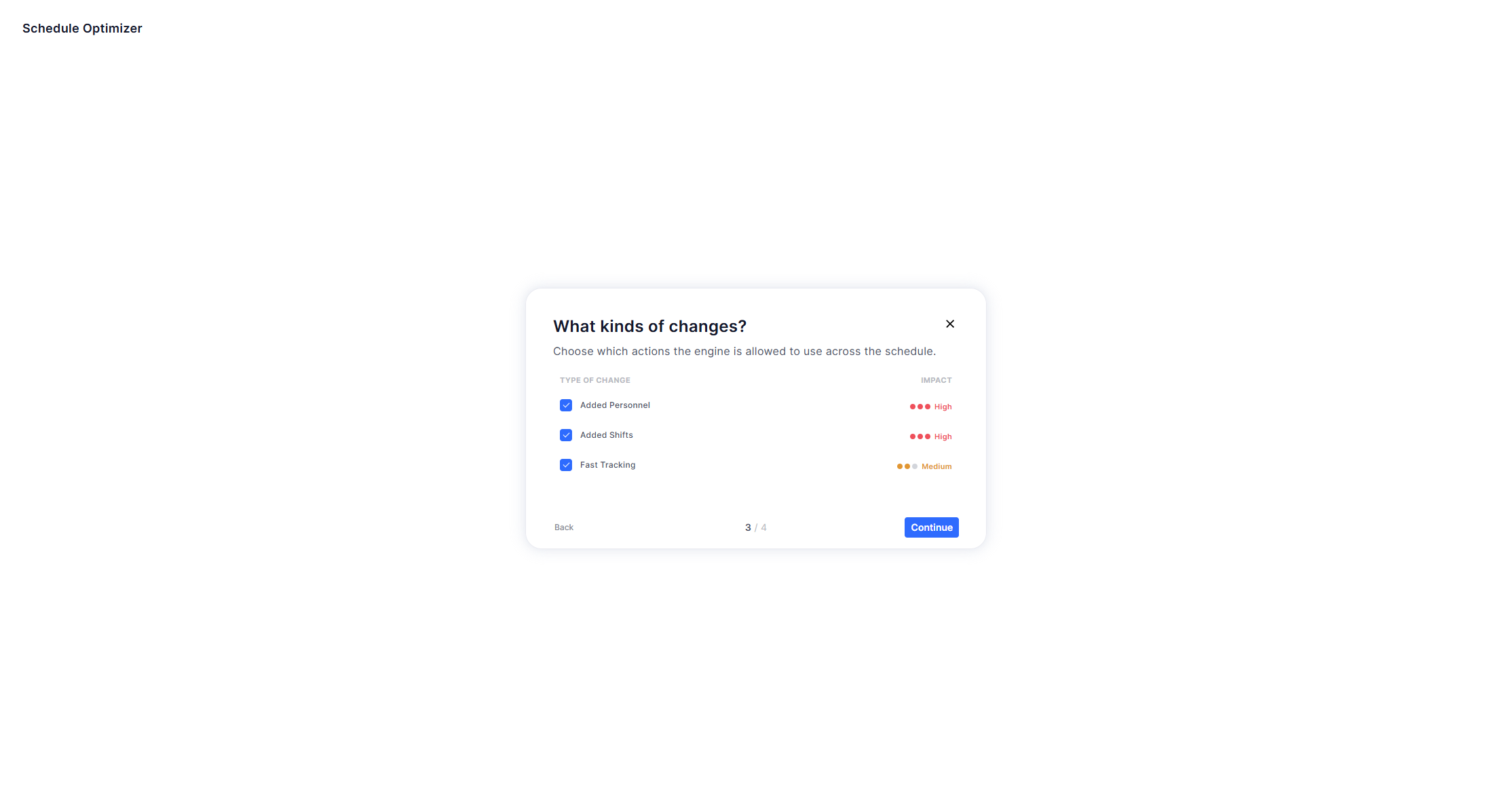
Select which actions the engine is allowed to use across the schedule:
- Added Personnel (High impact) — splits work across more people on the same shift, accelerating work wherever feasible.
- Added Shifts (High impact) — extends work across additional shifts (e.g. night shifts) to compress durations.
- Fast Tracking (Medium impact) — converts finish-to-start links to start-to-start with lag, where parallel execution is safe.
ℹ️ Good to know: these descriptions and the impact dots are general — they explain what each type of change does in principle, for any schedule. They do not tell you which activities will be changed in your schedule or how many days each change will recover. That comes later, in the Recovery Breakdown, once the analysis of your schedule is done.
Step 5 — Analysis
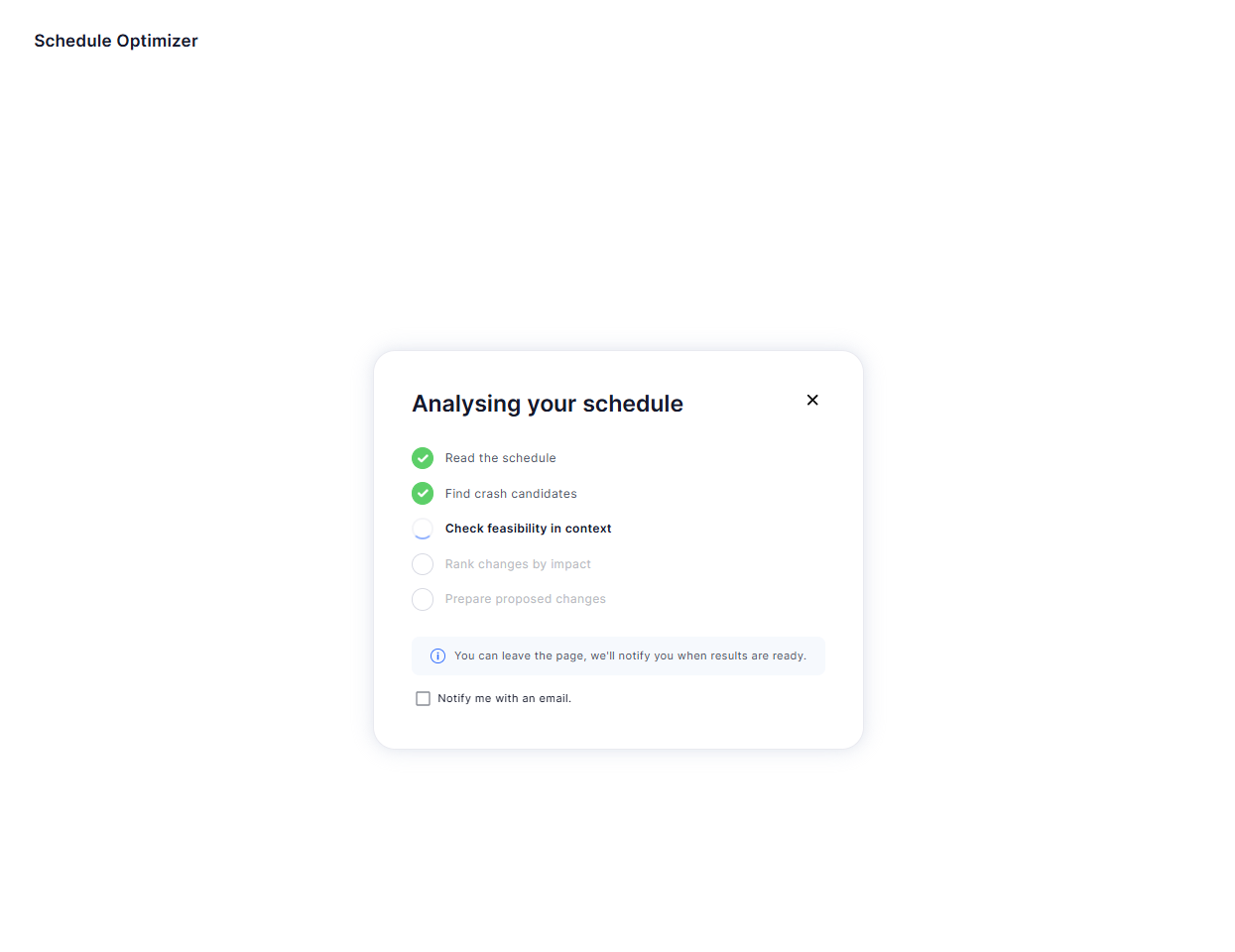
Feel free to leave this page while the analysis is running. During the analysis, you'll see a loading indicator next to the Schedule Optimizer in the project navigation. Once the analysis is complete, the indicator will change to a blue dot.
You can also opt to receive an email notification when the analysis is done, in order to be directed straight to the results screen.
Step 6 — Review the results
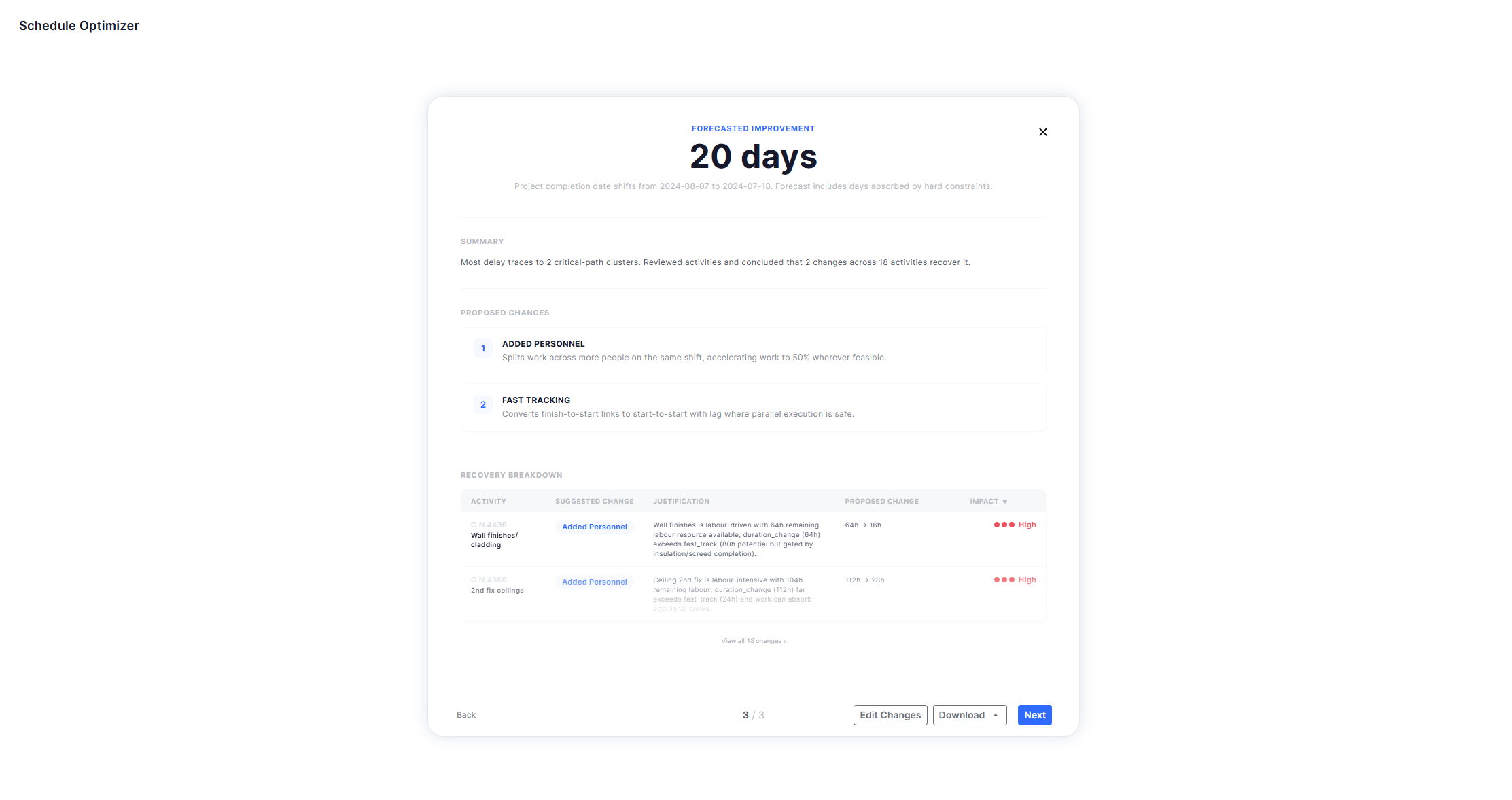
The results screen shows:
- Forecasted improvement — the headline figure, plus a line explaining what happens to your completion date (including whether constraints absorb part of the gain).
- Summary — one plain-language sentence on where the delay sits and how many changes recover it.
- Proposed changes — the change types the engine used.
- Recovery breakdown — the activity-level table: activity, suggested change, justification, proposed change (e.g.
64h → 16h) and impact. Changes are sorted by impact; use View all N changes to reveal the rest.
Use Download to grab the report files at any time, and Next to apply the changes.
Step 7 — Apply & download
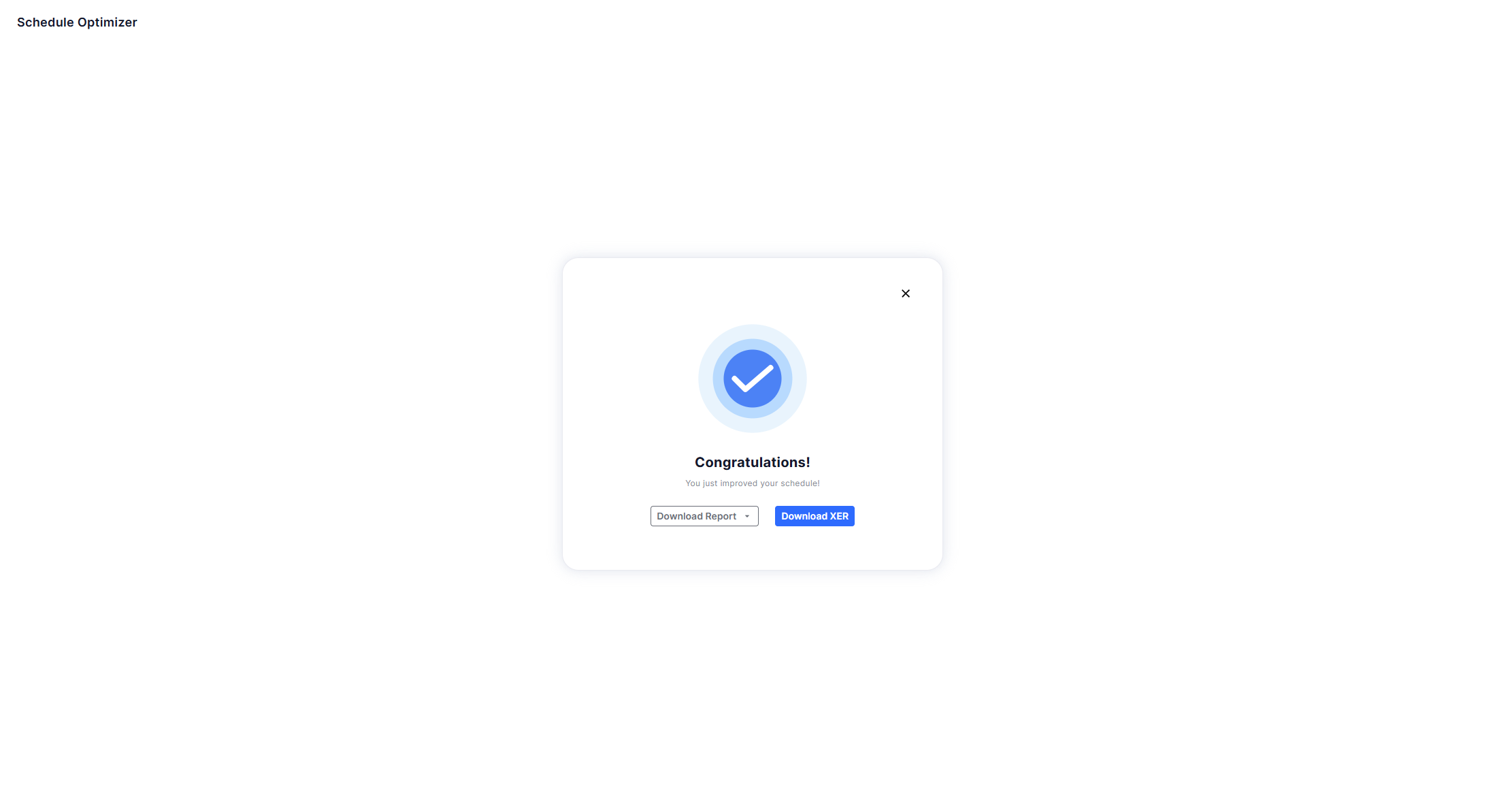
Once applied, the Congratulations screen lets you download the Report and the optimised XER. Your original schedule is never modified — the result comes back as a new schedule file.