
My Projects
Portfolio Projects
The Portfolio feature provides a consolidated view of all your projects within a higher-level portfolio structure. The Projects page gives you a color-coded, at-a-glance view of how every project in your portfolio is performing against your personal KPI thresholds.
This article will guide you through:
- Understanding the color coding on the Projects page
- How to set your personal KPI thresholds
- How to filter projects by KPI status
- How to filter projects by coordinator
- How to sort and navigate the table
- How to explore KPI trends in depth
- How to quickly navigate to individual projects
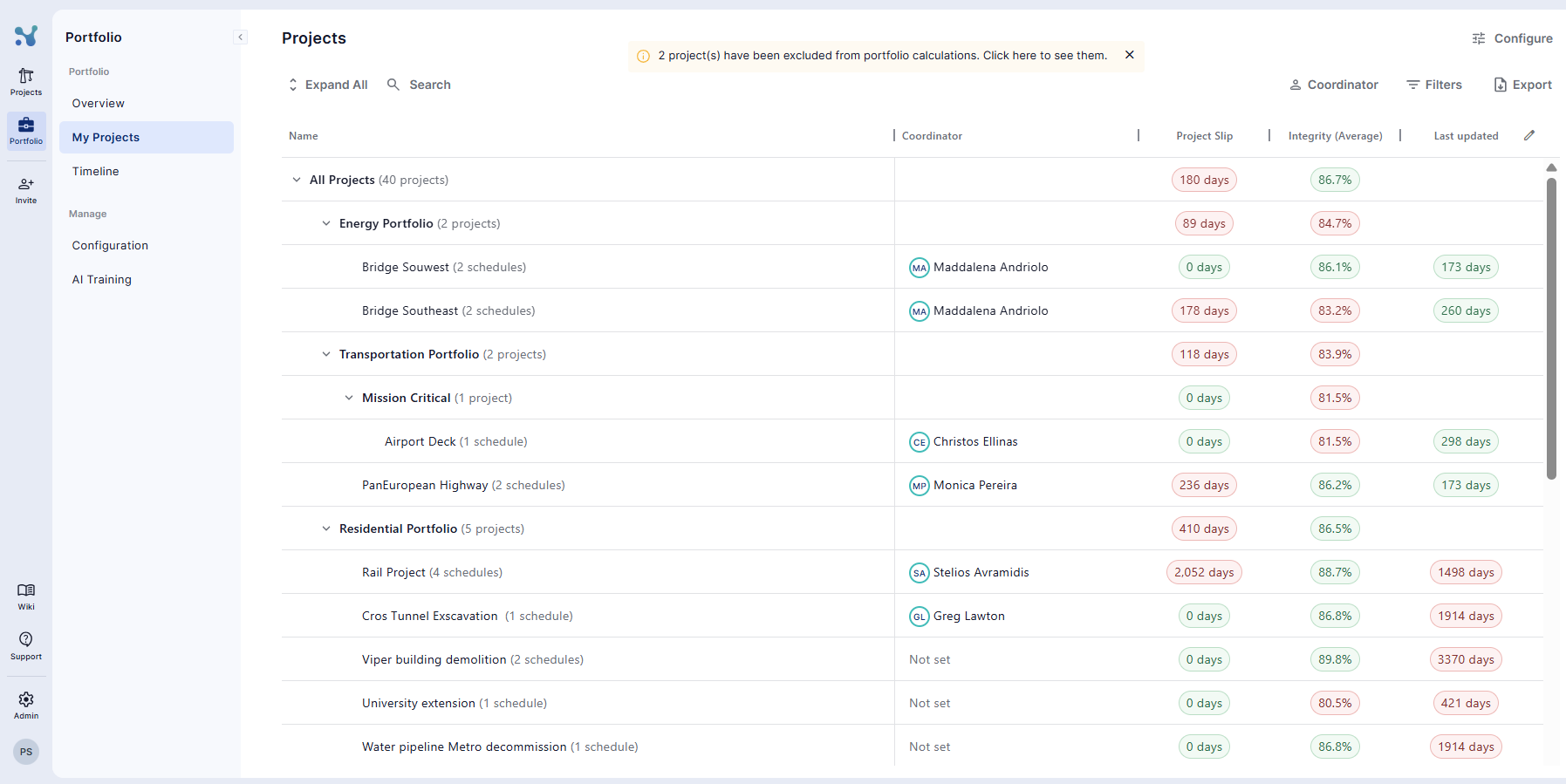
Color-coded KPIs
Every KPI value in the table is color-coded:
- Green: the project is performing within your personal threshold for that KPI
- Red: the project is breaching your personal threshold for that KPI
The thresholds that drive these colors are set individually per user in the Configure dialog (see Setting Your KPI Thresholds below). This means two users looking at the same portfolio may see different colors for the same data — what counts as acceptable for one person may not for another.
The Progress and Upload Date KPIs are not color-coded.
Setting Your KPI Thresholds
The colors, the KPI filters, and the Portfolio Overview widgets all depend on a set of threshold values that you control. Click Configure in the top-right corner of the page to open the Configure dialog, where you set the threshold for each KPI. These settings apply individually per user, so your thresholds affect only your own view.
For each KPI you set the value that separates passing (green) from breaching (red):
- Integrity (Average) – Minimum average success rate a project must reach across all active Integrity Checks to pass.
- Integrity (Cut-off) – Minimum percentage of activities that must pass all Integrity Checks for a project to pass.
- Integrity (Activity-based) – Minimum percentage of Integrity Checks that must fall within their defined success-rate thresholds for a project to pass.
- Cost Performance Index (CPI) – Minimum acceptable CPI (Earned Value ÷ Actual Cost).
- Last updated – Maximum acceptable number of days since the schedule's data date; projects older than this are flagged.
- Progress Variance – Maximum acceptable deviation from baseline progress.
- Project Slip – Maximum allowed project slip.
- Critical Path Length – Maximum acceptable critical path length.
- Milestones Delayed – Maximum number of delayed milestones allowed.
- Bookmarked Milestones Delayed – Maximum number of delayed bookmarked milestones allowed.
Click Apply to save your changes, or Reset Values to restore the defaults.
Default Columns and Customising the View
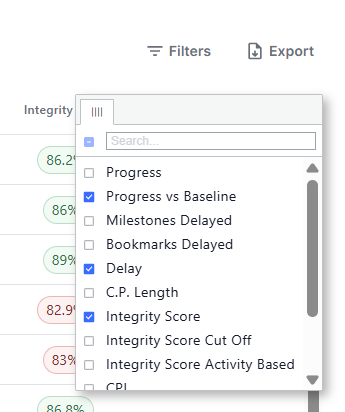
By default, the Projects page displays:
- Delay
- Integrity Score (Cut-off)
- Data Date
- Coordinator
To add or remove KPI columns, use the column selector at the top right of the page. The full list of available KPIs includes:
- Progress
- Progress vs Baseline
- Milestones Delayed
- Bookmarked Milestones Delayed
- Delay
- Critical Path Length (C.P. Length)
- Delay Trend
- Health Score
- Health Score Cut Off
- Health Score Activity Based
- Cost Performance Index (CPI)
- Data Date
- Last Updated
Columns can be reordered by dragging them, and the name column can be resized.
Filtering by KPI Status
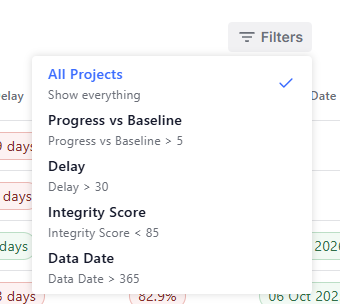
Every active KPI column has a filter option in its header. Clicking it opens a dropdown where you can choose to show only the projects that are failing that specific KPI according to your thresholds. The filter description displays the threshold value currently in use, so you always know the basis for the filter.
Filtering by Coordinator
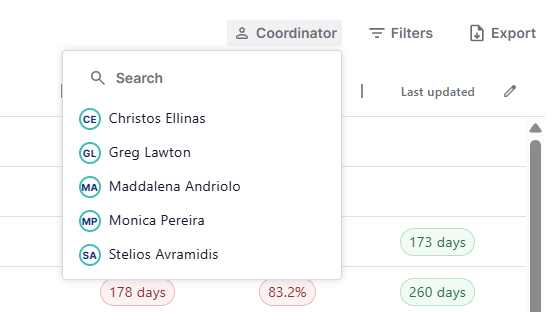
Each project row shows its assigned Coordinator (or Not set if none is assigned). Coordinators are assigned to projects in the Portfolio Structure page — see Portfolio Structure for how to set them up. To narrow the table to one person's projects, click Coordinator in the toolbar at the top of the page. A searchable dropdown lists every coordinator in the current portfolio context; pick one to show only the projects they coordinate. Clear the selection to return to the full list.
Sorting
Clicking any column header sorts the table by that KPI. Clicking the same header again reverses the sort order.
Sorting always respects the portfolio hierarchy, projects remain grouped under their parent program, and programs remain grouped under their parent portfolio, even as the order within each group changes.
Dedicated KPI Trend Exploration
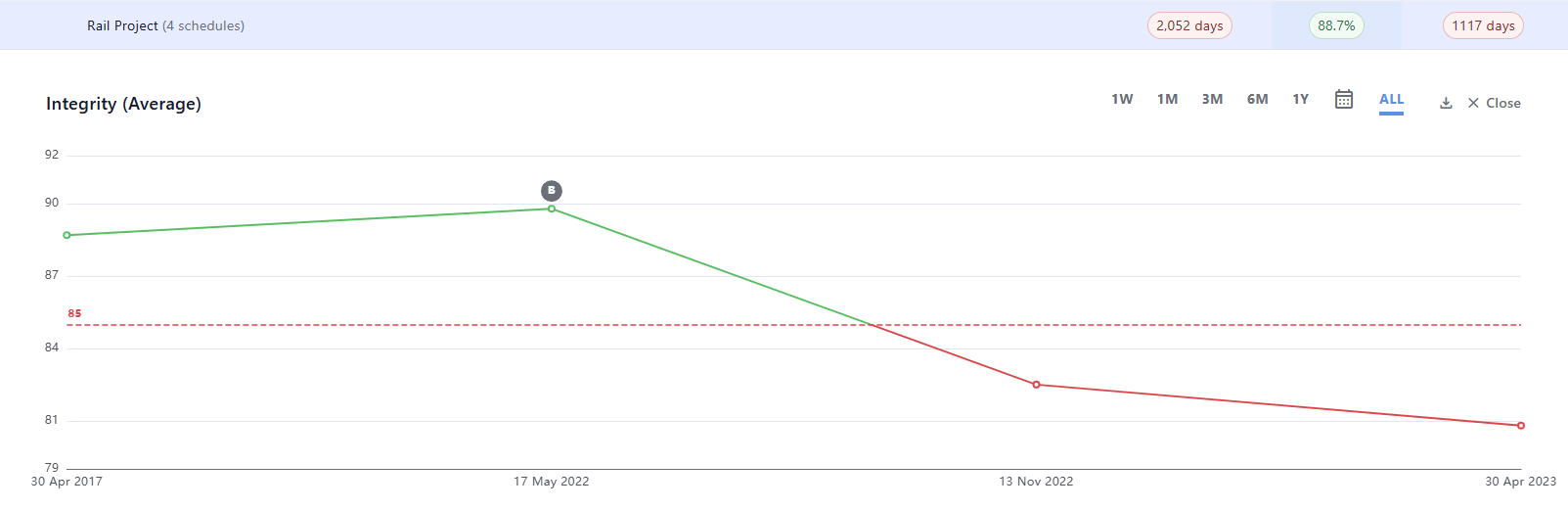
Understanding performance over time is crucial for successful portfolio management. On the Projects page you can dive deep into any project KPI with a single click.
When you click on any KPI value in the table, a trend histogram opens and shows the evolution of that KPI across all historical schedule versions for that project. This gives you immediate visual insight into how indicators such as Delay, Integrity Score, or CPI have changed over time.
From the histogram you can:
- Adjust the time range via the controls at the top right: 1W, 1M, 3M, 6M, 1Y, or ALL
- Export the histogram as an image for use in presentations or reports
Navigating to Individual Projects
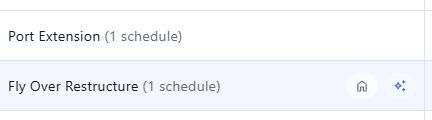
When you hover over any project row, two quick-access buttons appear:
- Home: opens the project's main dashboard in a new tab, giving you access to the full set of project-specific data, schedules, and updates
- Ask AI: takes you to AI mode for that project, where you will receive an AI-generated analysis of the selected schedule version
These shortcuts make it seamless to move from a broad portfolio view into a detailed project investigation with a single click.