Projects
You can view all projects uploaded to your N&L workspace in the Admin Tool by clicking Projects in the left navigation bar.
Each row is a project, and for each project, you can see useful information including
- Project Name
- Date it was first created on the Platform
- The Project Owner i.e., the user who created the project first
- Date the project was last viewed
- Who viewed it last time
- The last schedule upload for that project
- Who did that last upload
- The users who have access to that project
- The total number of schedule versions within that project
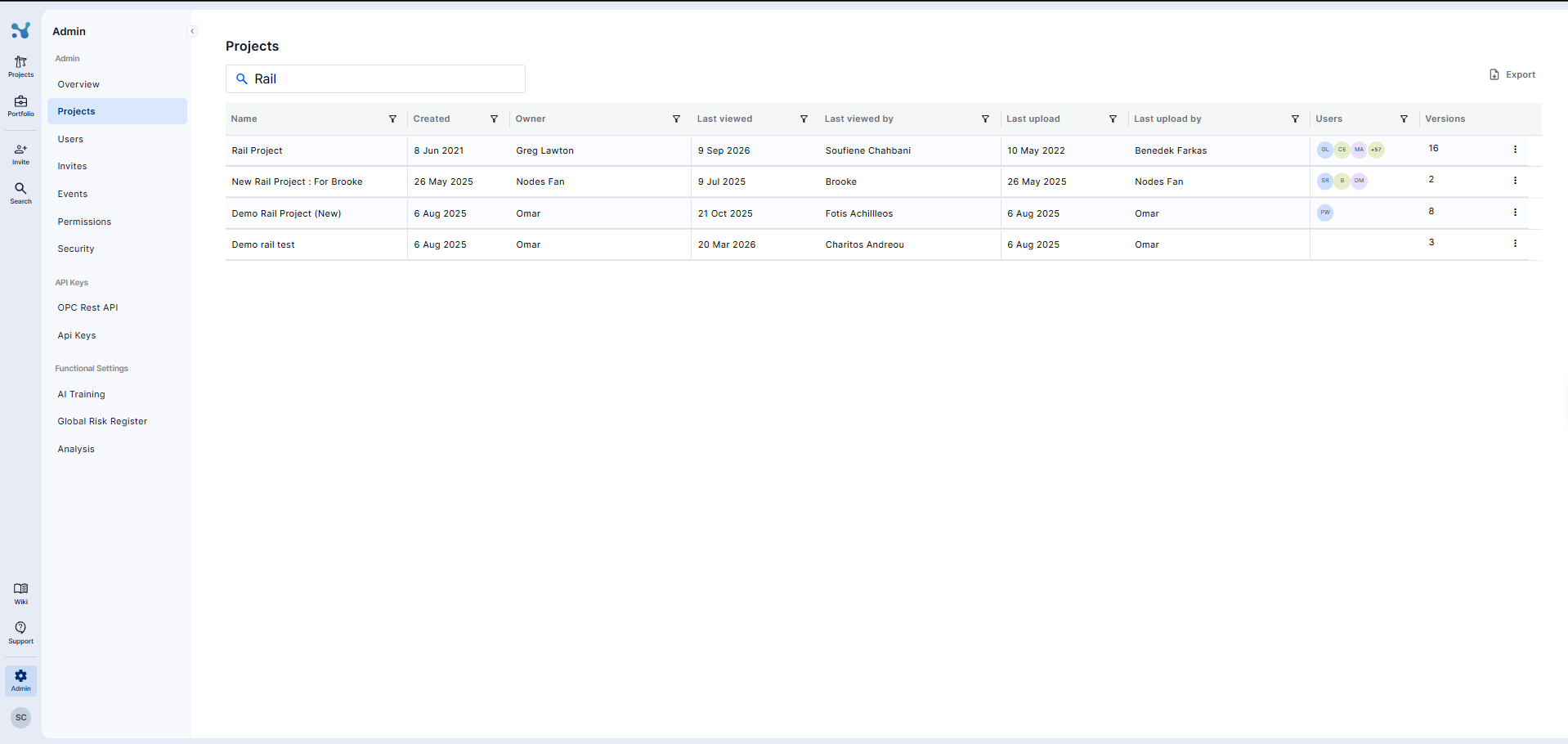
You can also export all the information for your records by using the "Export" button on the top right. You can use the search bar to search for a specific project, along with being able to filter and/or sort based on the information within any given column.
You can add or remove a user within a project, along with controlling the actions they can do by changing their platform role. You can also delete or rename any project.
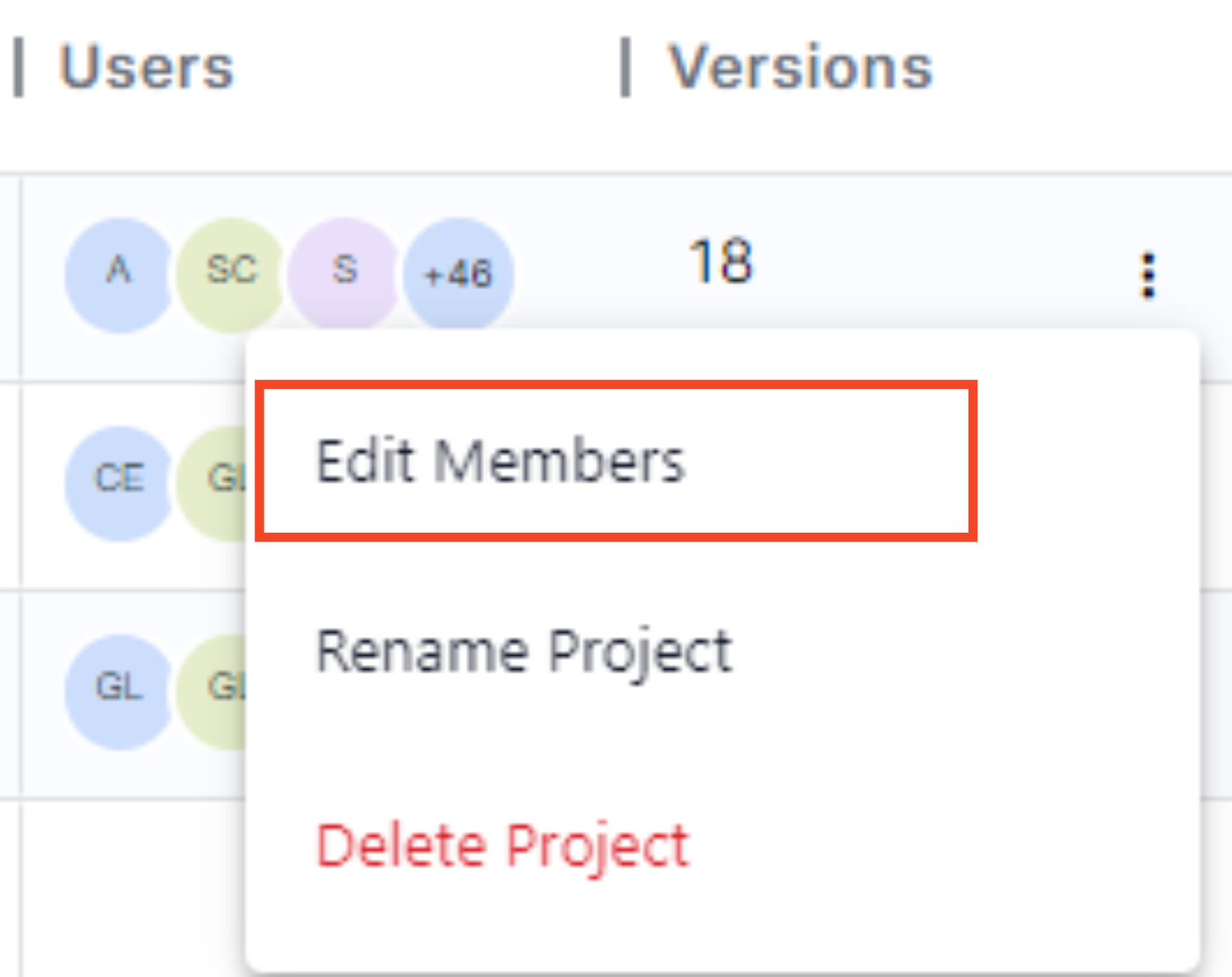
To Edit project members:
- Locate the project for which you wish to edit members.
- Click on the three dots next to the Versions column.
- Select "Edit Project Members" from the options.
- Add or remove users using the invite pop-up.
- Click on Update.
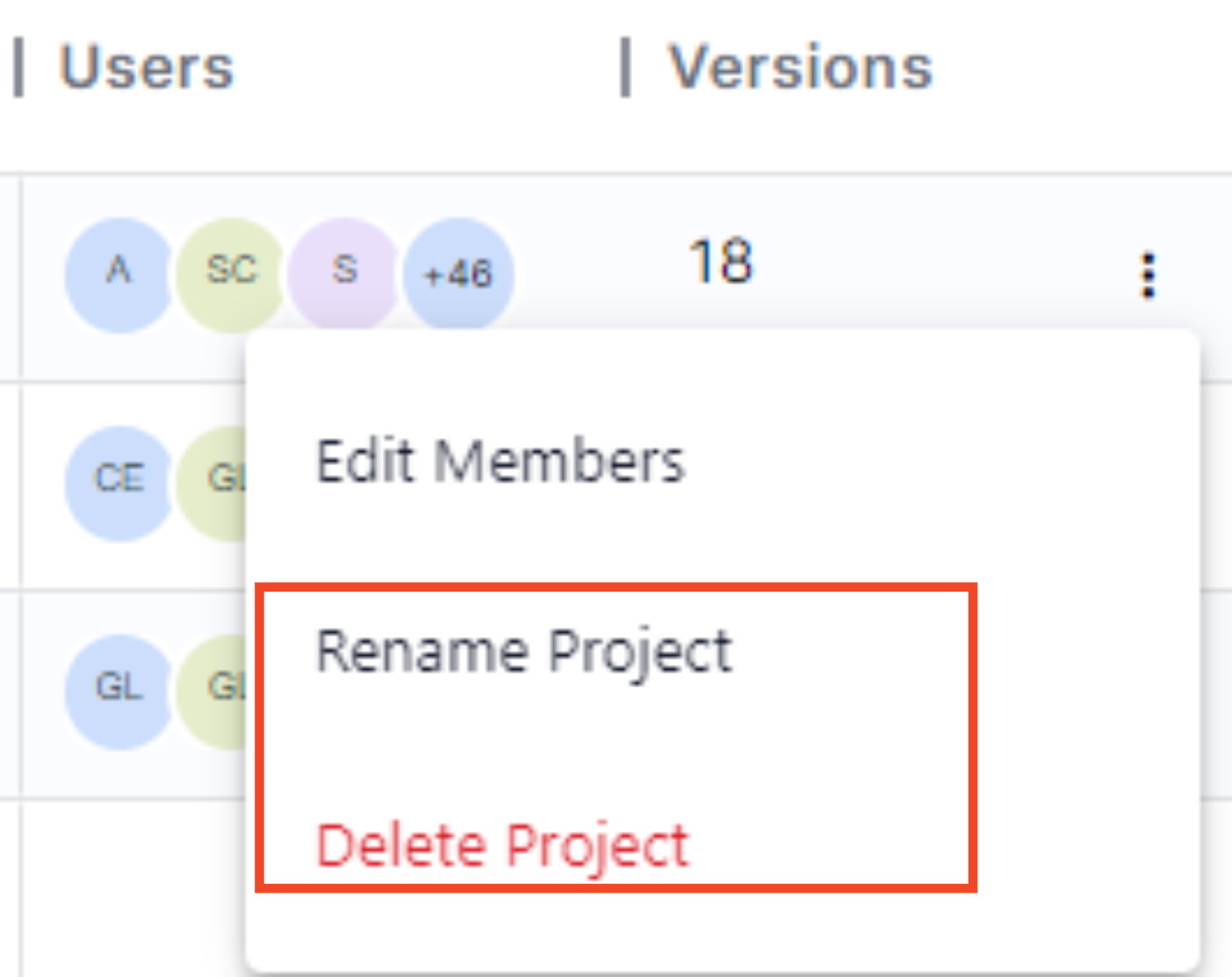
To Delete or Rename a project:
- Locate the project you wish to delete or rename.
- Click on the three dots next to the Versions column.
- Select "Delete Project" or "Rename Project" from the options.
- Confirm the deletion or enter the new project name and save the changes.
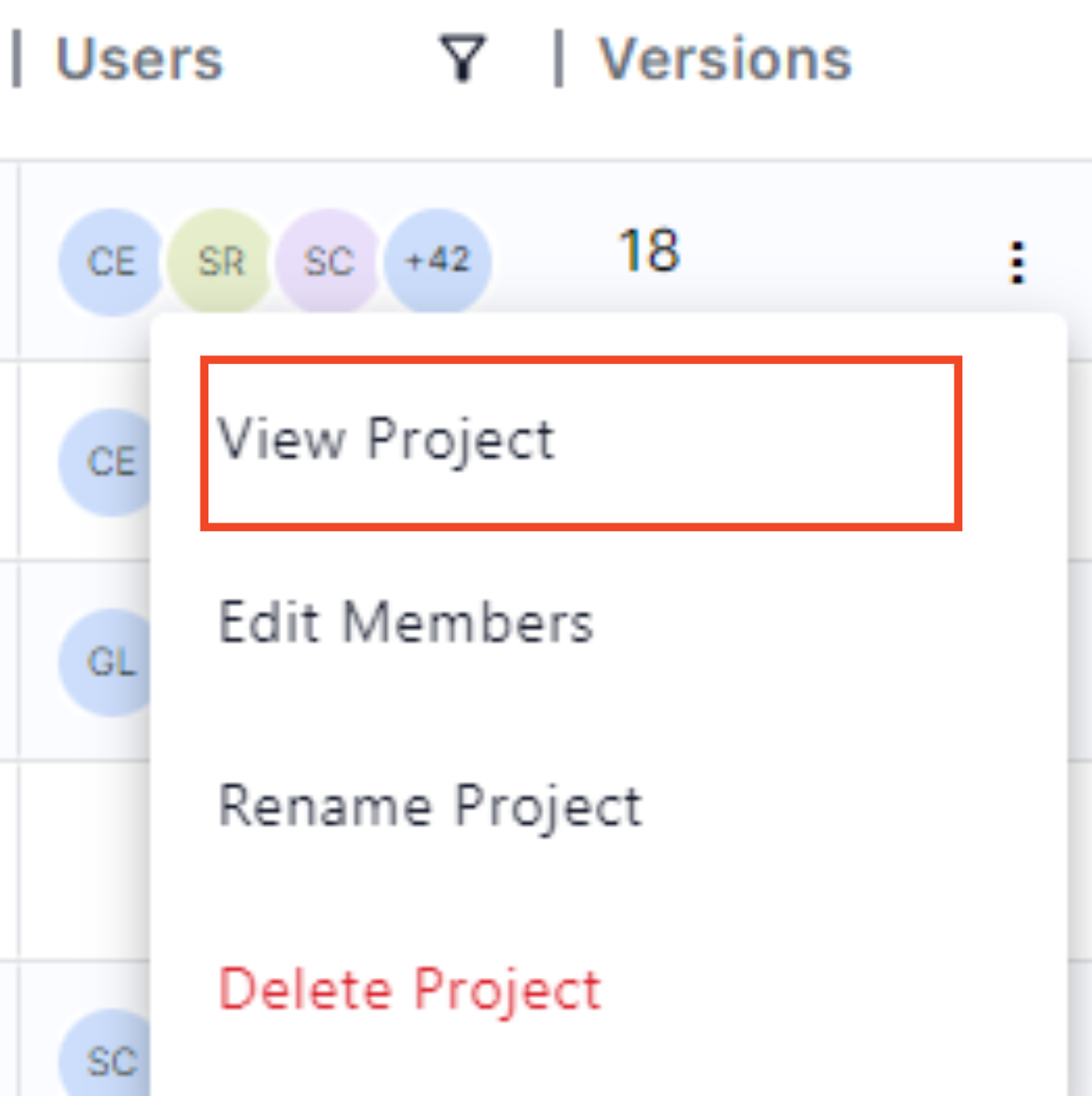
To Access a project:
- Locate the project you wish to access
- Click on the three dots next to the Versions column.
- Select "View Project"